Create a badge on Shopify and see it on your store
A badge is a small label that shows on your products, such as “Save 20%”. In this article you create a badge, choose the products it shows on and its position, then save it and see it on your store.
When to use this article
- You are creating your first badge in your Shopify store.
- You want a badge that shows the sale percentage or the stock left by itself.
Before you start
- You turned on the app embed in your theme.
- For a badge that shows the sale percentage or the amount saved: the product has a compare-at price in Shopify that is higher than the selling price. Without it there is no discount to show.
Create the badge
- In the app menu, click Create a badge. You also find it on Home as Create a new badge, and in Manage badges as Create badge.
- Type a name in Name:.
- On the Design tab, choose the Badge type: Text badge or Image badge.
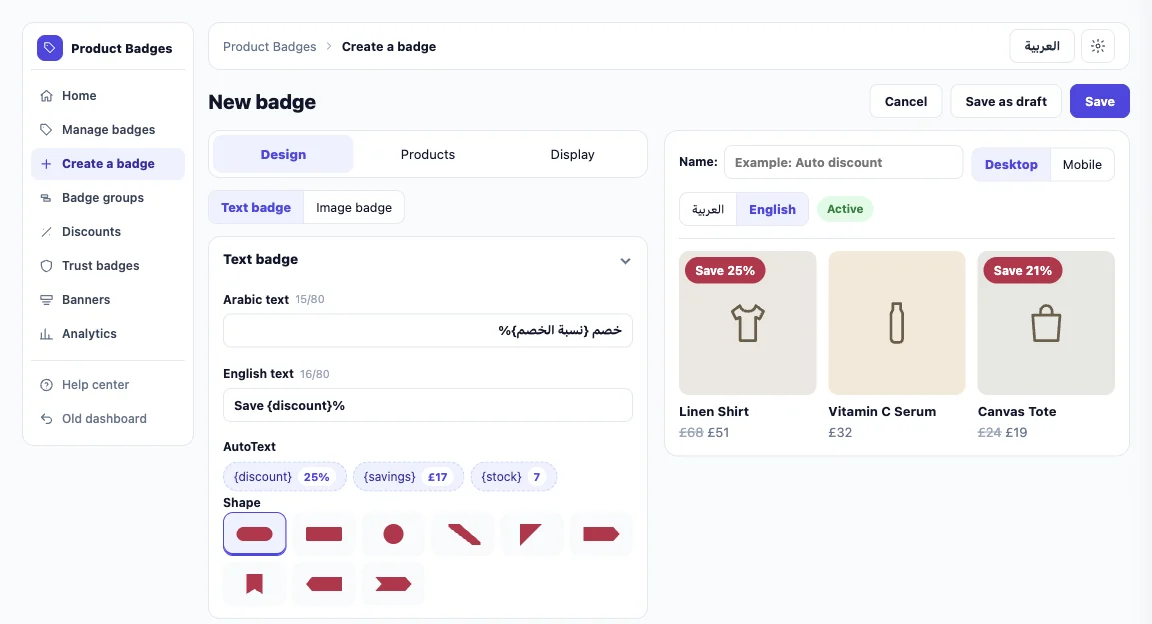
Choose the badge text or image
Text badge
Type the text in Arabic text and English text. The store shows the English text to a shopper browsing in English, and the Arabic text to a shopper browsing in Arabic. For a shopper browsing in another language, the badge uses the text for your store’s main language (English or Arabic) if you wrote one, and the Arabic text otherwise. If you want the same text for every shopper, type it in both fields.
You can set the shape, colours, font and size in Colours and fill and Font and look.
Dynamic text (sale percentage and more)
Under the two fields are AutoText buttons. Click one to add it to the text at the cursor:
| Button | What shows |
|---|---|
{discount} | The sale percentage, such as 20 |
{savings} | The amount saved, in the product’s currency, such as £17 |
{stock} | The units left |
The default English text is an example: Save {discount}%.
A badge whose text cannot be filled for a product is not drawn on that product at all:
{discount}and{savings}need a compare-at price higher than the selling price. A product with no compare-at price does not get the badge.{stock}needs the product to track inventory in Shopify. A product that does not track inventory does not get the badge.
Image badge
Choose Image badge, then in Pick from the library search for a badge by name or type, open My designs, or click Upload yours to upload your own image.
Choose the position
In the Position section of the Design tab:
- Badge placement: On the product image or Below the product image.
- Position: pick from the grid, such as Top start or Bottom end. For fine control choose Adjust position manually.
Choose the products
On the Products tab, under Apply badge to, choose:
| Option | What happens |
|---|---|
| All store products | The badge shows on every product. |
| Products I pick | You search for products by name or SKU and pick them. |
| Whole collections | You pick collections from your store. New products in a chosen collection get the badge within an hour. |
| By conditions | The badge shows on products that match your conditions: On sale, Discount %, Price range, Product name, Sold out and more. The conditions are checked again whenever the price or stock changes. |
You can also exclude products or collections.
The conditions Tag, Low stock, New and Best seller rely on a copy of your product data from Shopify. After you install, the copy can take a little while to fill, so these conditions can match fewer products at first.
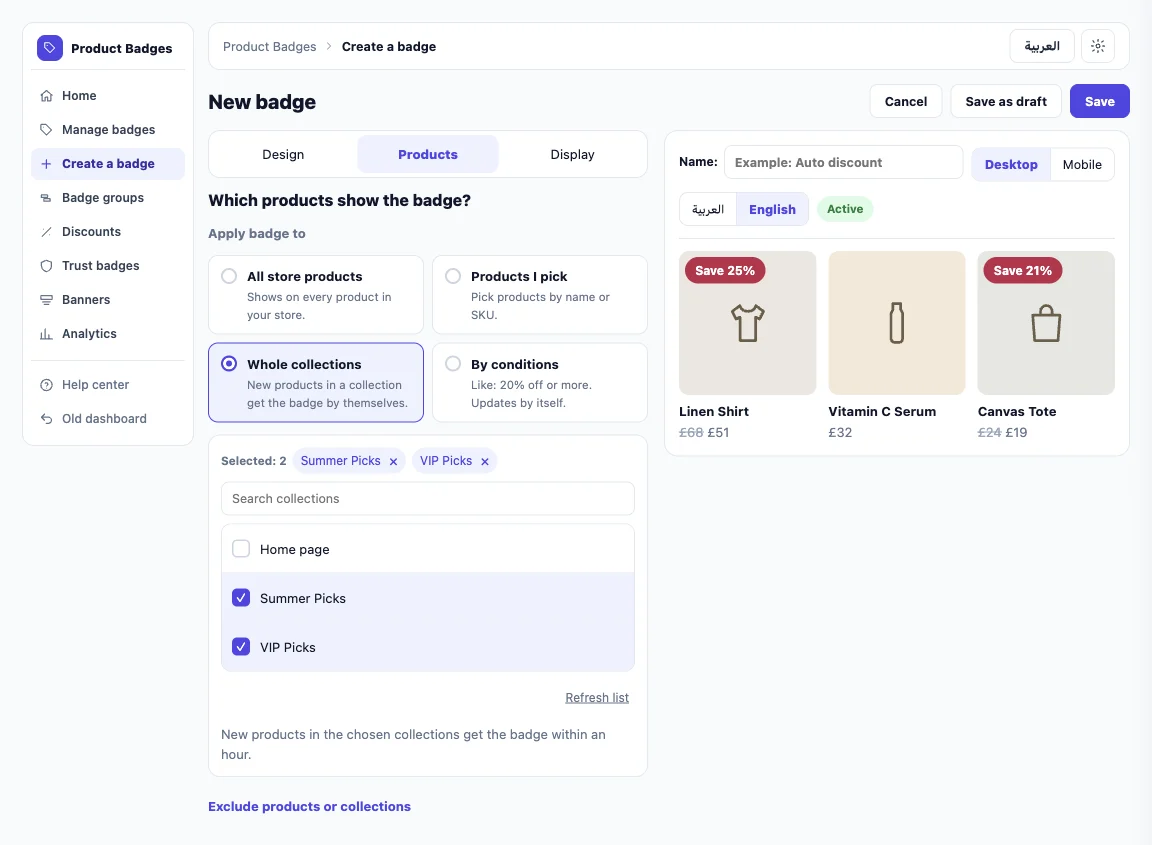
Choose where it shows
On the Display tab choose the Page display (Product page, Collection page, Home page, Search page, Cart page) and the Device display (All devices, Desktop, Mobile). Pick at least one page and at least one device.
Under Store languages, choose All languages to show the badge in every language on your store, or Custom languages to show it only when the shopper picks one of the languages you select. Store languages depend on your plan.
Save the badge
- Click Save to show the badge on your store. The message reads Saved. The badge shows on your store within minutes.
- Or click Save as draft to keep it without showing it. The message reads Saved as a draft.
If the message reads Saved. Not shown on your store yet: new badges will appear there once they go live for your store., new badges are not turned on for your store yet. Your badge is saved and will show once they are.
See the badge on your store
- Wait a few minutes after saving.
- Open a product page the badge applies to in a private browsing window.
- If it does not show, see If badges do not show.
Check that everything works
- In Manage badges the badge shows as Active, and its row names what it targets, such as All products, On sale or the conditions you chose.
- The badge shows on the products you picked and on the pages you chose.
- A sale percentage badge shows only on products that have a compare-at price.
Related articles
Did this article answer your question?