Discounts on Shopify: automatic and code, with a badge
From the Discounts page in the app you create an automatic discount or a discount code that is created in your Shopify store itself, then create a badge that announces it on its products. The discounts are Shopify automatic discounts and discount codes that the app creates and keeps in sync.
When to use this article
- You want a discount on products or collections in your store, and a badge that announces it.
- You want to know where the discount lives and what happens to it when you uninstall.
Before you start
- You installed the app and turned on the app embed. See Install Badges on Shopify and turn on the app embed.
- You do not need to create the discount in Shopify first. The app creates it in your store.
Choose the discount type
- In the app menu, open Discounts.
- Click Create campaign (or Create discount if you have no campaigns yet).
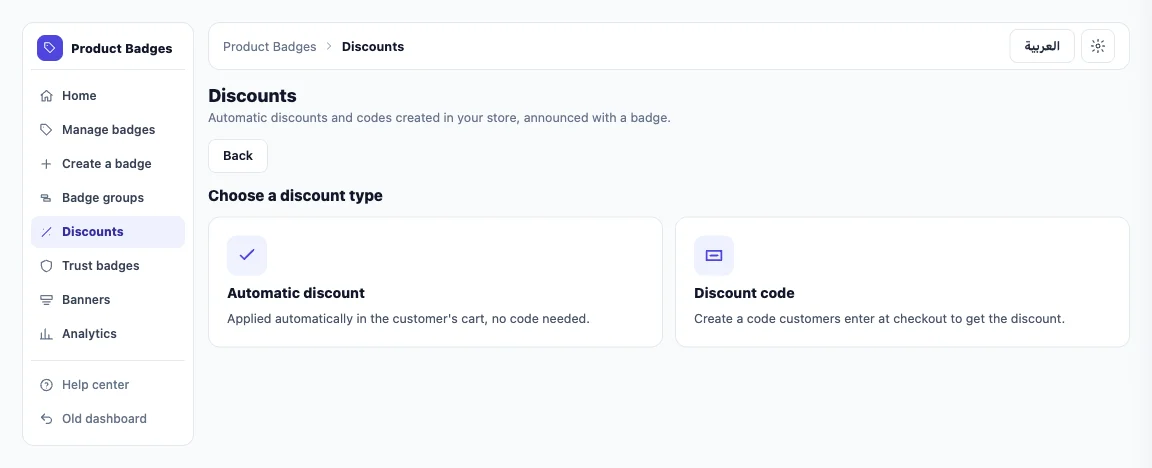
- Under Choose a discount type, choose:
- Automatic discount: applied automatically in the customer's cart, no code needed.
- Discount code: a code customers enter at checkout.
Set up the discount
In the editor:
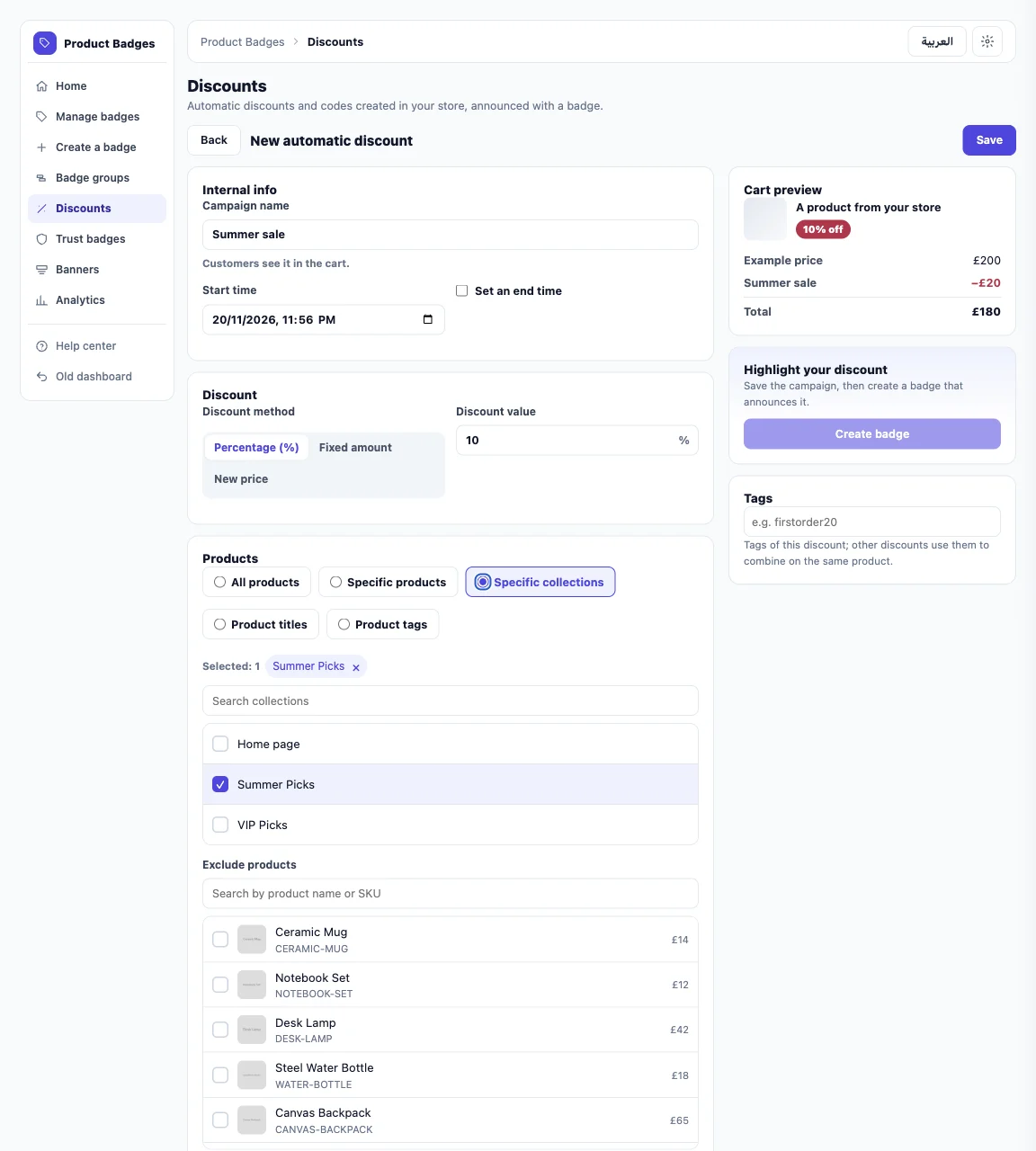
- Campaign name: customers see it in the cart.
- Start time: the default is when you save. Click Set an end time if you want an end, then enter the End time. The end must come after the start.
- For a discount code: type the Discount code or click Generate a random code. If another discount uses the code, a message tells you.
- Choose the Discount method and enter the Discount value:
- Percentage (%).
- Fixed amount: taken off each item or once per order. Under Apply the amount, choose To each item or Once per order. With Once per order, the amount is split across the discounted items in the cart, so product pages show no new price.
- New price: products sell at this price, and products already at or below it are skipped. Shopify has no new-price coupon, so the app creates one fixed coupon per current price, up to a limit the editor shows.
- Under Products, choose what the discount applies to: All products, Specific products, Specific collections, Product titles or Product tags. You can also Exclude products. Targeting by titles and tags relies on a copy of your product data from Shopify. If your store sells subscriptions, an Applies to choice also shows: One-time purchases, Subscriptions or Both.
- Choose the Minimum purchase: No minimum, Minimum purchase amount or Minimum quantity of items. The discount applies once the cart reaches this minimum.
- Click Save. The message reads Discount saved. You can now create a badge for it.
Cart preview on the side shows how the discount looks in the customer's cart.
After you save, the campaign shows in the Discounts list as Active, Scheduled, Inactive or Ended. If it shows Syncing, the app is creating the discount in your store. If it shows Not accepted by the store, try again shortly. You can turn any campaign on or off from the list.
Create a matching badge
After you save the discount, in Highlight your discount click Create badge. The app creates a text badge as a draft:
- Its name is the campaign name, and its text reads like “20% off” in English and the Arabic equivalent.
- It targets the same products, collections, tags or titles you chose for the discount.
- It takes the same schedule as the discount.
The badge is a draft and does not show on your store until you open it and click Save. Click Open the linked badge to edit its design. See Create a badge on Shopify.
Combine the discount with others
Under Combinations, choose the discounts that can combine with this one in the customer's cart: Product discounts, Order discounts or Shipping discounts. The count button next to each type lists the discounts that allow it.
Combining on the same product is available on Shopify Plus stores only. On other stores one discount applies to a product.
Where the discount lives
- The discount is created in your Shopify store, and you find it on the Discounts page in your Shopify admin.
- If you delete the campaign in the app, the discount is deleted from your store and stops applying to new orders.
- When you uninstall the app, the discount stays in your store. Shopify cuts the app's access at uninstall, so we cannot delete the discounts we created. They stay until you delete them or they end on their own. See Uninstall, your data and privacy requests on Shopify.
Check that everything works
- The campaign shows in the Discounts list as Active.
- On your store, put a product that the discount applies to in the cart. The discount shows in the cart; for a code, enter the code at checkout.
- The linked badge shows on the products once you save it.
If something goes wrong
- Not accepted by the store: try again shortly. If the message stays, write to [email protected].
- A message saying your products are not synced yet: the discount is saved, and the app creates the coupon once the sync completes.
Related articles
Did this article answer your question?