Mirror the print file for sublimation and heat transfer
Turn on mirroring if your print shop prints with sublimation or heat transfer.
Steps
Path: Order output > Open print editor > Where does the design print? > Mirror the file (for sublimation & heat transfer)
-
Open the print editor for your product. See how in Set the design size and position on the print sheet.
-
Under Where does the design print?, turn on Mirror the file (for sublimation & heat transfer) below the design positions.
"Sublimation and heat transfer: the paper is flipped onto the product, so the file must be mirrored." "UV, direct print and DTF: don’t mirror." Not sure which method your print shop uses? Click ? next to the switch, or ask your print shop.
-
Look at the print sheet. The items show mirrored, and the sheet shows Mirrored for print.
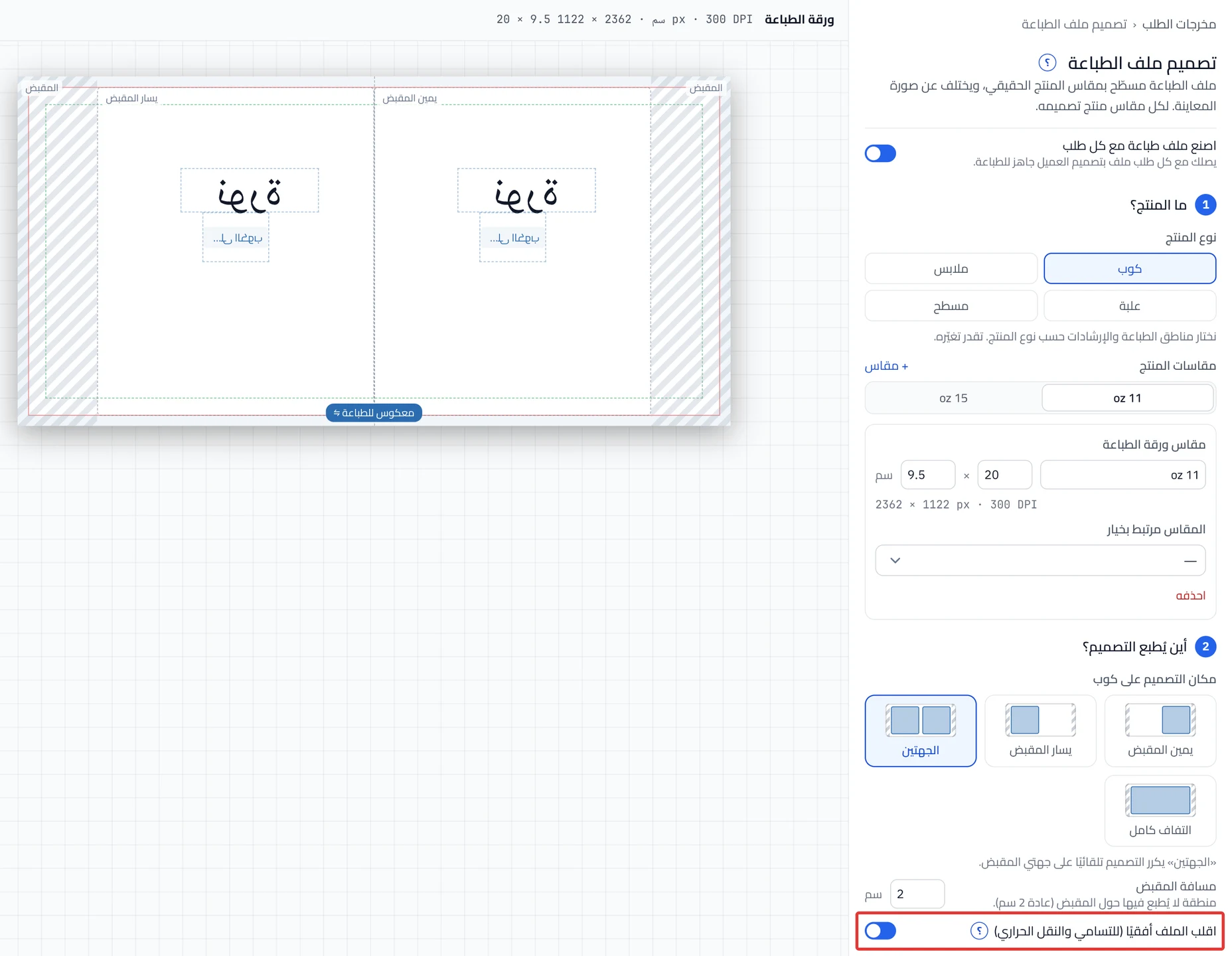
What your customers see
The whole print file is mirrored horizontally. The preview is not mirrored, so customers see their design as it is. The change applies to orders after you click Publish now.
Good to know
- One switch covers all the product's sizes.
- The switch starts on for Mug and Apparel, and off for Box and Flat.
- For apparel, check the switch before you publish: "DTF and DTG are not mirrored; sublimation is."
Not showing?
- Cannot see the switch? It is under Where does the design print?, below the design positions.
- The switch changed by itself? Choosing a type under What’s the product? resets it to that type's starting setting. Turn it on or off again.
- The print came out mirrored by mistake? "Not sure? Ask your printer about “mirror”."
- If the problem continues, contact support. See how in Contact support and send what helps us solve it.
Next
Did this article answer your question?