Find orders ready to print and mark them as printed
Orders waiting to be printed are in the To print tab. After you print them, click Mark as printed.
Steps
Path: Customization orders > To print
- Click Customization orders in the side menu. The page opens on the To print tab.
- Optional: choose another tab: Needs attention, Printed or All. Each tab shows its number of orders.
- Optional: enter the order number or the customer's name in the search box.
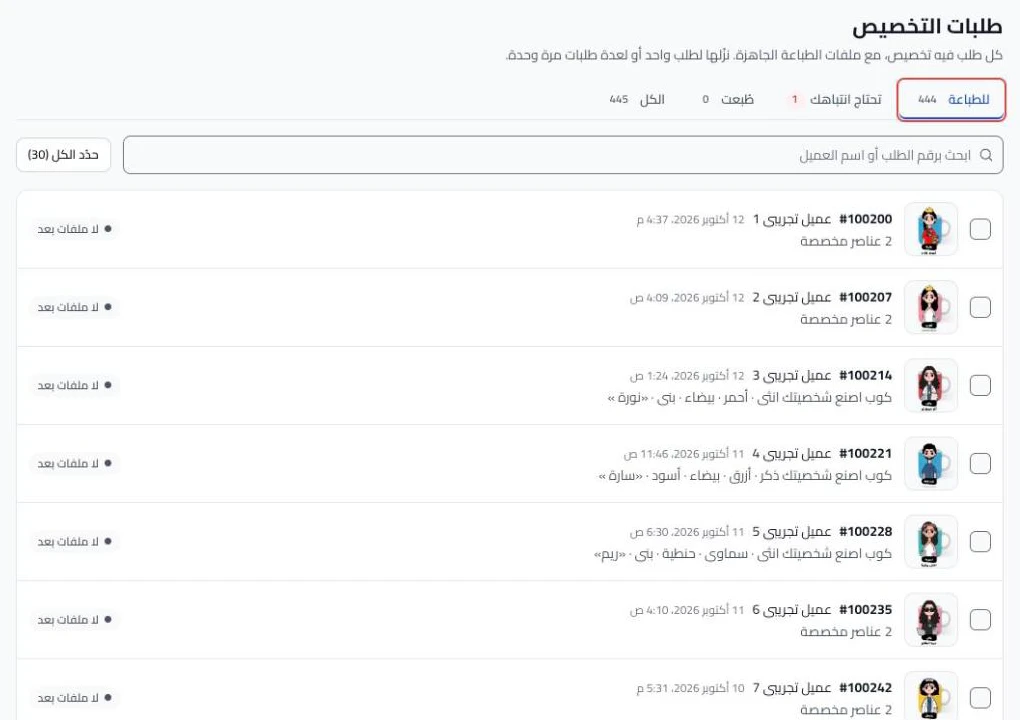
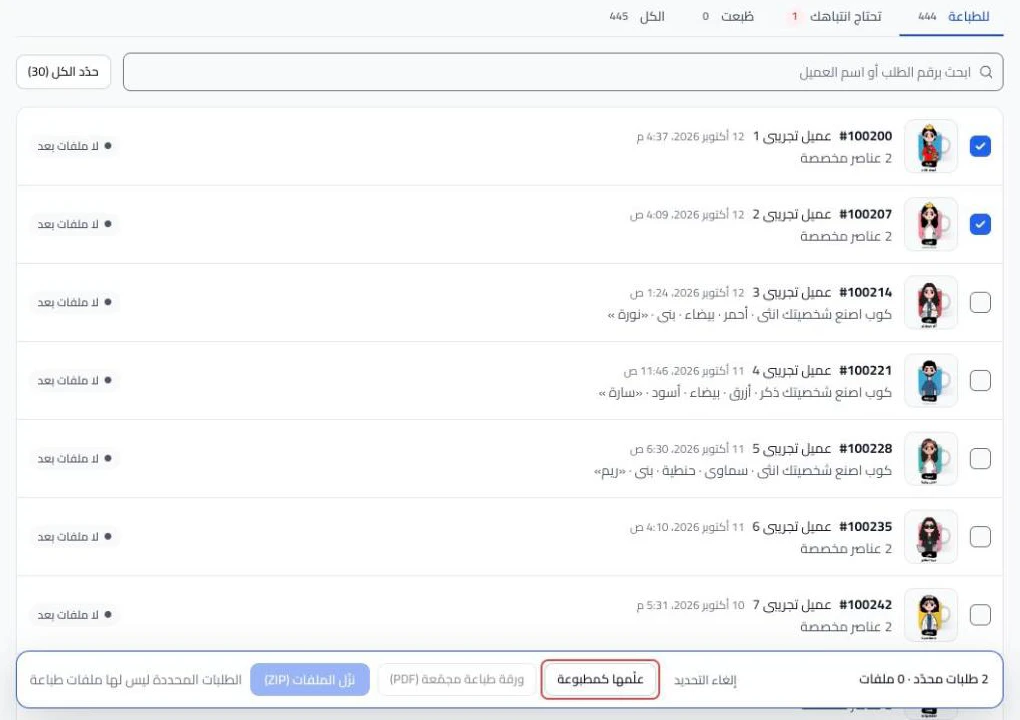
- Select the checkbox of each order you printed. A bar appears at the bottom of the page.
- Optional: click Select all to select every order in the tab. The number of orders shows next to it.
- Click Mark as printed in the bar.
What your customers see
The Customization orders page is in the app dashboard. Customers do not see it. After you click, the orders leave To print and move to Printed. A message shows how many orders you marked, with an Undo button that removes the mark.
Good to know
- Select 50 orders or fewer. With more, the buttons stop working.
- Marked an order by mistake? Select it in Printed and click Unmark printed. This moves it back to print.
- You cannot select an order that was canceled in Salla.
Not showing?
- Cannot find the order in To print? Look for it in Needs attention, Printed or All.
- Did the message "We couldn’t update the print status. Try again." appear? Click Mark as printed again. Still showing? Contact support and send what helps us solve it.
- Does the order show Print file is off for this product? Turn on Make a print file with each order for this product in the Studio and publish. Then open the order and click Create print files. Details in Print file design settings and The print file was not created or will not download.
Next
Did this article answer your question?