The print file was not created or will not download
Open the order in Customization orders and read the message under Print files.
What you see
- On the order page, the message Couldn’t create the print file.
- Or the order status No files yet.
- Or Couldn’t create the file next to the order in the list.
- Or, when you download: "The print file isn’t available. Create it again from the order page."
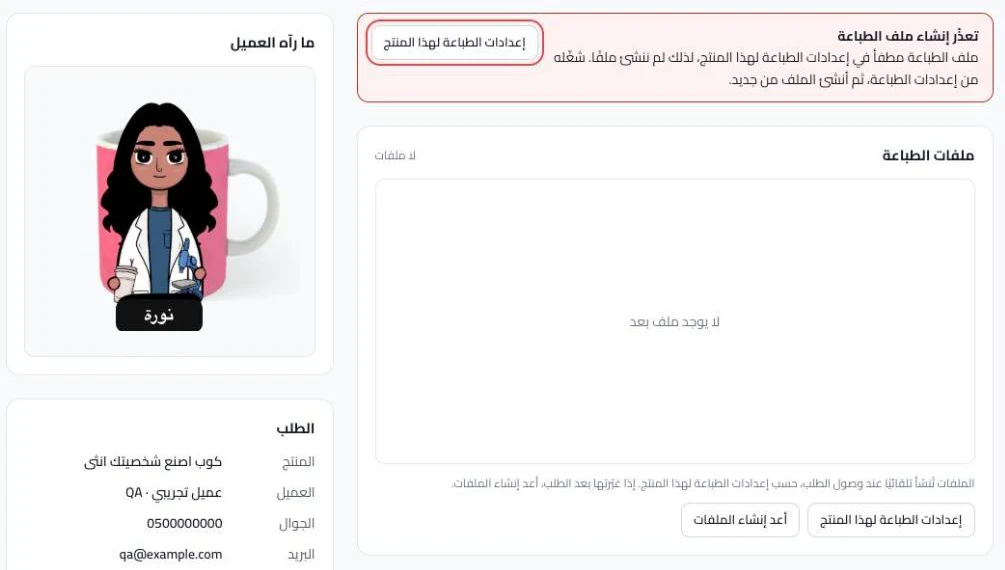
Most likely cause
The print file is off for this product, or no file has been created for this order yet.
Fix
1. Turn on the print file for the product
If the message says "The print file is switched off in this product’s print settings…", click Print settings for this product. In Order output, click Open print editor and turn on Make a print file with each order. Then click Review & publish and Publish now. Go back to the order and click Create print files or Try again. The switch is explained in Print file design settings.
2. Create the file from the order page
If you see No files yet, click Create print files. If you see Couldn’t create the print file, click Try again. If you see "Couldn’t create the PDF. Regenerate the files.", click Regenerate files. If you see "We’re already preparing this order’s file. Try again in a few minutes.", wait a few minutes, then try again. The order page is explained in Check a customized order before you print it.
3. The download does not finish
If you see "The selected files are over the download limit…", choose fewer orders and download them in batches. If you see "We couldn’t read the print file. Try again in a little while.", wait a moment, then download again. If you see "The print file is over the download limit. Contact support.", contact us. The download steps are in Download print files for one order or many.
Still stuck?
Click Contact support in the Studio and send us:
- The order number.
- The text of the message you saw.
- A screenshot of Details for support on the order page.
Did this article answer your question?