Print file design settings
Path: Order output > Open print editor
The editor has the settings panel, and in the middle the Print sheet as it will print. Your changes are saved as a draft. Your store does not change until you click Publish now. You find each order's files in Customized orders and print files. All the guides are in Every setting explained and what the words mean.
Print file design
The editor's heading, with a "?" next to it. The print file is a flat sheet at the product's real size. It is not the same as the preview image. Each product size has its own layout. Under the heading is the Make a print file with each order switch. On: you can create a file with the customer's design for each order. Open the order, then click Create print files. Off: orders come without a file, and your settings here stay saved.
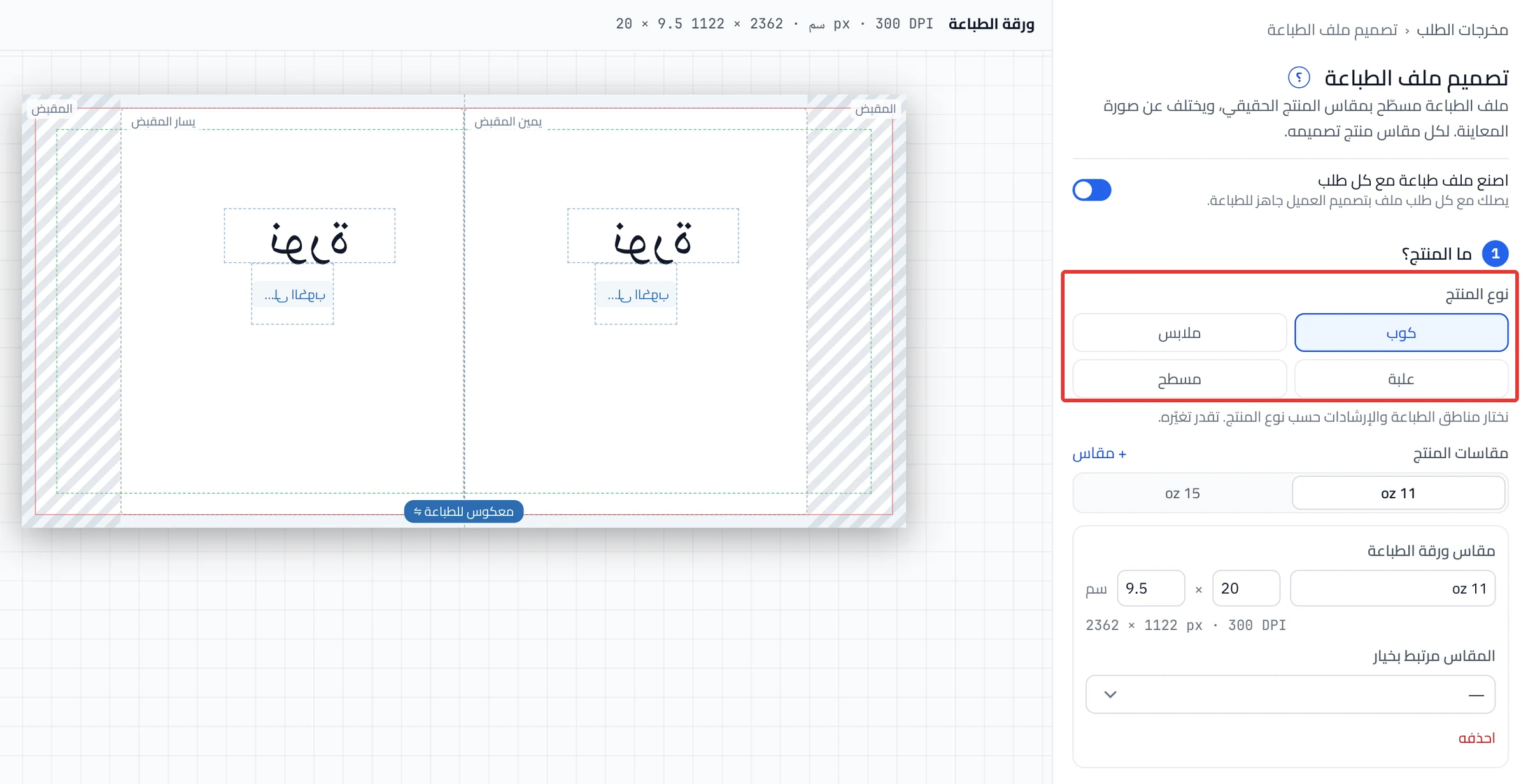
What’s the product?
The first step. Under Product type, choose Mug, Apparel, Box or Flat. Product Studio picks the print areas and guides for that type. Changing the type resets the sizes, the placement and the other settings to that type's values.
Product sizes
One tab for each size of your product, such as a small mug and a large mug. Click + Size to add a size. Each size has its own sheet and layout.
Print sheet size
The size name, then the sheet's width and height in centimeters. Under it is a line with the size in pixels at 300 DPI. Click Delete to delete this size.
Size linked to option
A list that links the size to an option in your product, such as the size option the customer chooses. It shows only if the product has an option that can be linked.
Where does the design print?
The second step. Choose where the design goes on the product, such as Front for apparel or Both sides for a mug. On a mug, Both sides repeats the design on each side of the handle.
Handle gap
Mugs only. The space around the handle where nothing prints, in centimeters. Usually 2 cm.
Mirror the file
The Mirror the file (for sublimation & heat transfer) switch in the second step, with a "?" next to it. Turn it on for sublimation and heat transfer, because the sheet is flipped onto the product. Do not turn it on for direct printing, UV or DTF. Not sure? Ask your print shop. After you choose the product type, check this switch against your printing method. When it is on, the sheet shows a "Mirrored for print" tag.
Check the sheet
The third step. A summary of what Product Studio puts in the file: the size, the number of items and where they go. Under it, the Advanced adjustments button opens the rest of the settings on this page.
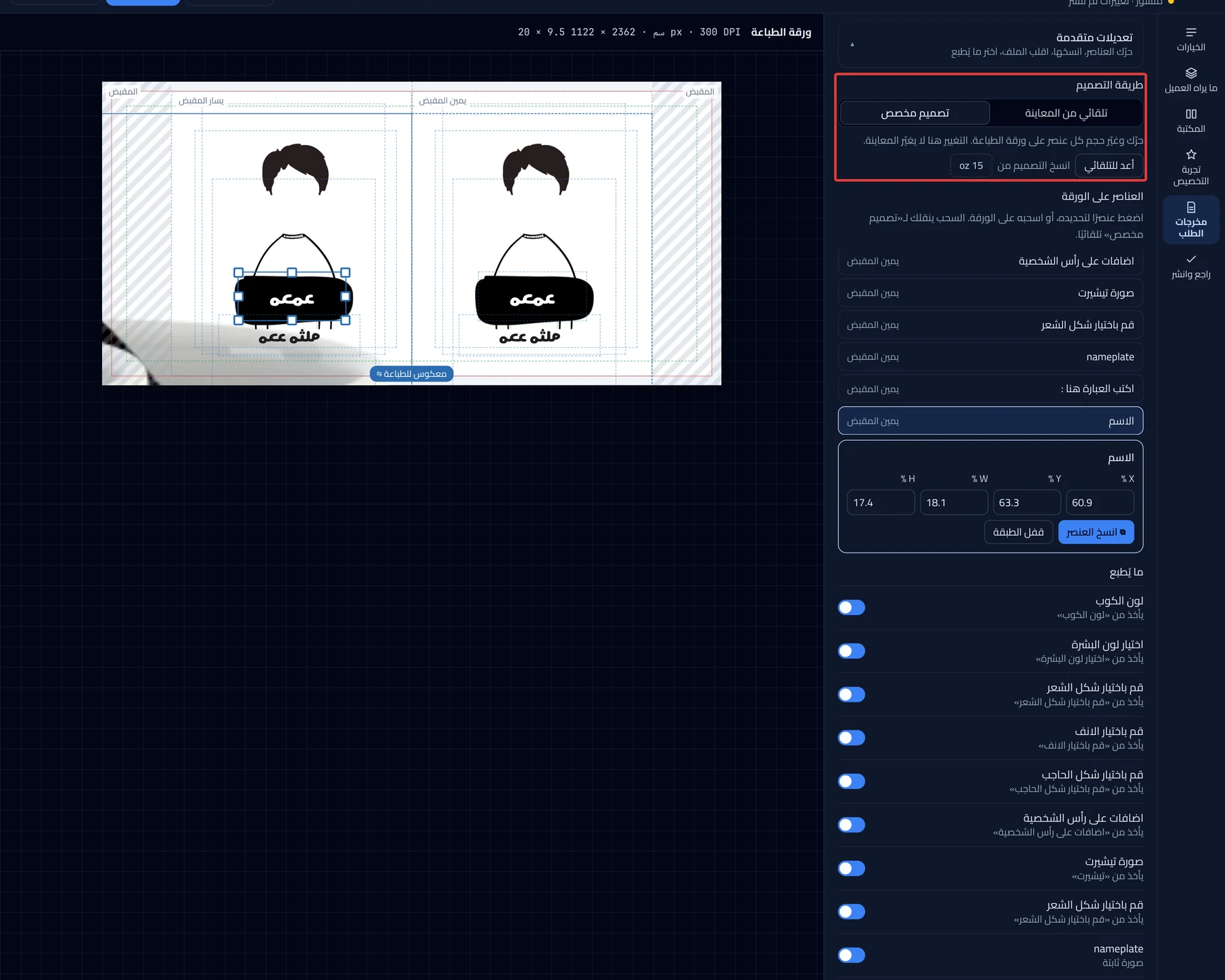
Layout mode
Inside Advanced adjustments. It has two modes:
- Auto from preview: Product Studio builds the file from the preview spots.
- Custom layout: you move and resize each item on the sheet, and the preview does not change.
If "Auto files aren’t available yet." appears, choose Custom layout. Dragging an item on the sheet switches you to Custom layout.
Reset to auto
Shows in Custom layout only. It puts the sheet back to the automatic layout from the preview.
Copy layout from
Shows in Custom layout when the product has two sizes or more. Click a size name to copy its layout to the size that is open.
Items on the sheet
A list of every text and picture on the sheet. Click an item to select it, or drag it on the sheet. The selected item has boxes for position and size in percent, and a Duplicate item button. Click Lock layer to keep the item in place, and Unlock layer to edit it. An item that shows only under a condition has a "conditional" tag.
What gets printed
A switch for each item in the product. Turn it off if the item is for the preview only and you do not want it printed. Under each item is its source, such as Fixed image.
Show bleed and safe area
The last switch in Advanced adjustments. It draws the bleed and the safe area on the sheet. The bleed gets trimmed off, so keep text inside the safe area. The switch is for viewing only and does not change the file.
Printing tips for this type
A closed section at the bottom of the editor. Open it to see tips that change with the product type.
Did this article answer your question?