Option settings in Product Studio
Path: Products > Open Product Studio > Options
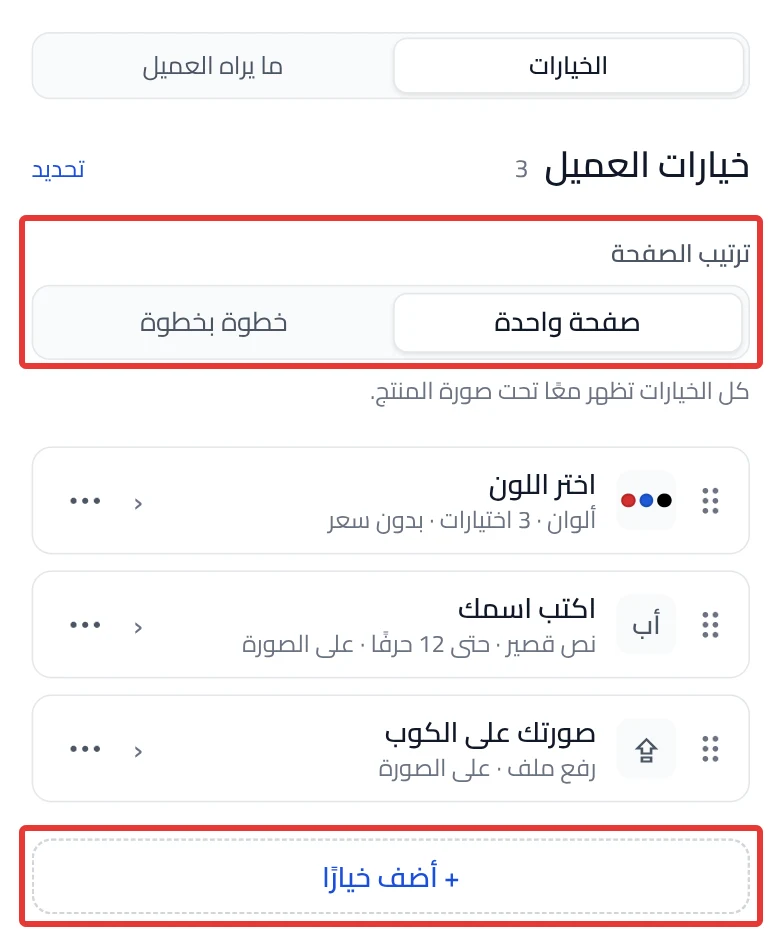
At the top of the panel is the Customer options list. Click any option to open its settings.
Page layout
Choose One page to show all options together under the product photo. Choose Step by step to take the customer through the options one step at a time. This setting appears after you add your first option. If a message asks you to delete the steps, delete them, then choose One page.
Add option
Click Add option under the list to add a new question for the customer. An empty list shows "Add your first option to see it here". In Step by step, this button does not show. Click Add option here inside the step.
What does the customer choose?
This screen appears after Add option. It has 4 groups: Picks from a list, Types text, Changes how the text looks, Uploads a file. Click a card, and the Studio adds the option and opens its settings.
Add step
Shows only in Step by step. Click Add step to add a new step. Click the step's name to change it. The delete button next to the name deletes the step. An empty step shows "No options in this step yet."
Move to
Click the ⋯ button next to the option, then Move to, and choose the step. It shows only in Step by step when there are two steps or more. The same menu has Move up and Move down to reorder the option. You can also drag the option.
Delete option
Click the ⋯ button next to the option, then Delete option, then confirm. The same button is also at the bottom of the option's settings. The option is removed from this product, along with its pictures on the product. An option linked to Salla stays in Salla. Link it to another option or delete it in your Salla dashboard before you publish. Your store does not change until you click Publish now.
Undo
After you delete from the list, a message appears with an Undo button. Click it to bring the option back. If you deleted it from the option's settings, use undo in the top bar.
Option type
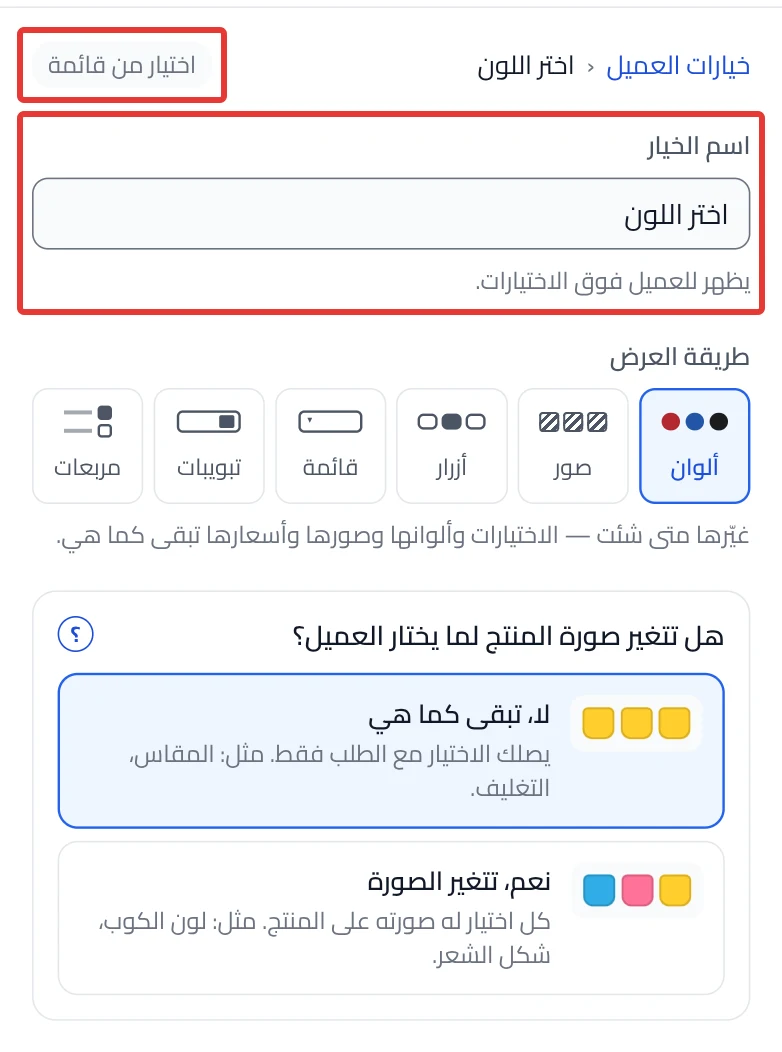
At the top of the option's settings, next to its name, you see its type: Pick from a list, Short text, Message or File upload. You cannot change the type here. Use Replace with another type… at the bottom of the settings.
Linked to library
This bar shows only when the choices come from a set in My library. As long as the option is linked, editing the set in My library changes it in all your products. The bar has two buttons: Edit for all and Detach for this product. They are explained in Library settings in the Studio.
Option name
In Option name, enter the question the way the customer reads it, such as "Choose a color". The customer sees it above the choices, or above the field they type in. Under the name, settings appear that depend on the option type. The picture and spot settings are explained in Picture and spot settings in an option.
Display as
Here you choose how the choices look to the customer: Swatches, Images, Buttons, Dropdown, Tabs, Checkboxes. Change it anytime. The choices, their images and their prices stay as they are. Dropdown turns off Can pick more than one. Checkboxes does not work with an option that has a price.
Choices
Each row here is one choice the customer sees, such as "Gold". Click Add choice to add a row. The ⋯ button next to a choice has Make default, Move up, Move down, Duplicate and Delete. The star marks the default choice. If you do not set one, the first choice is the default. In an option that has a price, you cannot add a choice that takes the combinations in Salla above 100.
Want the full steps? → Let customers choose a color, size or design
Upload several images
Click Upload several images and choose several images, or drag them onto the list. Each image becomes a new choice with that image. The file name becomes the choice name. The Studio removes the extension, and "_" and "-" become spaces. For example, "Blue_Team.png" becomes "Blue Team". Name your files before you upload them. You can edit any name afterwards. The button shows only in list options, next to Add choice.
Want the full steps? → Add many choices at once from images
Choice images
Each choice row has two image slots: the image on the button the customer sees, and its image on the product. With the Images display style, choose Different image for the button or Use the product image for the button from the ⋯ button. To change where the choice image sits on the product, click Adjust.
More
More shows under the choice in an option added to Salla, or in a choice that already has data. Click it to open the choice's data for Salla.
SKU, stock and weight
Inside More you find SKU, Stock and Weight. All of them are optional. They are sent to Salla with this choice when you click Add the options to Salla. Leave a box empty to remove its value. Under the choices is the price section, explained in Price and Salla settings in an option.
When does it show?
Choose Always to show the option all the time. Choose Only if… to show it only after a specific choice in another option. If you turn on Required, the option is required only when it shows. You need another list option for it to depend on, such as "Yes / No".
Required
Turn on Required if the product does not work without this option. The customer cannot complete the order without it.
Can pick more than one
Turn it on to let the customer pick more than one choice. The choices show as checkboxes. It shows only in list options. It does not work if the option changes the price, because Salla takes only one value.
Save to my library
Click Save to my library to use the same choices in other products. Or choose Link to a saved set or Copy a set's choices. Both replace the current choices. These buttons show at the bottom of the settings of a list option that is not linked.
Replace with another type…
Click Replace with another type… to change the option type, then click Replace. The option loses some of its settings. Its name and position stay. To change only how the choices look, use Display as. Nothing is lost.
Did this article answer your question?