Let customers choose a color, size or design
You add an option from Picks from a list, so the customer chooses a color, size or design before they buy.
Steps
Path: Products > Open Product Studio > Options
- Click Add option. If the product has no options yet, click Add your first option.
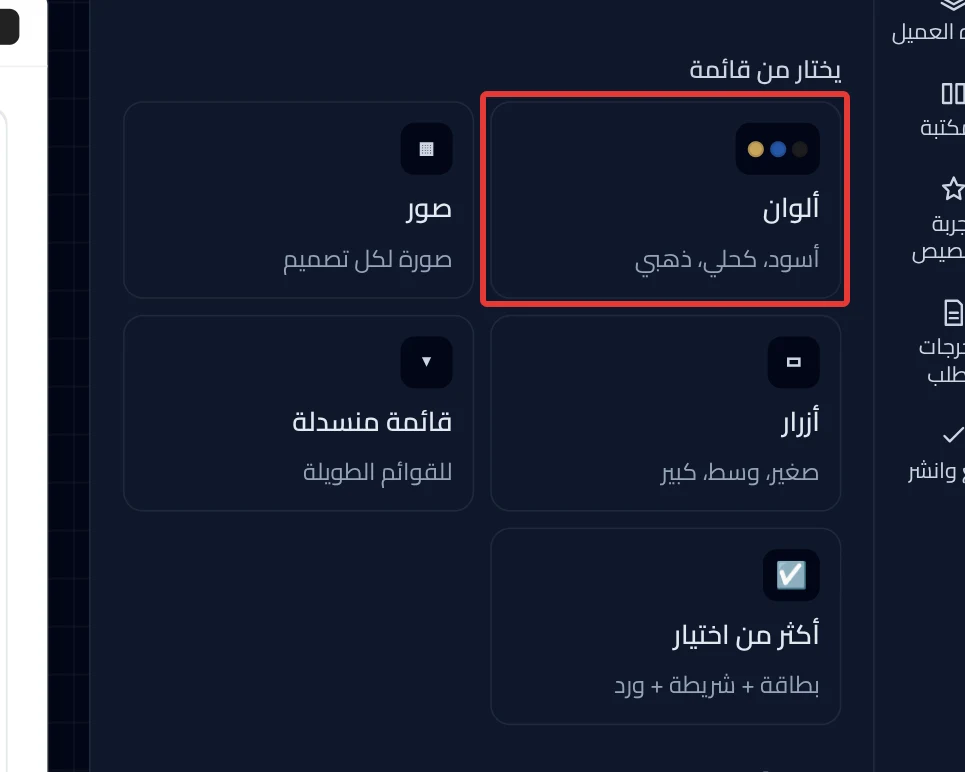
- Under Picks from a list, choose Colors, Images, Buttons, Dropdown or Several picks. The option settings open.
- In Option name, enter what the customer reads above the choices, such as "Choose a color". The customer sees this name.
- Enter the name of each choice on its own line, such as "Blue". The option starts with sample choices, so rename them.
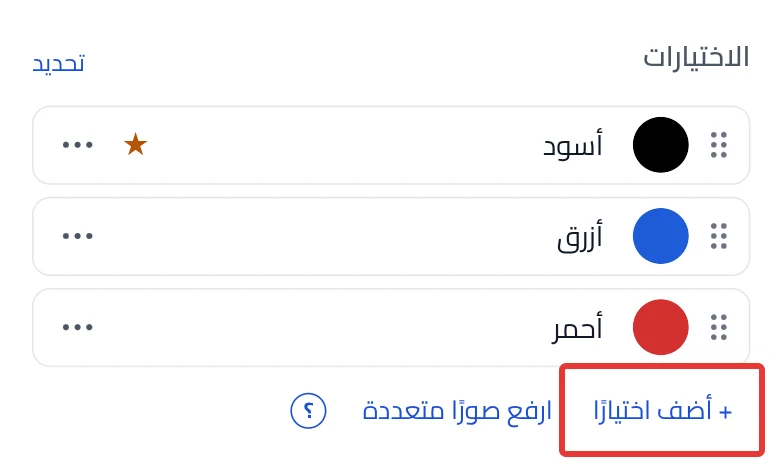
- Click Add choice to add another choice.
-
Optional: click ⋯ next to the choice, then Make default. A star appears next to it. If you do not choose one, the first choice is the default.
-
Click Review & publish, then Publish now.
On a phone: the Review & publish button is at the bottom of the screen.
What your customers see
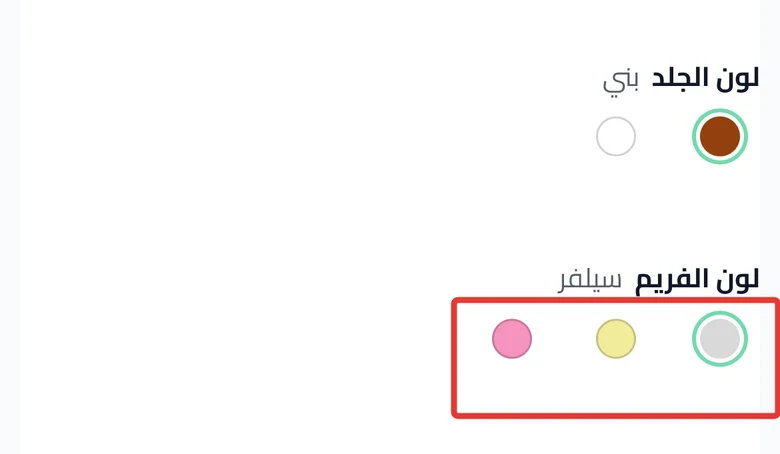
The customization goes live in your store within about a minute. The customer sees the option name above the choices and chooses one of them. In Salla, the customer's choice arrives in the Order note at first.
Good to know
- Turn on Required if the product does not work without a choice. The customer then cannot complete the order without it.
- Turn on Can pick more than one to let the customer pick more than one choice. It does not work with an option that has a price, because Salla takes only one value.
- To make a choice add to the price in Salla, follow Price and Salla settings in an option.
On Zid
The price section does not show.
Not showing?
Next
Did this article answer your question?