Choose the text font and color, or let the customer choose
You choose one font and one color for all customers. Or you let the customer choose the font and the color.
- The product has a text option. See Let customers add their name or a message to the product.
Steps
Path: Products > Open Product Studio > Options
- Click the text option to open its settings, then open Font style.
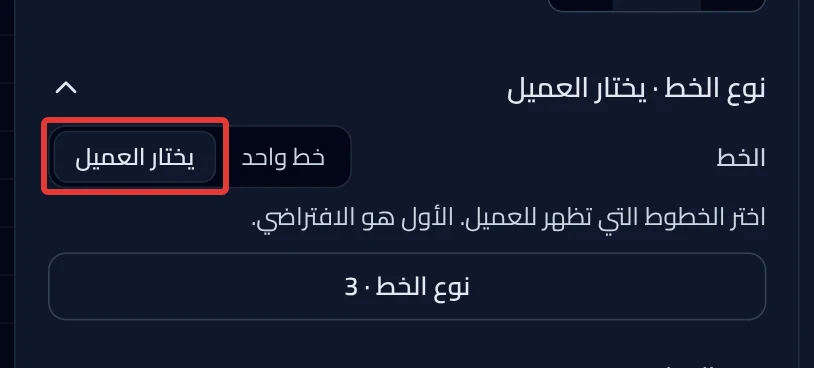
- Under Font, choose:
- One font: click the font card. "Every customer sees this font." appears under it.
- Customer picks: Product Studio creates a new font option with a few fonts and opens it for you. Click fonts to choose which ones the customer sees. The first font is the default.
-
Optional: to add your own font, click + Upload a font and choose the file. The message "Font added" appears. Product Studio also saves the font to My fonts, so you find it in all your products.
-
Drag Font size to make the letters bigger or smaller. You set the size for all customers, and the customer cannot change it.
-
Under Text color in the text option, click a color. All customers see this color.
To let the customer choose the color, click Add option in the options list. Then click Text color under Changes how the text looks.
-
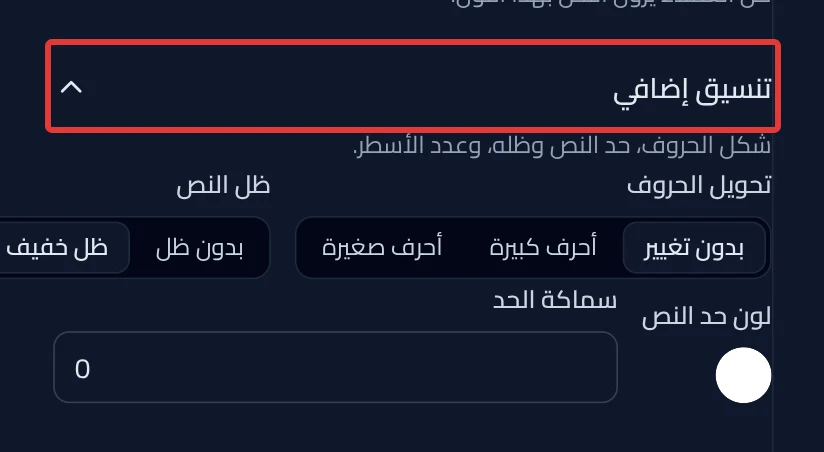
Optional: open More text styling to change Text shadow, Text outline color and Outline thickness. In a Message option you also find Number of text lines.
-
Click Review & publish, then Publish now. Until then, nothing changes in your store.
On a phone: to see the font on the product photo, open Preview.
What your customers see
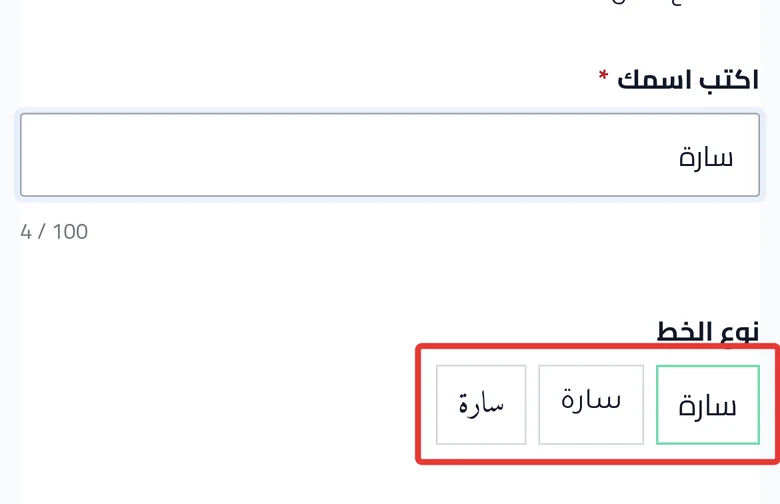
The customization goes live in your store within about a minute. If you leave the font to the customer, they see font cards. Each card shows their text in a different font. Before they type, the card shows the Sample text, if you entered one in the font option. When they choose a font or a color, the text in the product preview changes right away.
Good to know
- An uploaded font must be TTF, OTF or WOFF, up to 10 MB. Make sure the font license allows commercial use and print.
- Going back to One font deletes the font option after you confirm. Click Undo right away to bring it back.
- In the font option or the Text color option, Changes the look of sets which text changes, or All texts. Until the customer chooses a color, the text option's color shows.
Not showing?
- Did "The file must be TTF, OTF or WOFF" or "Maximum 10 MB" appear? Convert the font to one of these types, or choose a smaller file.
- Did "We couldn’t upload the font. Try again." appear? Upload the file again.
- The font does not show in your other products? It may have been added to this option only. Upload it again so it is saved to My fonts.
- What each setting means: Option settings in Product Studio.
- The customization widget does not show on the product page
Next
Did this article answer your question?