Prepare a fast-loading product photo for customization
The product's first photo in your store is the base the customer sees their customization on.
- The photo you want for the customization is the product's first photo in your store.
Steps
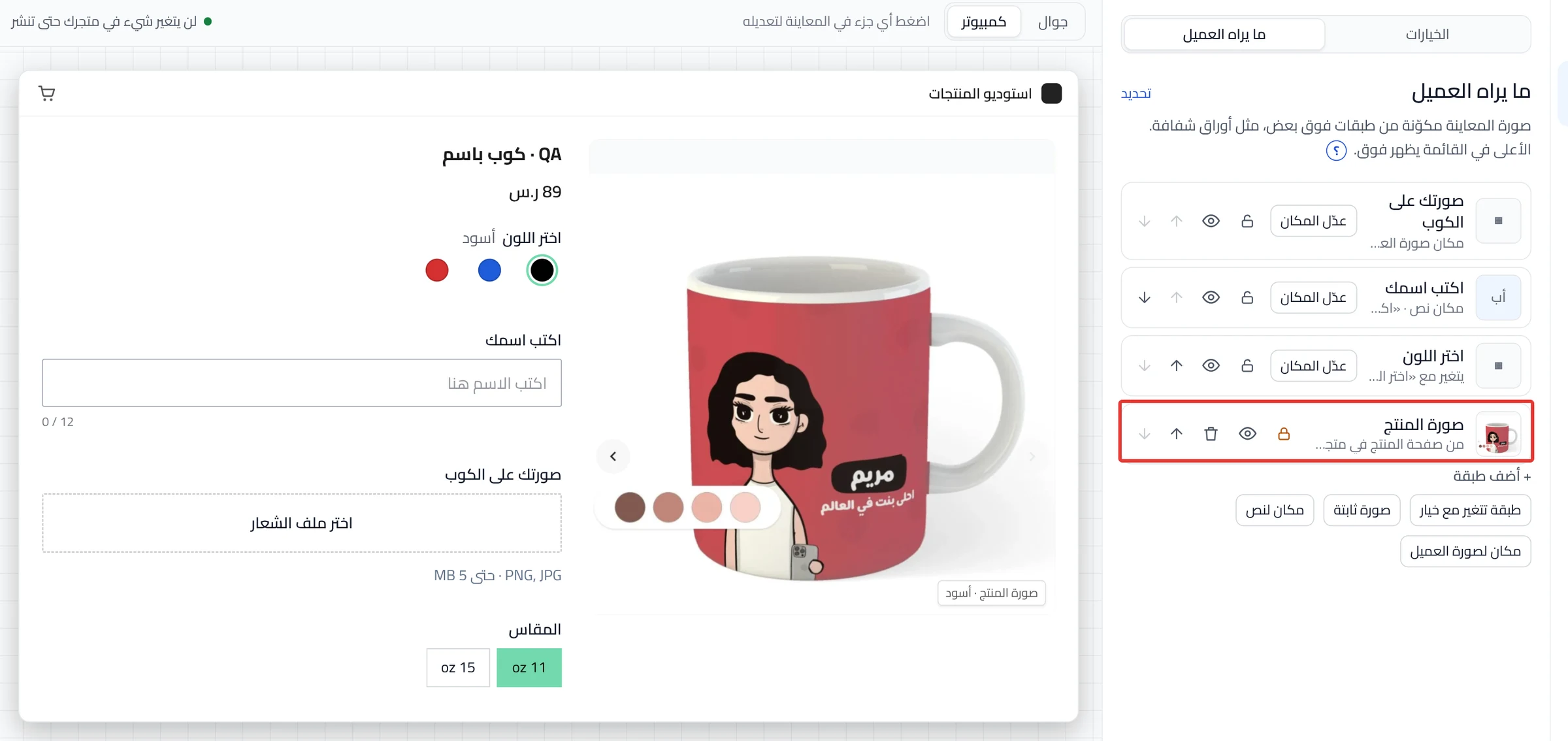
Path: Products > Open Product Studio > What customers see
- Look at the bottom of the list. The "Product photo" row shows the product's first photo in your store.
-
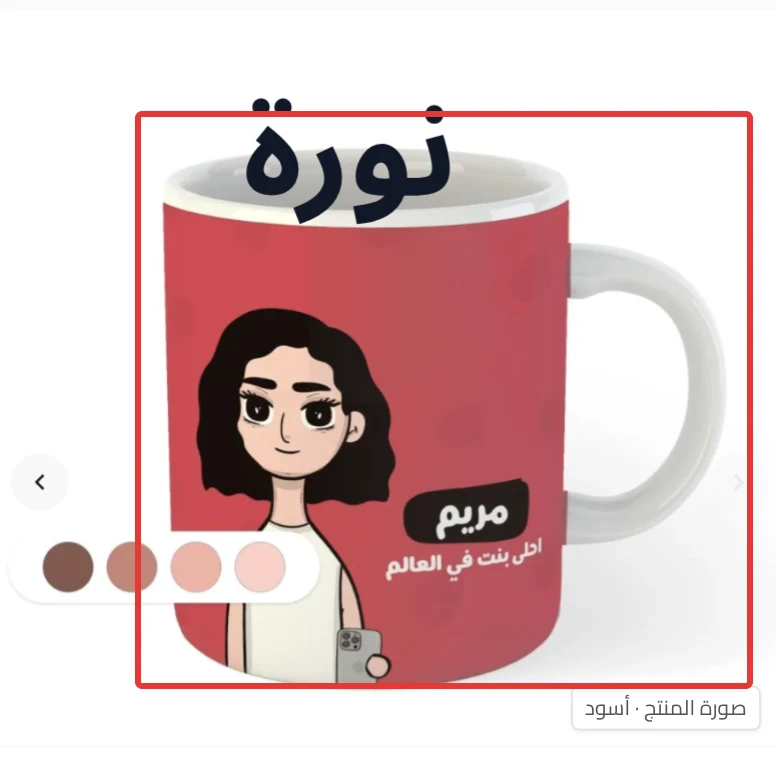
Check in the preview that the whole product shows clearly.
On a phone: open the Preview tab to see the photo.
-
Optional: to upload a photo from your device, click Fixed image under "Add layer". Your device's files open.
-
Optional: choose an image up to 10 MB. Accepted types: JPG, PNG, WEBP, SVG and GIF.
After you upload your images, the bottom image in the list becomes the base. Under it you see "Base: its picture sets the preview’s size and shape".
-
Click Review & publish, then Publish now. Until then, nothing changes in your store.
On a phone: the Review & publish button is at the bottom of the screen.
What your customers see
The customization goes live in your store within about a minute. The customer sees the product's first photo in your store, with their name or design on top.
Good to know
- Make all your images the same size, because the base sets the preview's size and shape.
- A smaller file opens faster for your customers. Product Studio saves the image as you uploaded it and does not shrink it.
- The product photo is not part of the print file.
Not showing?
- You changed the first photo in your store and do not see it in the preview? Open What customers see again.
- The old photo still shows? You may have clicked the lock, the eye or the arrow in its row before. Then Contact support and send what helps us solve it.
- Did "We could not upload the image. Check its file type and size, then try again." appear? Choose a file of one of the types above, up to 10 MB.
- You do not see the "Product photo" row? You uploaded images in the Studio, or you deleted it from the preview.
- What each button means: What customers see settings.
- Layer order: Arrange layers: what shows on top of what on the product.
Next
Did this article answer your question?