Contact support and send what helps us solve it
Click Contact support to open a WhatsApp chat with us, with your store details already in it.
Steps
Path: Contact support in the Studio
- In the Studio, click Contact support, the last item in the sections menu. Or, on the Start page, in the Contact support card, click Start chat. A WhatsApp chat opens in a new window, with a ready-made message. On a phone: Contact support is at the end of the sections bar, and it opens WhatsApp.
- Leave your store details in the message as they are: the email, store URL, merchant ID and page.
- Describe your problem under "Issue description".
- Add what helps us:
- The product name.
- The order number, if the problem is with an order.
- The code after "Support code:", if you see one.
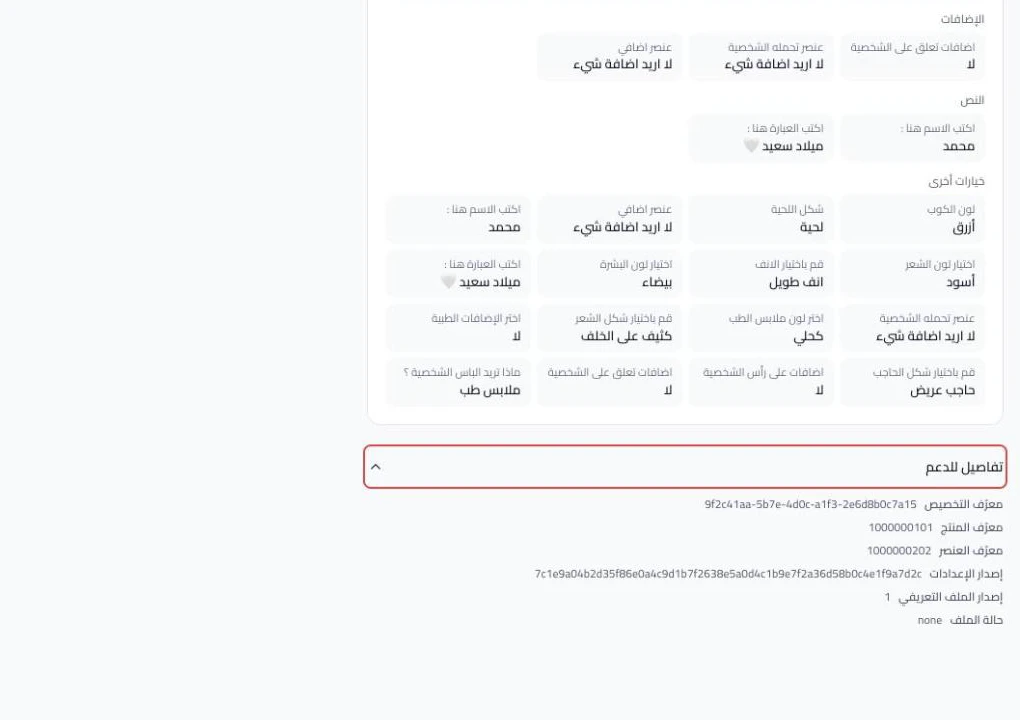
- If the problem is with an order, open the order and click Details for support. Send us a screenshot of it. Send the Customization ID from here, not from the Salla order note. The order page is explained in Check a customized order before you print it.
What your customers see
Your customers do not see support codes or Details for support. Only you see them, in the Studio and on the order page in Customization orders.
Good to know
- Do not delete the store details from the message. They help us find your store faster.
- Send the order number with the Details for support screenshot, because it gathers what we need about the order.
- In Review & publish, some messages have a Details for support link that shows a code. Send the code with them.
Not showing?
Next
Did this article answer your question?