Publishing blocked: a priced option is not added to Salla
Usually you have not clicked Add the options to Salla yet. Publishing alone does not add the option to Salla.
What you see
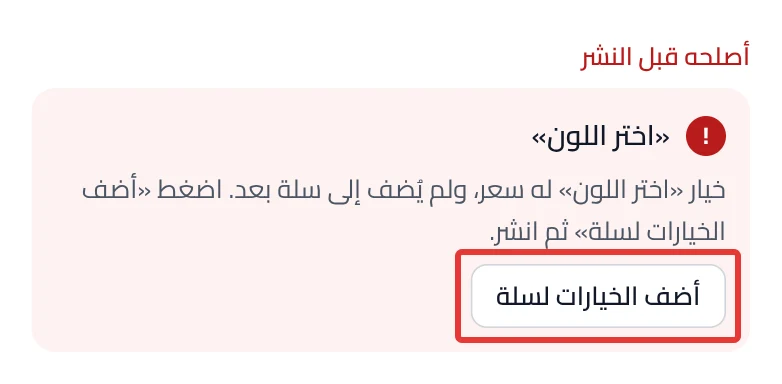
In Review & publish, under Fix before publishing, a card with the option's name appears, and the Publish now button does not work. The card's message starts with one of these:
- "“Color” has a price but is not in Salla yet."
- "“Gold” in “Color” has a price or stock, but this option is sent as an order note only."
A yellow alert may also appear, starting with "You changed the prices or details of “Color” after it was last updated in Salla."
Most likely cause
A choice with a price needs an option on your product in Salla, and publishing does not create that option.
Fix
1. The message "has a price but is not in Salla yet"
Click Add the options to Salla on the card, then Update Salla options. After you confirm, the button adds the options to your product in Salla right away, before you publish. When it finishes adding them, click Publish now. The button is explained in Price and Salla settings in an option. The publishing steps are in Review your product and publish it to your store.
2. The yellow "You changed the prices" alert
This alert does not block publishing, but customers keep paying the previous price in Salla until you update it. Click Update the option in Salla in the alert, then again in the window that opens. Then click Publish now.
3. The message "but this option is sent as an order note only"
Click Open option on the card. The option's name follows the button text. Do you want the customer to pay the extra amount? Turn on This option changes the price, then follow fix 1. You do not want a price? Turn off This option changes the price. The option then goes to the Order note with no price.
Still stuck?
Click Contact support in the Studio and send us:
- The product name.
- The option name on the card.
- A screenshot of the message in Review & publish.
Did this article answer your question?