Price and Salla settings in an option
Path: Options > an option of type Picks from a list > the price section under the choices.
Your edits are saved as a draft. Your store does not change until you click Publish now. The other option settings are in Option settings in Product Studio. All the Salla articles are in Prices and bundles in Salla.
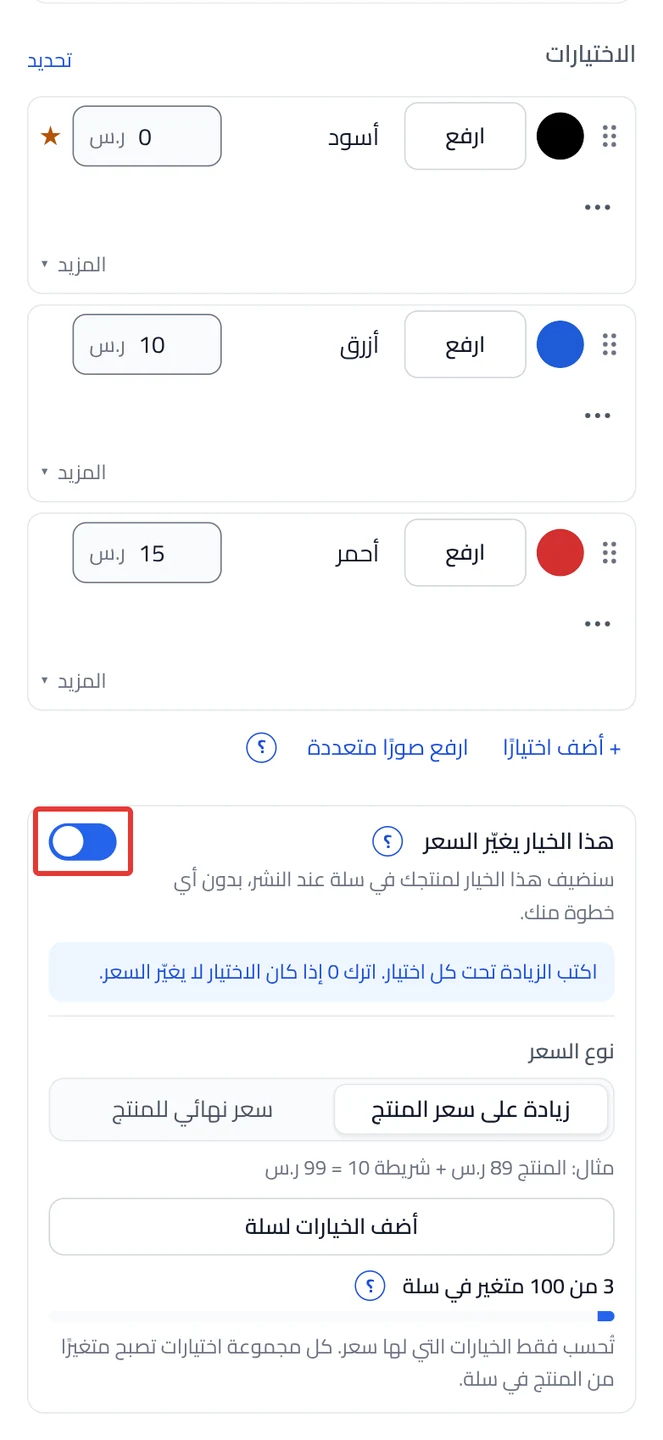
Price of each choice
In each choice's row, above the price section. The box shows when you turn on This option changes the price. Enter the extra amount in SAR. Enter 0 if the choice does not change the price. An option that has a price does not let the customer pick more than one choice.
This option changes the price
A switch at the top of the price section, under the choices list, with a "?" next to it. Off: you receive the customer's choice in the order note, without a price. On: you enter a price for each choice, and the option becomes an option of your product in Salla. If you turn it off and then on again, your prices stay saved.
Want the full steps? → Make a choice add to the product price in Salla
The price section does not show.
Product price in Salla
A line that shows your product's price in Salla, such as SAR 89. It shows only when the Studio knows the product's price. The choice prices are calculated from it.
Price type
Under the product price line. It has two ways to price:
- Extra on product price: the amount is added to the product price, such as SAR 89 + 10 = SAR 99.
- Final product price: the choice price becomes the full product price.
Only one option in the product can set the final price.
Add the options to Salla
A button in the price section, above the combinations counter. It shows as long as the option has not been added to Salla yet. Publishing alone does not add the option to Salla. Click Add the options to Salla first. After you confirm, the button adds the options to your product in Salla right away, before you publish. Changed the prices after you added it? Click Update the option in Salla, because publishing does not send the new prices.
Want the full steps? → Add the options to Salla and update them after edits
Salla's 100-combination limit
A counter under the Add the options to Salla button, with a "?" next to it. It shows a number followed by "of 100 Salla combinations". Each group of choices that has a price becomes a combination in Salla. Salla accepts 100 combinations per product. The count is the number of choices in each priced option multiplied together. Example: 3 colors × 4 sizes = 12 combinations. Options without a price do not count. From 80 combinations, a warning shows under the counter.
Want the full steps? → Stay under Salla's 100-combination limit
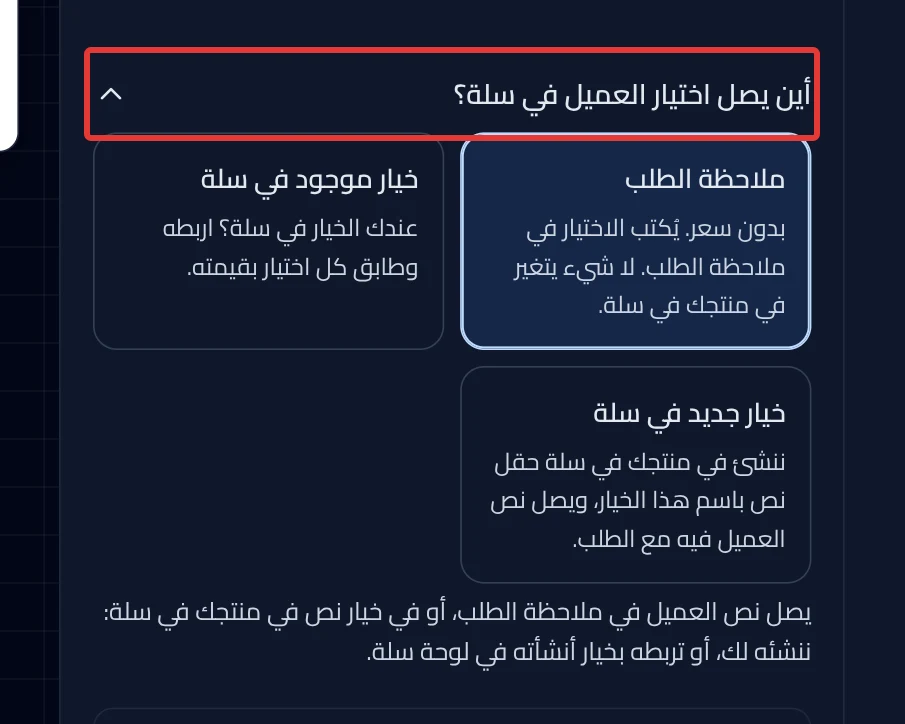
Where does the customer's pick go in Salla?
A section under the price section, with a "?" next to it. It has three cards:
- Order note: the pick is written in the order note, and nothing changes in your product in Salla. This card is chosen at the start.
- New Salla option: the Studio creates the option in your product when you click Add the options to Salla. You need it if the choice has a price or stock. In a text option, it works only in service and digital products, and the customer's text arrives in it with the order.
- Existing Salla option: you link an option you created in your Salla dashboard.
Want the full steps? → Choose where the customer's choice goes in Salla
The Where does the customer's pick go in Salla? section does not show.
Existing Salla option
The third card in the Where does the customer's pick go in Salla? section. After you choose it, the Choose a Salla option list appears. Choose your product's option from it. A text option is linked as a whole, without matching choices.
Refresh Salla options
A button that shows in place of the Choose a Salla option list. It shows if the Studio finds no option in your product in Salla. Create the option in your Salla dashboard first. Then click Refresh Salla options. Seeing "We couldn't reach Salla, so the product's options weren't read."? Try again in a moment.
Match the choices
A button that shows after you choose a Salla option. It matches each choice to a value in Salla with the same name. A matched choice shows Linked. The rest show Not matched: choose their value from the list in their row. Publishing stops until every choice is matched.
+ Create the value in Salla
A small button in the row of a choice that is not matched. It adds a value with this choice's name to your option in Salla, and links the two.
Where customer choices land in Salla
A panel that shows all the product's options, and where each of them goes. You open it from the Review & publish screen with the Product options in Salla button. The button shows in the Fix before publishing section. It shows if an option here stopped reaching an option in Salla that it reached in the published version. Under Unlinked Salla options, choose an option from Link to an option. The list holds only Picks from a list options. Click Open option to edit any option.
Did this article answer your question?