Make a choice add to the product price in Salla
Make some choices add to the product price, such as a ribbon for SAR 10.
Salla stores only
Steps
Path: Options > a Picks from a list option > This option changes the price
- Click Options and open a Picks from a list option.
- Turn on This option changes the price. A price box appears under each choice.
- Enter the extra in the price box under each choice. Leave 0 if the choice does not change the price.
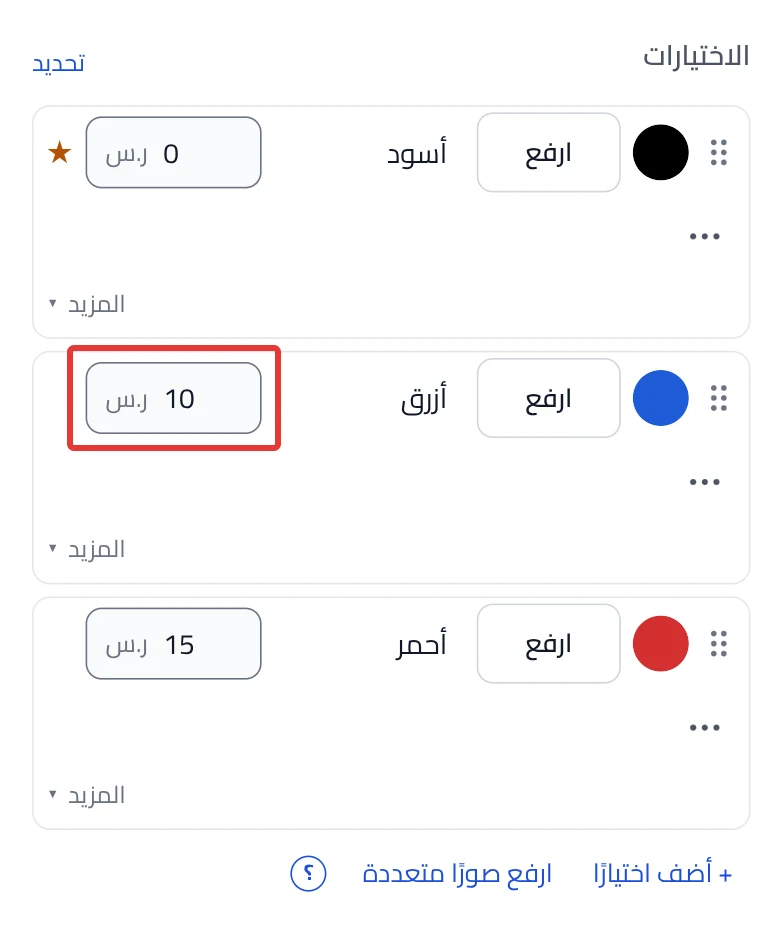
- In Price type, leave Extra on product price. The extra is added to the product price: SAR 89 + SAR 10 = SAR 99.
- Click Add the options to Salla, then confirm the message. After you confirm, the button adds the options to your product in Salla right away, before you publish.
- Click Review & publish, then Publish now.
What your customers see
The customer makes their choice on the product page as usual. The price of the choice reaches Salla's checkout and is added to the product price.
Good to know
- Publishing alone does not add a priced option to Salla. Click Add the options to Salla first, or publishing stops.
- Did you change the prices after adding the option? Click Update the option in Salla.
- You cannot price an option where the customer picks more than one. Turn off Can pick more than one first.
Not showing?
- Cannot find This option changes the price? The switch shows only in a Picks from a list option.
- Does the message "A price here makes…" appear? Salla allows only 100 combinations. Remove the price from another option first. See the details in Stay under Salla's 100-combination limit.
- Product price in Salla does not show? It shows only when the product price is known.
- For the meaning of each setting, see Price and Salla settings in an option. For where the choice goes, see Choose where the customer's choice goes in Salla. All the Salla articles are in Prices and bundles in Salla.
Next
Did this article answer your question?