Edit, duplicate or delete a published bundle
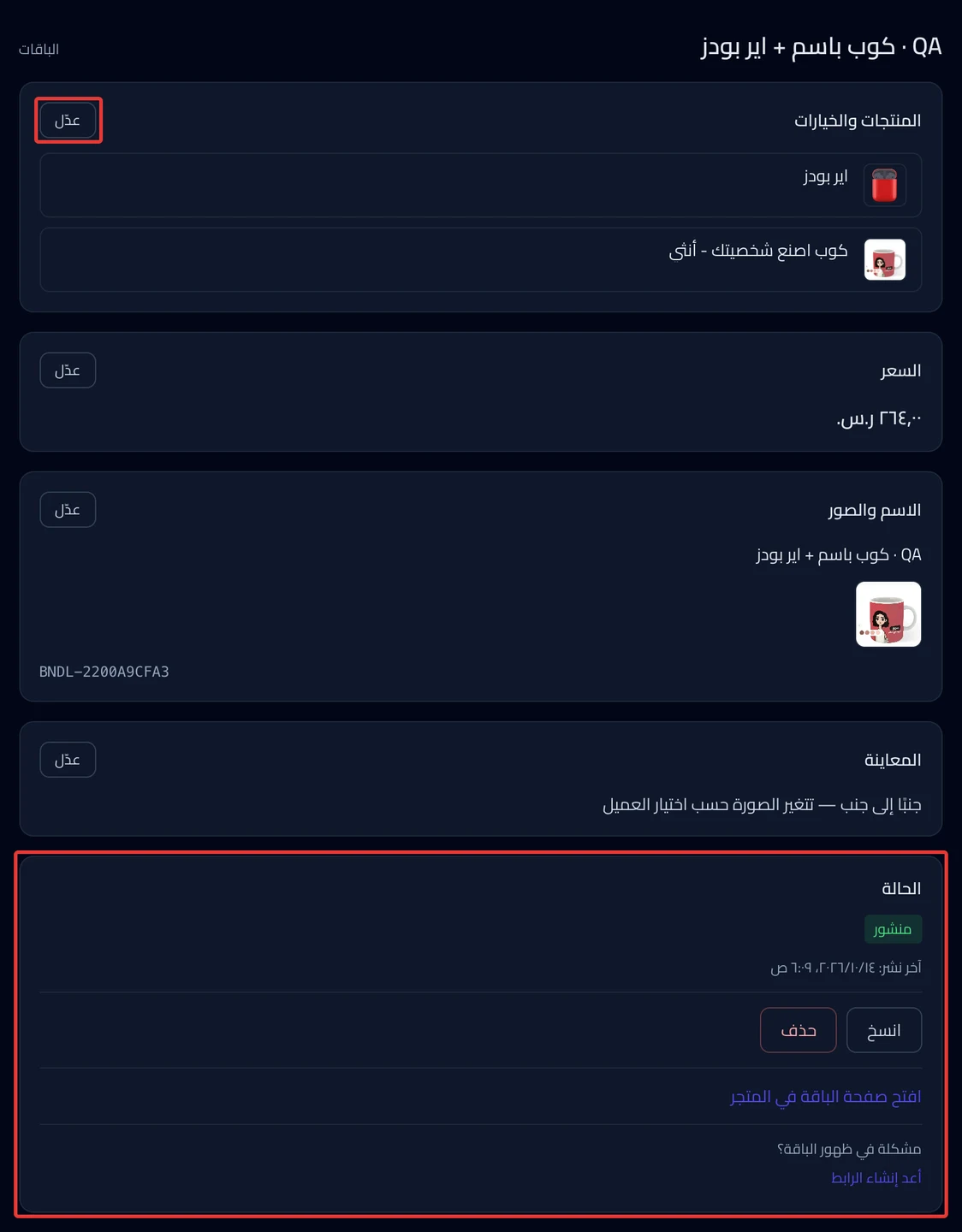
Each bundle has a page with cards you can edit, and a Status card with the bundle's buttons.
Steps
Path: Bundles > Open next to the bundle
-
Click Bundles in the side menu, then Open next to the bundle.
-
Click Edit on the card you want to change. The cards are Products & options, Price, Name & images and Preview.
-
Change what you want and click Save. The bundle starts updating in your Salla store right away, with no publish step. To leave without saving, click Cancel.
Changing the products, the quantities or who picks an option rebuilds the bundle in Salla. Click Save again to confirm.
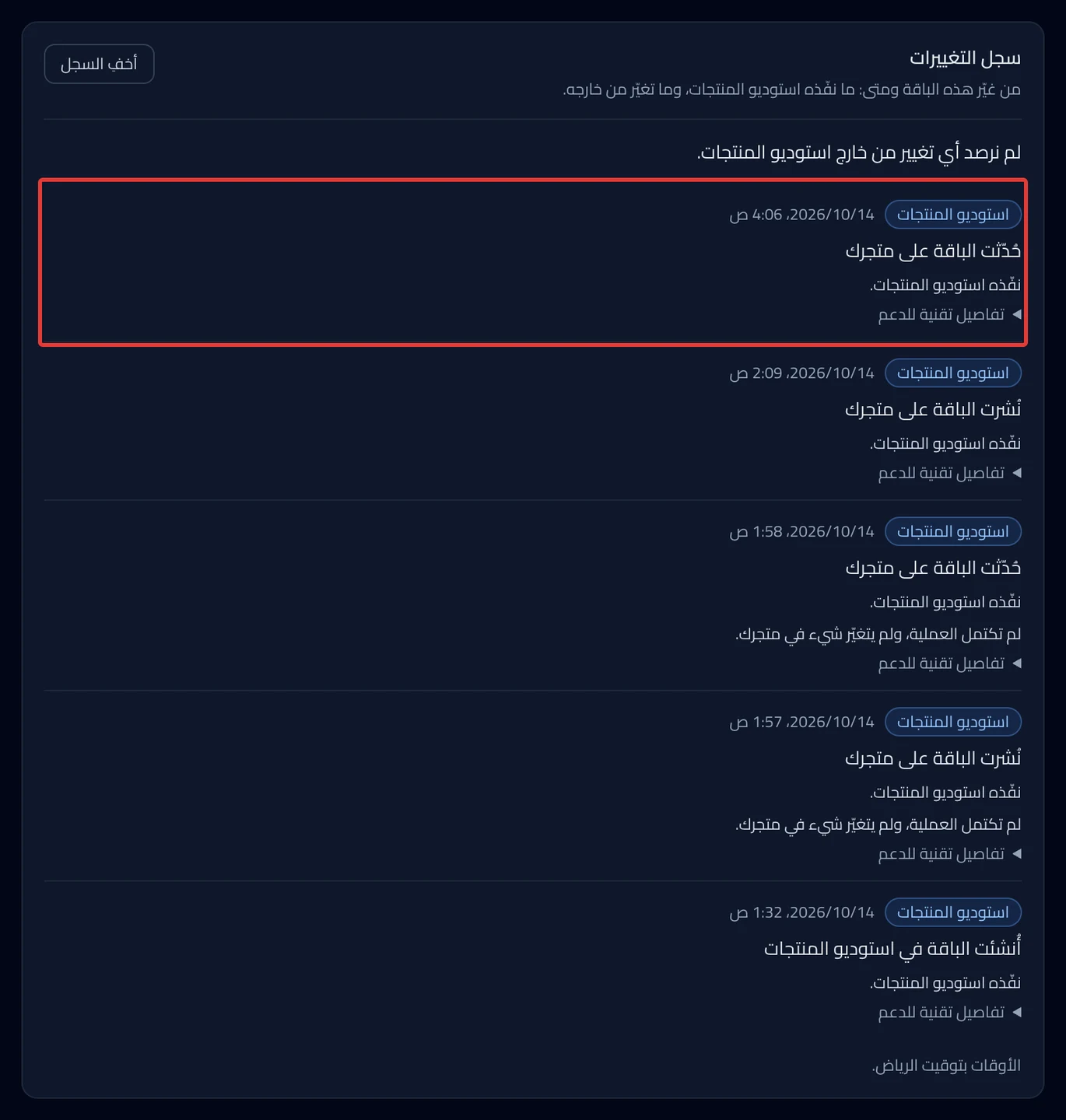
To see who changed the bundle and when, click Show history in Change history. See The Bundles page and bundle statuses.
-
To duplicate the bundle, click Duplicate on the Status card. Enter a name for the copy if you want, then click Duplicate. The copy is a draft and does not change anything in your store.
-
To delete the bundle, click Delete, and type DELETE to confirm. The bundle is deleted from your Salla store right away. The products inside it are not affected.
-
If the status Deleted on Salla shows, the bundle was deleted in Salla itself. You cannot edit it after that.
Careful: Recreate bundle publishes a new bundle in Salla right away, with no confirmation message.
-
Click Recreate bundle to publish a new bundle with the same products, price and name. Or click Remove from list, then Remove, and it disappears from the list only.
In the Bundles list, the button is called Recreate. Remove from list there works with no confirmation message.
What your customers see
The customer sees your edit on the bundle page after the update finishes. A deleted bundle disappears from your store, and the products inside it stay as they are.
Good to know
- While the bundle is updating, the page buttons stop working until it finishes. You can leave the page, and you do not need to save again.
- Duplicate and Remove from list do not change anything in your Salla store.
- The copy does not take the options or choices that were deleted from its products in Salla.
Not showing?
- Is the status Needs repair? Click the button that shows: Repair & publish or Repair now. Both change the bundle in Salla right away.
- Is the status Publishing stopped? Click Retry. Publishing continues in Salla right away from the last step that worked.
- Is the bundle published but not showing? Under "Trouble with the bundle’s visibility?", click Recreate the link. The link of the bundle page in your store changes right away.
- Is the copy not showing in your store? The copy is a draft. Publish it with the Publish button, as in Create a bundle of several products.
- Every status and its fix is in Bundle not published or asks you to Repair & publish.
Next
Did this article answer your question?