Studio start and top bar settings
Path: Products > Open Product Studio. The top bar stays at the top of the Studio in every section.

Dashboard › Products
At the top of the Studio you see Dashboard › Products › your product's name. Click Products to go back to your product list. The word Dashboard is hidden on screens narrower than 1200 pixels.
Product status
- Draft · not published yet: the product has never been published.
- Live in your store: your store shows the last version you published.
- Live · unpublished changes: your store shows the old version until you publish again.
- Paused: customization is hidden from the product page, and the product stays on sale.
Start · Options & photo · Review & publish
Three numbered stages sit in the middle of the bar. Click Start, Options & photo or Review & publish to go to that stage.
On mobile: the stages do not show.
Help
Click Help to open the help center in a new window.
On mobile: the Help button does not show.
Quick tour
Click Quick tour to replay the introduction tour of the Studio sections.
On mobile: the Quick tour button does not show.
Undo and redo
Two arrow buttons undo your last change or redo it. On the keyboard: press Ctrl+Z to undo, and Ctrl+Shift+Z or Ctrl+Y to redo. The Studio keeps up to 50 steps per product, as long as the page stays open. Fast typing in one field counts as one step.
History
Click History to open Version history and go back to an earlier version from there. Details are in Version history settings.
On mobile: the History button is an icon only, without the word.
Save now
Your edits are saved automatically as a draft one second after your last change. Saving never publishes them. This spot shows "Saving…" and then "Saved automatically". If Save now shows, click it to save right away.
On mobile: the save button does not show.
Review & publish
Click Review & publish to open the review screen before you publish. Your store does not change until you click Publish now.
On mobile: the Review & publish button is at the bottom of the screen.
Want the full steps? → Review your product and publish it to your store
Product page ↗
Click Product page ↗ to open your product in your store. The button does not work before you publish for the first time.
On mobile: the button is an icon only, without the word.
Want the full steps? → Test your product in your store as customers see it
Start customizing your product
The first screen of a product with no options. It shows three steps: add what the customer picks, then arrange it, then review and publish. After your first option, the Studio opens on Options.
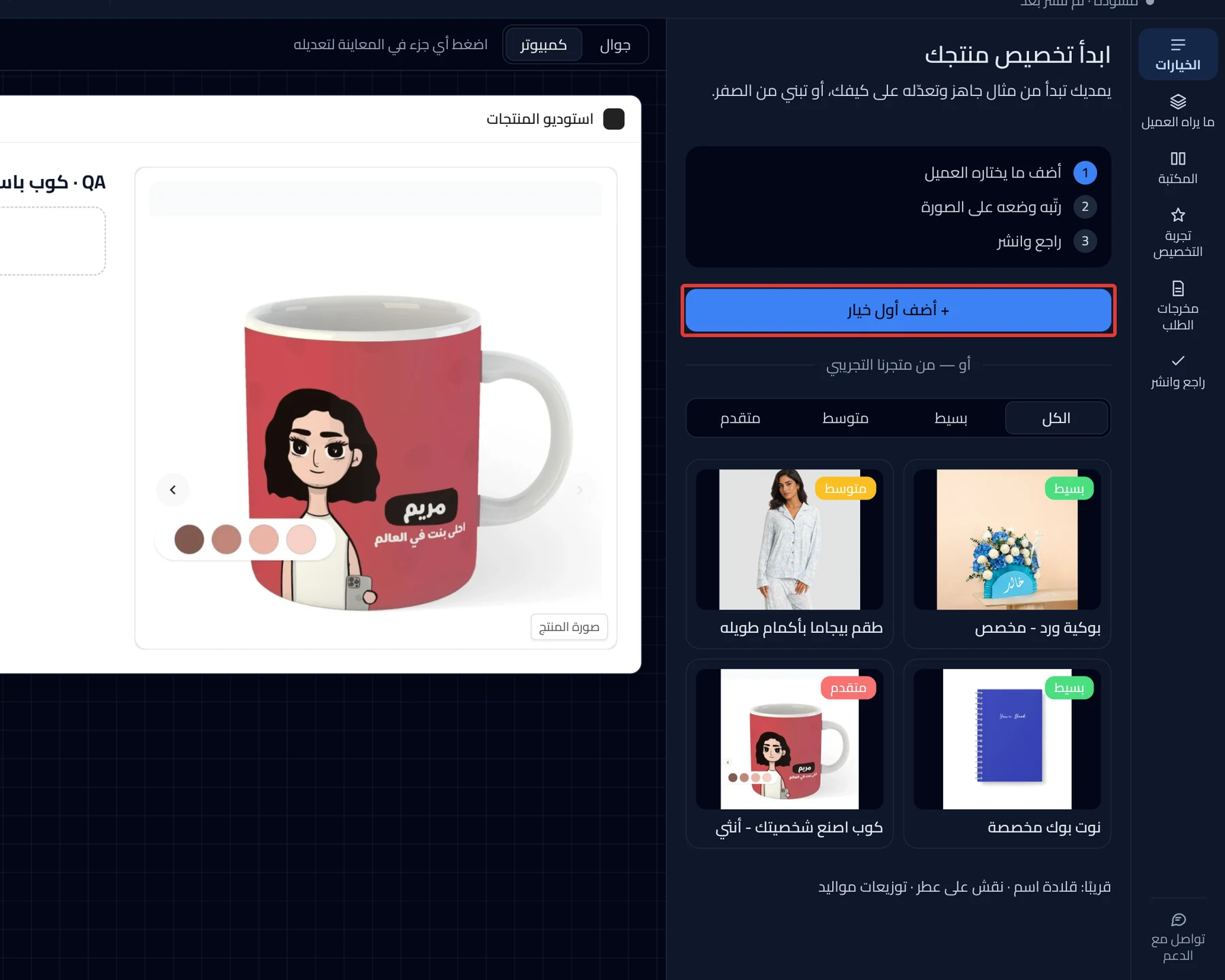
Add your first option
Click Add your first option to open What does the customer choose? and choose the option type.
Want the full steps? → Make your first product customizable
From our demo store
Under From our demo store are ready-made examples you can start from instead of starting from scratch. Choose All, Simple, Medium or Advanced, then click an example card. The Studio copies the example into your product's draft. Not what you wanted? Click Undo in the message that appears, and you go back to Start customizing your product.
Sections menu
On the side of the Studio: Options, What customers see, Library, Experience, Order output, Review & publish. Click any section to open it. Each section is explained in Option settings in Product Studio and What customers see settings.
On mobile: the sections are one row that you swipe with your finger, and two tabs sit at the top of the screen: Options and Preview.
Contact support
The last item in the sections menu. Click Contact support to open a WhatsApp chat with our team in a new window.
Want the full steps? → Contact support and send what helps us solve it
You have unsaved changes
This dialog appears if you leave the Studio while it has changes that are not saved yet. Your store is not affected either way.
- Save and leave: the Studio saves the draft, then you leave.
- Leave without saving: your edits since the last save are lost.
- Stay: you go back to the Studio.
Did this article answer your question?