The Settings page in Product Studio
Path: Settings in the app menu. The page title is App settings. The page holds the app language, the look of the customization widget, email notifications and the activity log. The language has its own save button. You save all the other settings with one button at the bottom of the screen. After any change, an Unsaved changes bar appears with Save changes. When it works, the message "All settings saved" appears. If you leave the page before saving, your browser warns you. This page sends no change to Salla or Zid. All the guides are in Every setting explained and what the words mean.
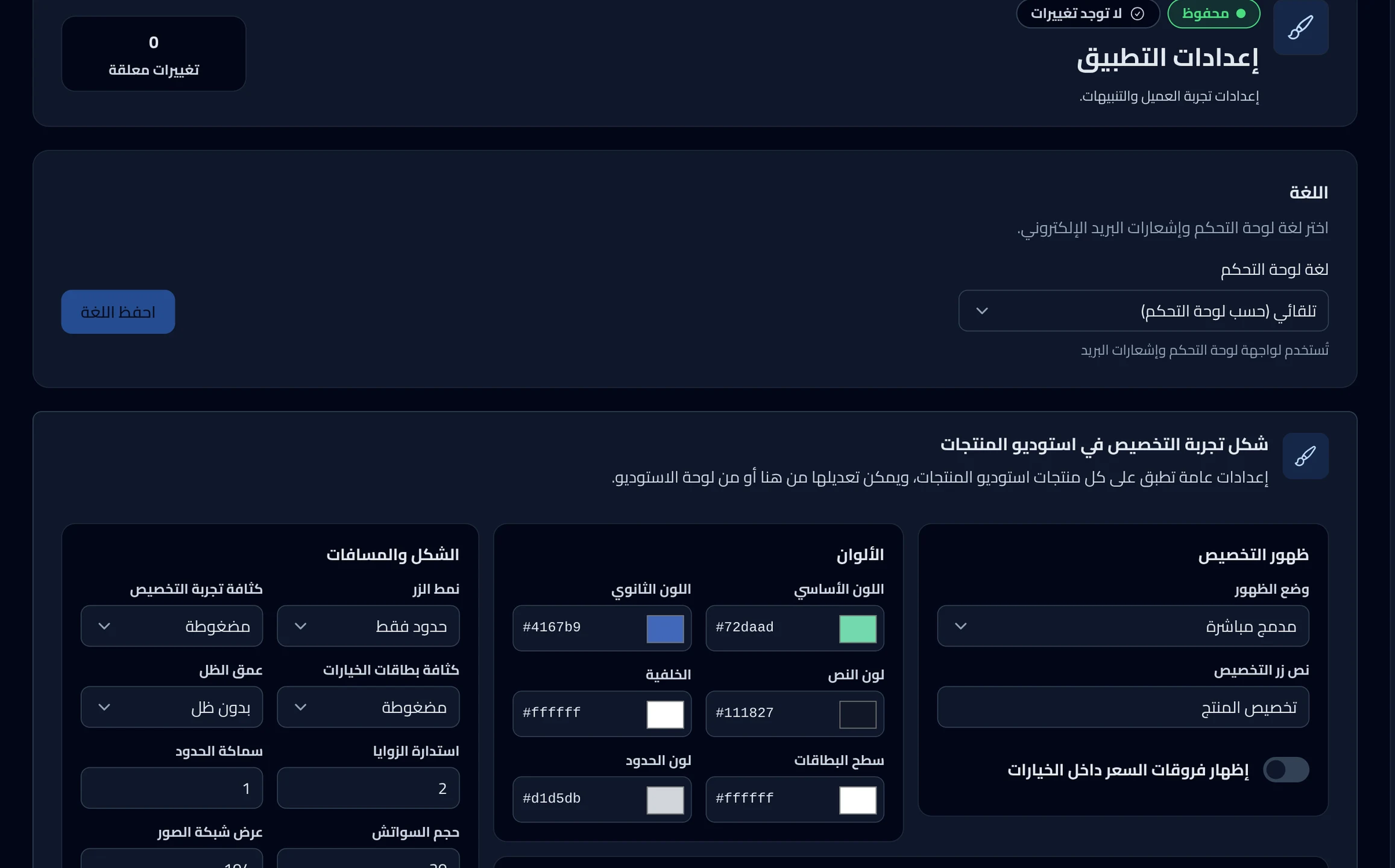
Language
The list is called Dashboard language. Its choices are Automatic (follow dashboard), Arabic and English. Choose the language, then click Save language. The button stays grayed out until you change your choice. After you save, the message "Language preference saved" appears. This language is the language of the app and of the emails we send you. If you choose Arabic or English outside Salla, the page reloads in that language.
Display
This part is inside the Product Studio customization experience section. The settings in this section apply to all your products. You change them here or in the Studio. This part has three settings:
- Display mode: how the customization widget appears on the product page.
- Customization button text: the text on the button that opens the customization widget. If you leave it empty, "Customize product" appears.
- Show price differences inside options: shows the price difference of each choice next to it.
After Save changes, the new look appears in your store within about a minute. You do not need to publish. The full steps are in Change how the widget looks on all your products.
Display mode
The choices here are Embedded directly, Show/hide button and Popup window. The names of these choices are slightly different in the Studio. For the difference between them: Choose how the widget shows on the product page.
Colors
This part has six colors:
- Primary color
- Secondary color
- Text color
- Background
- Card surface
- Border color
Layout and spacing
On the screen, this part appears after Custom CSS and JavaScript. The numbers show without a unit on the screen.
| Setting | Choices | Starts at |
|---|---|---|
| Button style | Solid, Outline, Soft | Solid |
| Customization density | Compact, Balanced, Spacious | Balanced |
| Option card density | Compact, Balanced, Spacious | Balanced |
| Shadow depth | No shadow, Subtle, Medium, Prominent | Subtle |
| Corner radius | A number from 0 to 40 | 12 |
| Border width | A number from 0 to 8 | 1 |
| Swatch size | A number from 12 to 44 | 18 |
| Image grid width | A number from 64 to 180 | 96 |
| Font family | The font name | inherit |
The higher the Corner radius number, the rounder the corners.
inherit in Font family means your store's font.
Custom CSS and JavaScript
This part is for people who know CSS or JavaScript. A mistake in the code can break the look of customization in your store. Turn on Enable custom CSS to show a box where you enter CSS. Turn on Enable custom JavaScript to show a box where you enter JavaScript. The code runs on the product pages in your store. CSS has a limit of 4,000 characters. The box warns you when you get close to the limit. Anything over the limit is not saved.
Email notifications
The Email alerts switch is on from the start. When it is on, the Customization orders switch and the Recipient email box appear. The Customization orders switch is also on from the start. With both on, you get an email for each new customization order from a Salla store. Turn off either switch to stop this email. The Recipient email box starts with your account email, and you can change it. If you leave it empty, we send to your account email. Turning off Email alerts also stops the bundle alert emails. Turning off Customization orders does not stop the bundle alert emails. Save these settings with the Save changes button.
Store activity
A log of every change to your products and settings, and who made it. Each line says who changed what, in which product, and when. It shows 20 lines, then a Load older activity button. System changes are hidden from the start. To narrow the log, use the filters:
- Person: all people or one person.
- Action type: such as Publishes or App settings updates.
- From date and To date.
- Show system changes: shows what the app changed by itself.
- Clear filters: clears all the filters.
This log is read-only and changes nothing in your store.
What you do not find on this page
- Reconnecting Salla or Zid.
- Subscription and payment.
- Team members, their permissions and invitations.
Did this article answer your question?