Change how the widget looks on all your products
Choose the widget color and the shape of its buttons once. After you publish, the look changes on all your products.
Steps
Path: Experience > All your products
-
Click Experience in the Studio's section menu. The All your products section shows first. At the top, you choose between the current look of the options and a newer look.
On a phone, the section menu is a row you scroll sideways.
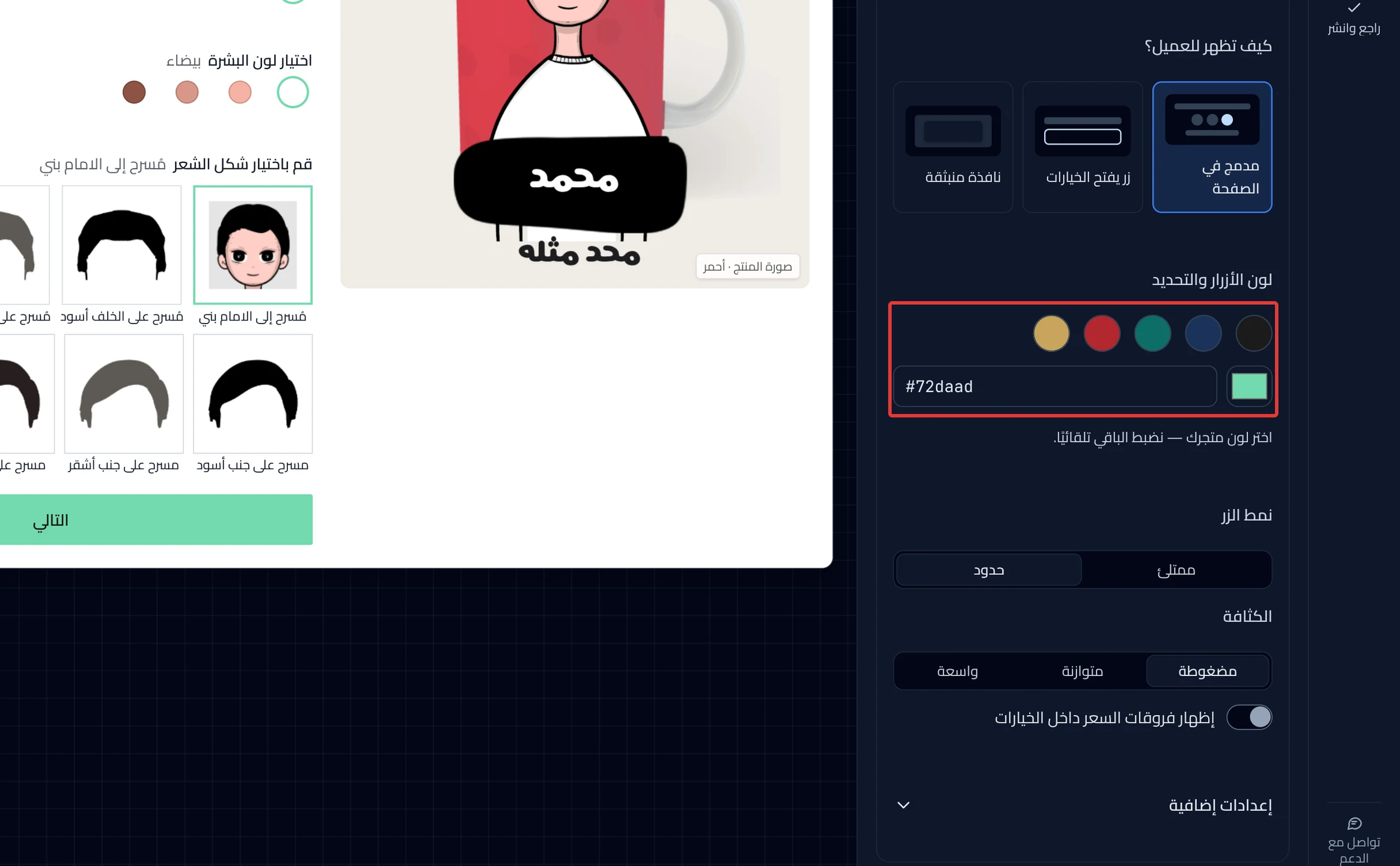
- Choose a color under Button & selection color, or enter your color code in Other color. Enter the full code, such as "#0B6E4F".
- Choose Filled or Outline in Button style.
- Choose Compact, Balanced or Roomy in Density.
- Optional: turn on Show price differences inside choices. Next to each choice, the customer sees how much its price differs from their current choice.
- Optional: open More settings to change the Background, Text, Borders and Corner radius.
- Click Review & publish, then Publish now.
On a phone, the Review & publish button is at the bottom of the screen.
What your customers see
After you publish, the look of the customization widget changes on all your products. The new look shows in your store in about a minute. The customer sees your buttons in your color and style on every product page.
Good to know
- The look changes on all your products when you publish this product. Until you publish, the change stays in its draft.
- If you leave before publishing, the message "Widget look changes aren’t published yet" shows. Click Keep in draft and leave.
Not showing?
- Did the look not change? Open the product where you edited the look, click Review & publish, then Publish now.
- See Test your product in your store as customers see it.
- The customization widget does not show on the product page
Next
Did this article answer your question?