Undo a change or go back to an earlier version
Go back one step, or go back to a full version, then publish if you want your customers to see it.
Steps
Path: History > Version history > Restore
-
To cancel your last edit, click the undo button at the top of the Studio, or press Ctrl+Z. We keep up to 50 steps while the page is open.
On a phone, use the undo button at the top of the screen.
-
To go back to an older version, click History. Version history opens.
On a phone, the History button is an icon only, with no text.
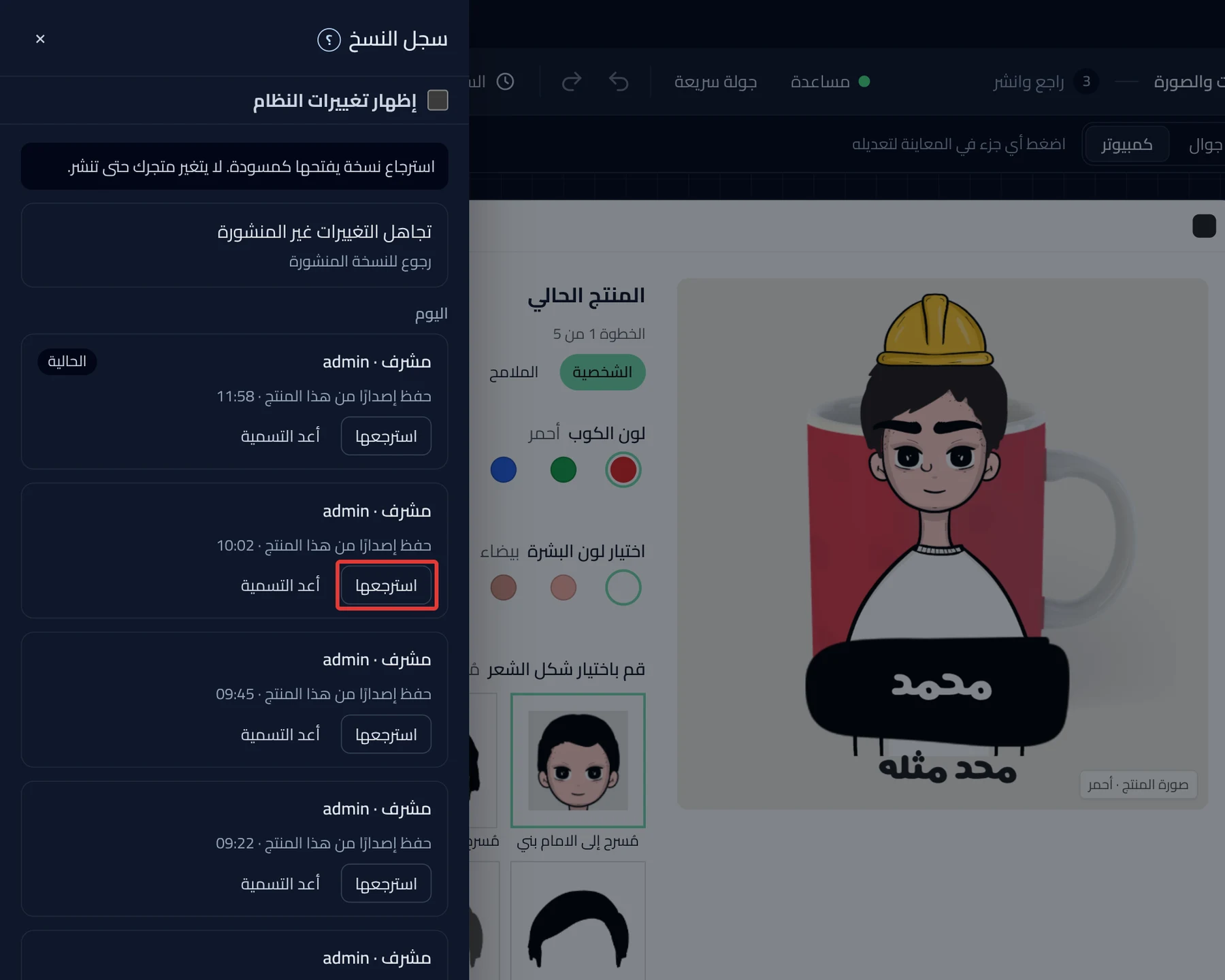
- Click Restore on the version card, then Restore again to confirm.
- To cancel everything you edited after the last publish, click Discard unpublished changes at the top of the list, then Restore.

- When "Restored" shows, click Done. The version goes back to the draft.
- To let your customers see it, click Review & publish, then Publish now.
What your customers see
Your store shows the published version until you publish again. After Publish now, the version you restored shows in about a minute.
Good to know
- With Restore, if you have unsaved edits, we save them as a version first, so nothing is lost. Discard unpublished changes takes the draft back to the published version.
- A saved version is kept for 14 days, a published one for 90 days, and one you named with Rename is kept forever.
- Start over at the end of Version history clears all the options with no confirmation. If you clicked it by mistake, click Undo in the message at the bottom of the screen.
Not showing?
- Is the undo button grayed out? There is no edit to undo on this page. The button is explained in Studio start and top bar settings.
- Cannot see Discard unpublished changes? It shows only if you published the product before and edited it after that.
- Cannot see every edit in Version history? While you keep editing, the saves stay in one card. See Version history settings.
Next
Did this article answer your question?