Choose how the widget shows on the product page
Choose how the options show on the product page: right away, after a button click, or in a popup.
Steps
Path: Experience > All your products > How does it appear?
-
Click Experience in the Studio's section menu.
On a phone, the section menu is a row you scroll sideways.
-
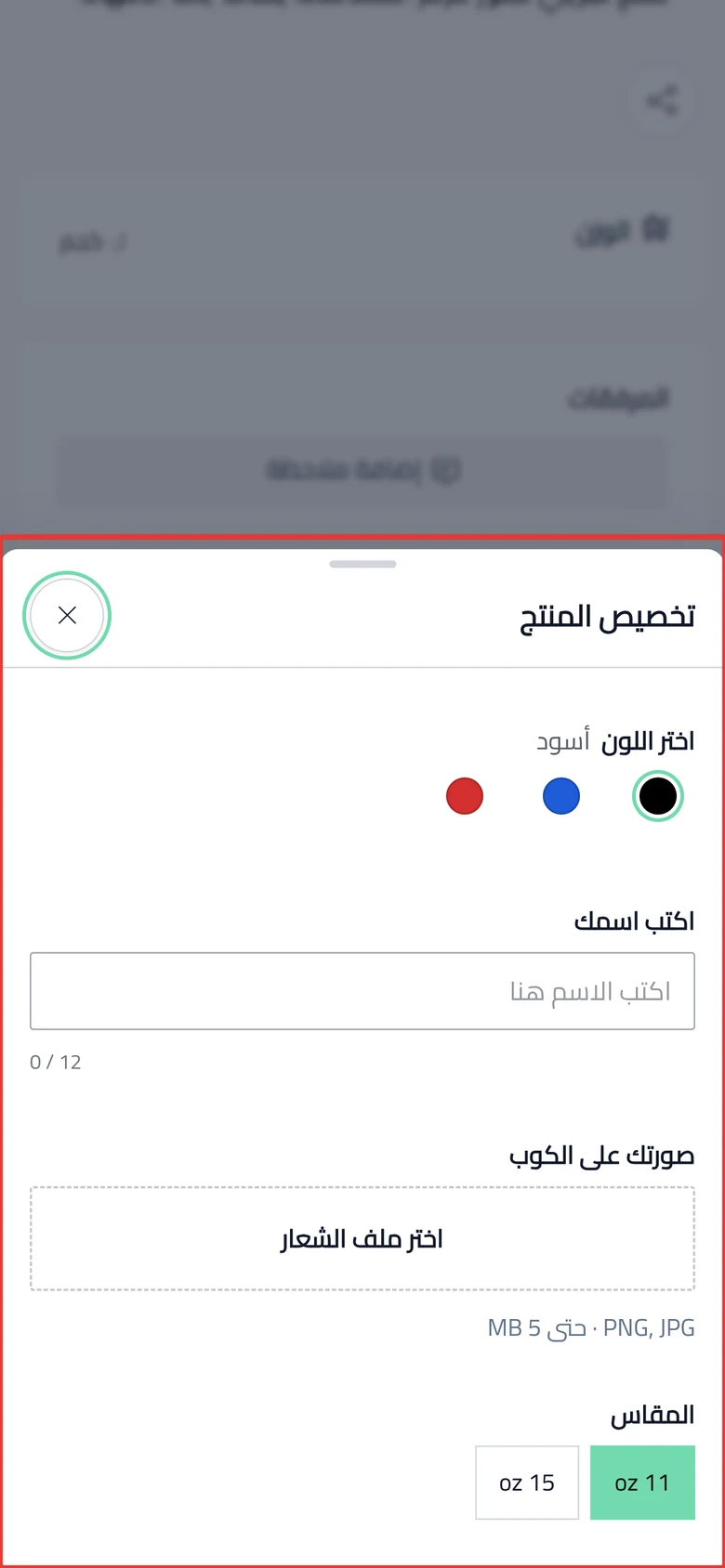
Under How does it appear?, choose one of these: Inline, Button opens options or Popup.
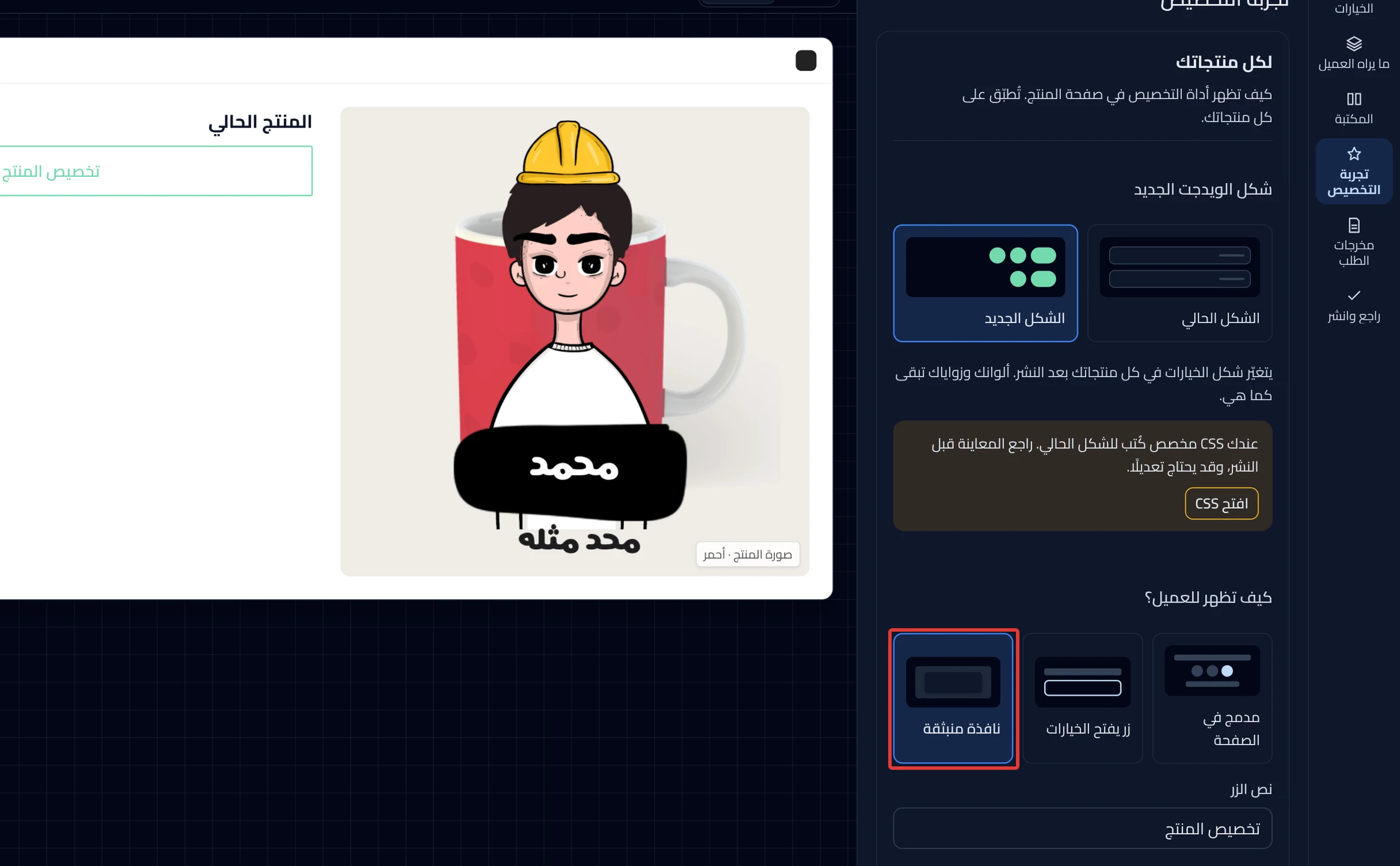
- Optional: with the button or the popup, enter the Button text. This is what the customer reads on the button, such as "Design your gift". The text is saved when you leave the box.
- Scroll down to the This product section at the bottom of the panel. Its settings are for this product only.
- Optional: turn on On desktop under Keep the preview in view while scrolling. The preview image stays in view while the customer scrolls. After that, you can choose how it looks on mobile.
- Optional: under When does the product photo change?, choose Always or After the first pick.
- Click Review & publish, then Publish now.
On a phone, the Review & publish button is at the bottom of the screen.
What your customers see
After you publish, the way the widget shows changes on all your products. The preview settings change on this product only. The change shows in your store in about a minute.
Good to know
- The way it shows and the button text change on all your products when you publish this product. Until you publish, they stay in its draft.
- The gray text inside Button text is not saved, because it is only an example. If you do not save any text, the button shows "Customize product".
Not showing?
- Did the way it shows not change? Open the product where you made the edit, click Review & publish, then Publish now.
- See Test your product in your store as customers see it.
- The customization widget does not show on the product page
Next
Did this article answer your question?