Follow up on Needs attention alerts and fix them
Open Needs attention on the Start page, and click each alert's button to fix what is in it.
Steps
Path: Start > Needs attention > the alert's button
- Open Start from the app menu, then scroll down to Needs attention.
- Read the alert. Above it is its type, such as Studio readiness or Salla option bindings. Below it are the product name, the reason and its effect on your store.
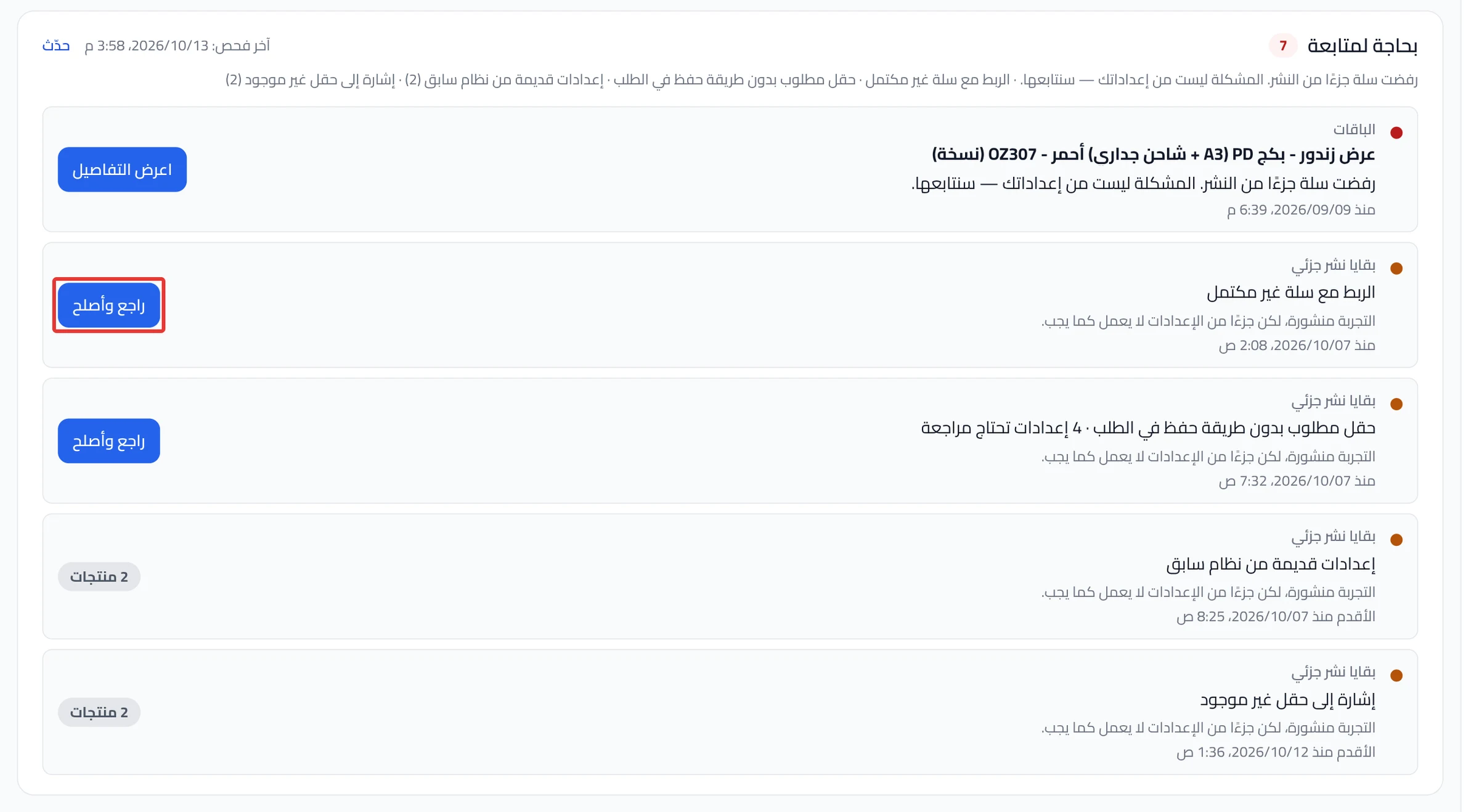
- Click the alert's button:
- Review & fix: opens the product in the Studio. Click Review & publish to see what needs a fix, then follow Fix what stops your product from publishing.
- Reconnect Salla: takes you to sign in to Salla, then brings you back to Start.
- Repair & publish or Retry in a bundle alert: publishes the bundle in Salla right away. It does not ask you to confirm.
- Optional: if Fix automatically or Fix all shows, click it. It fixes the draft only, and does not publish anything.
- After the fix, click Refresh so we check again.
What your customers see
The alerts show to you only, and your customers do not see them. If the alert says "The experience cannot be published to customers until this is resolved.", your store does not show your edits until you fix it and publish.
Good to know
- The section updates when you open Start and when you come back to the page, because it does not update by itself over time.
- When nothing is left, one line shows that starts with "All clear".
- Fix all fixes the drafts only, so publish each product after it from Review & publish.
On Zid
The Salla connection alert does not show.
Not showing?
- Did you fix something, but its alert did not disappear? Click Refresh.
- Did Review & fix open the Studio with no list? Click Review & publish in the Studio, and see Fix what stops your product from publishing.
Next
Did this article answer your question?