Test your product in your store as customers see it
Open your product page in your store, and customize it as a customer would, up to the cart.
Before you start
- Publish your product first, as in Review your product and publish it to your store. Before you publish, the Product page ↗ button is grayed out and does not work.
Steps
Path: Studio > Product page ↗
-
Click Product page ↗ at the top of the Studio. Your product page in your store opens in a new window.
On a phone, the button is an icon only, with no text.
Right after publishing, you also find View on my store on the success screen. It opens the same page.

- Did you publish a moment ago? Wait about a minute, then refresh the page.
- Customize the product as a customer: enter text, choose options or upload a file, and look at the preview.
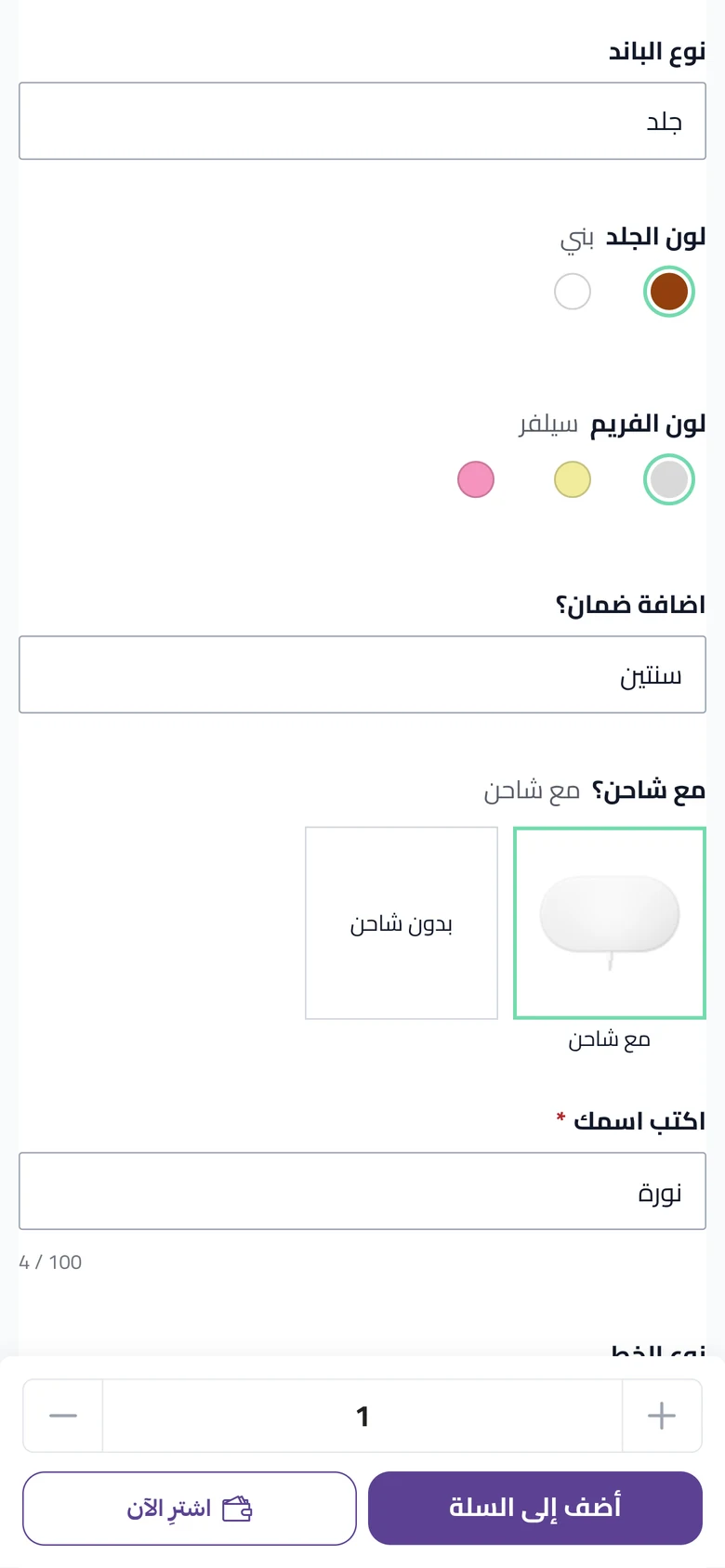
- Add the product to the cart, then open the cart page.
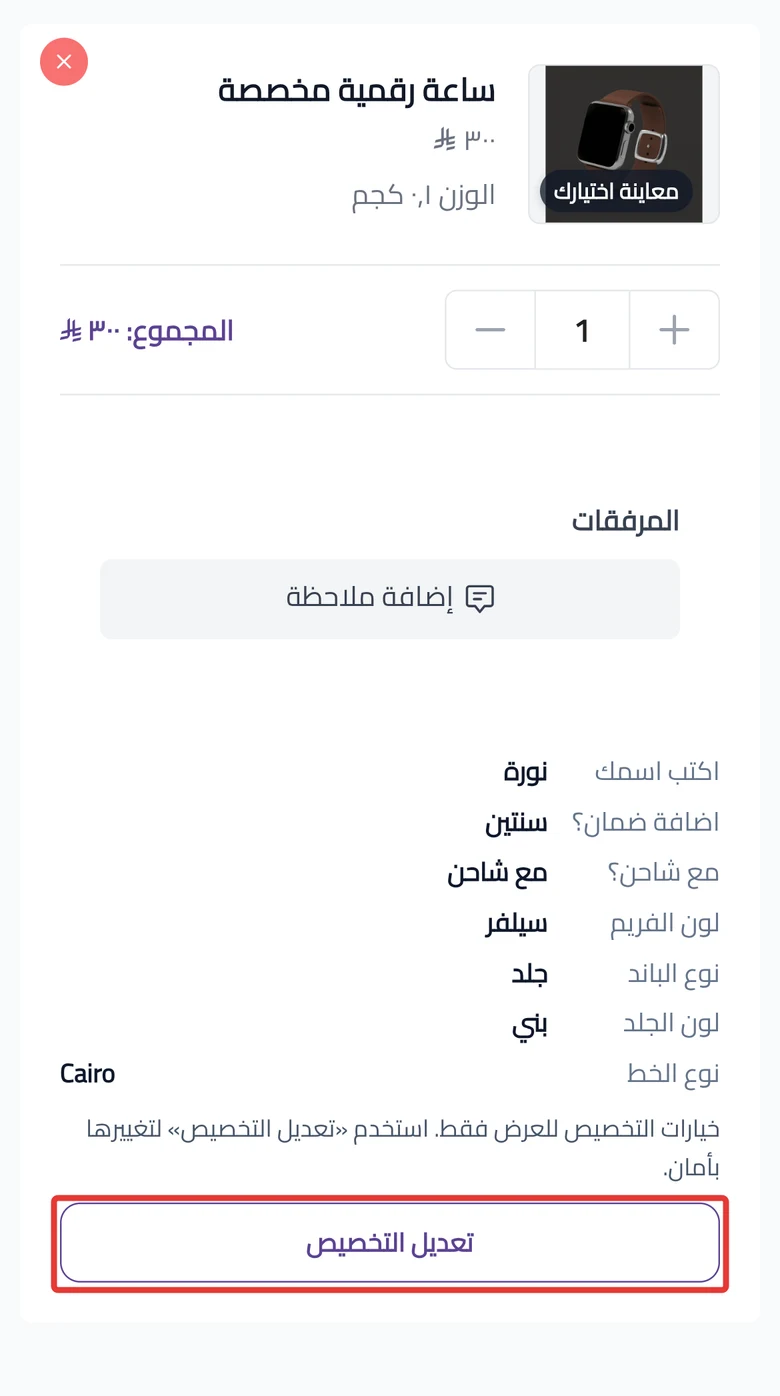
- Optional: click Edit customization to change your choice. Finish the edit on the same page.
What your customers see
In the cart, the preview image shows instead of the product image, with "Your selected preview" on it. On the cart page, the customer can change their choice only from Edit customization. If they complete the order, their choices reach you with it.
Good to know
- Your edits after publishing do not show in your store until you publish again, and the status is Live · unpublished changes.
- There is no link to share the customer's design, because the customer customizes the product on the product page only.
- A test order is a normal order in Salla.
Not showing?
- The customization widget does not show on the product page
- Add to cart does not add the product
- Customers cannot see customization in Snapchat or TikTok
- The meaning of the Product page ↗ button is in Studio start and top bar settings.
Next
Did this article answer your question?