Fix what stops your product from publishing
Fix every card in Fix before publishing so the Publish now button works.
Steps
Path: Review & publish > Fix before publishing > the card's button
-
Click Review & publish. We check your product, then the result shows.
On a phone, the Review & publish button is at the bottom of the screen.
-
Read the cards under Fix before publishing. Each card has the option name and a message that says what is missing.
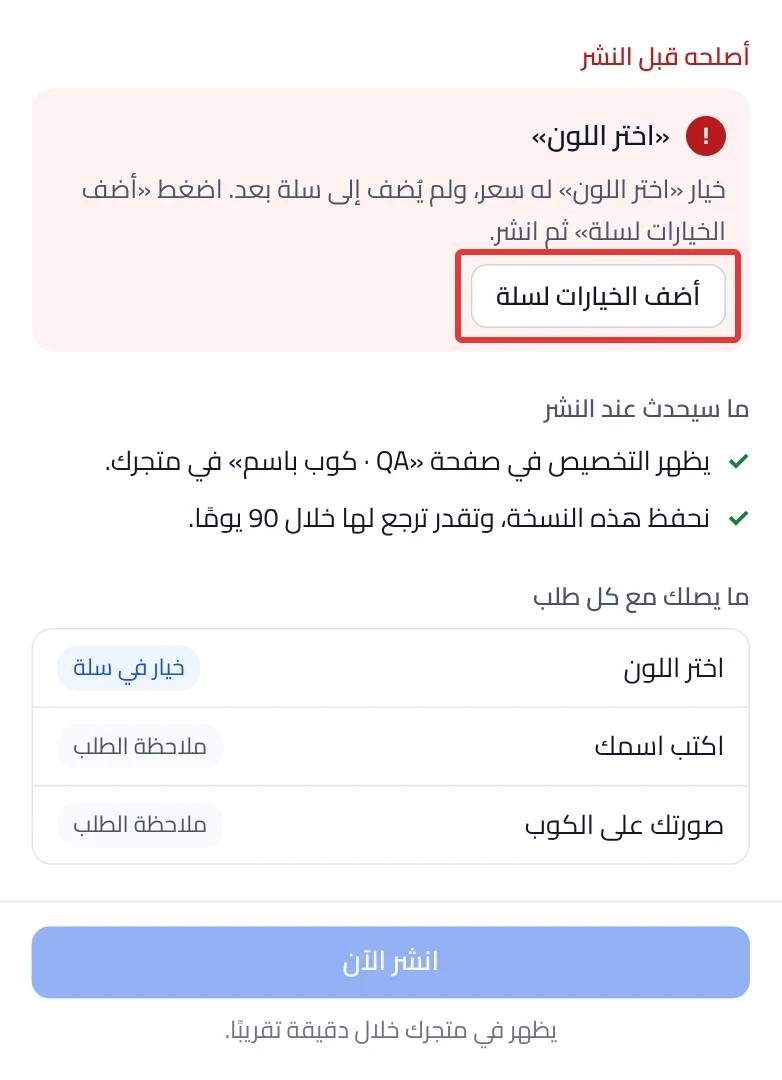
- Click the button on the card. The card's button takes you to the fix, such as Open option or Edit option.
- If the button is Add the options to Salla, a confirmation window shows. After you confirm, the button adds the options to your product in Salla right away, before you publish.
- Fix what the message says. We save your edit and check again, and the card disappears.
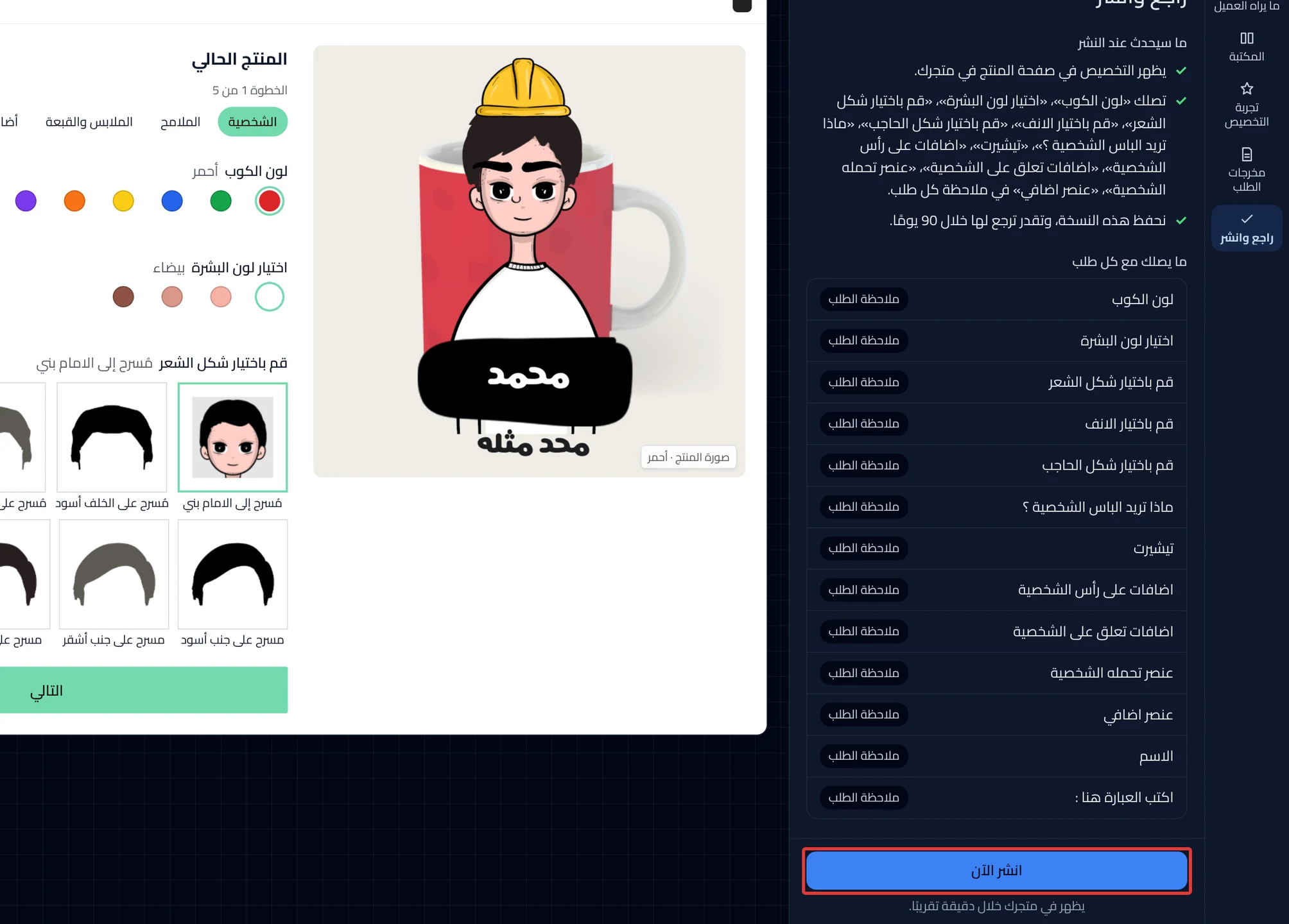
- When all the cards are gone, click Publish now.
What your customers see
Customization in your store does not change until you publish. After Publish now, customization shows in your store in about a minute.
What each message means
| The message starts with | Fix |
|---|---|
| "“Color” has a price but is not in Salla yet." | Publishing blocked: a priced option is not added to Salla |
| "“Color” should use an existing Salla option, but none is chosen." | Publishing blocked: the option's Salla link needs review |
| "Your priced options make" | Publishing blocked: more than 100 combinations |
| "The Salla option “Size” on this product isn't linked to any option here" | A required Salla option stops add to cart |
| "We could not read the product’s options from Salla right now." | Publishing did not finish, or the product check failed |
| "Something in “Color” needs a look before publishing." | Contact support and send what helps us solve it |
Good to know
- Notes — won’t block publishing does not stop publishing, because these are warnings only, with no button.
- The yellow Update the option in Salla card does not block publishing, but publishing does not send the new prices to Salla. Click Update the option in Salla. After you confirm, the button updates the option in Salla right away, before you publish.
- Most fix buttons change the draft only, and you can undo them.
On Zid
The Salla cards and their buttons do not show.
Not showing?
- Did "Add at least one option before publishing." appear? Add an option as in Make your first product customizable.
- Did "We couldn’t check your product before publishing" appear? Click Check again, then see Publishing did not finish, or the product check failed.
- What does the Add the options to Salla button do? See Price and Salla settings in an option.
- Another problem? Start from Fix a problem: where do you see it?.
Next
Did this article answer your question?