Pause customization on a product
Hide customization from one product page, and the product stays on sale in your store.
Steps
Path: Experience > This product > Customization shows on the product page
-
Click Experience in the Studio's section menu.
On a phone, the section menu is a row you scroll sideways.
-
Scroll down to the This product section.
-
Turn off the Customization shows on the product page switch. The message "Hide customization on this product?" shows.
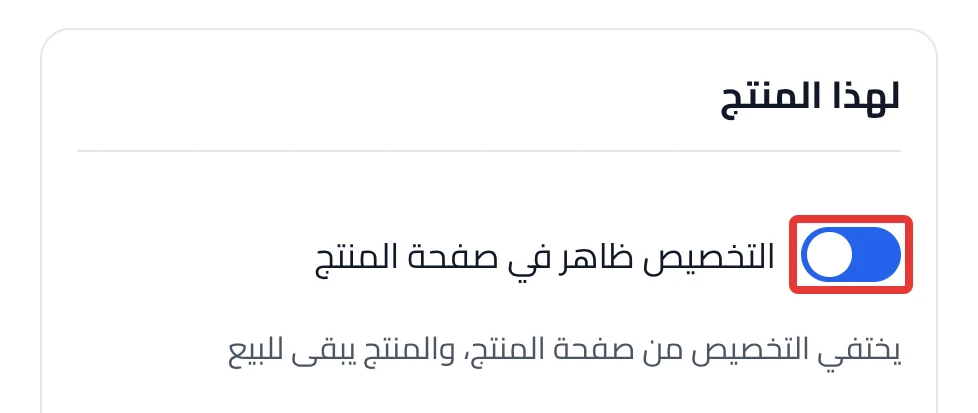
- Click Hide customization. Customization disappears from the product page right after you confirm, without publishing.
- Look at the status at the top of the Studio. If the product was published before, it becomes Paused.

You can also pause from Products: turn off the Product customization switch on the product card. In the table view, click Disable customization. No confirmation message shows here.
What your customers see
The customer does not see the customization widget on the product page. The product's normal options in Salla come back, and the product stays on sale. Nothing changes in your product in Salla, such as the price or the stock.
Good to know
- Every publish turns customization back on. If you publish an edit while customization is paused, it shows to your customers again.
- To bring it back, turn on the same switch and click Publish on product. This brings back the last version you published, because it does not publish your draft edits.
- Your settings and your draft stay as they are, because pausing only hides customization.
Not showing?
- Does customization still show? Refresh the product page in your store.
- Want to bring it back? See The customization widget does not show on the product page.
Next
Did this article answer your question?