Copy the customization experience to many products at once
Set up customization on one product, then copy it to other products at once.
Steps
Path: Products > Copy experience
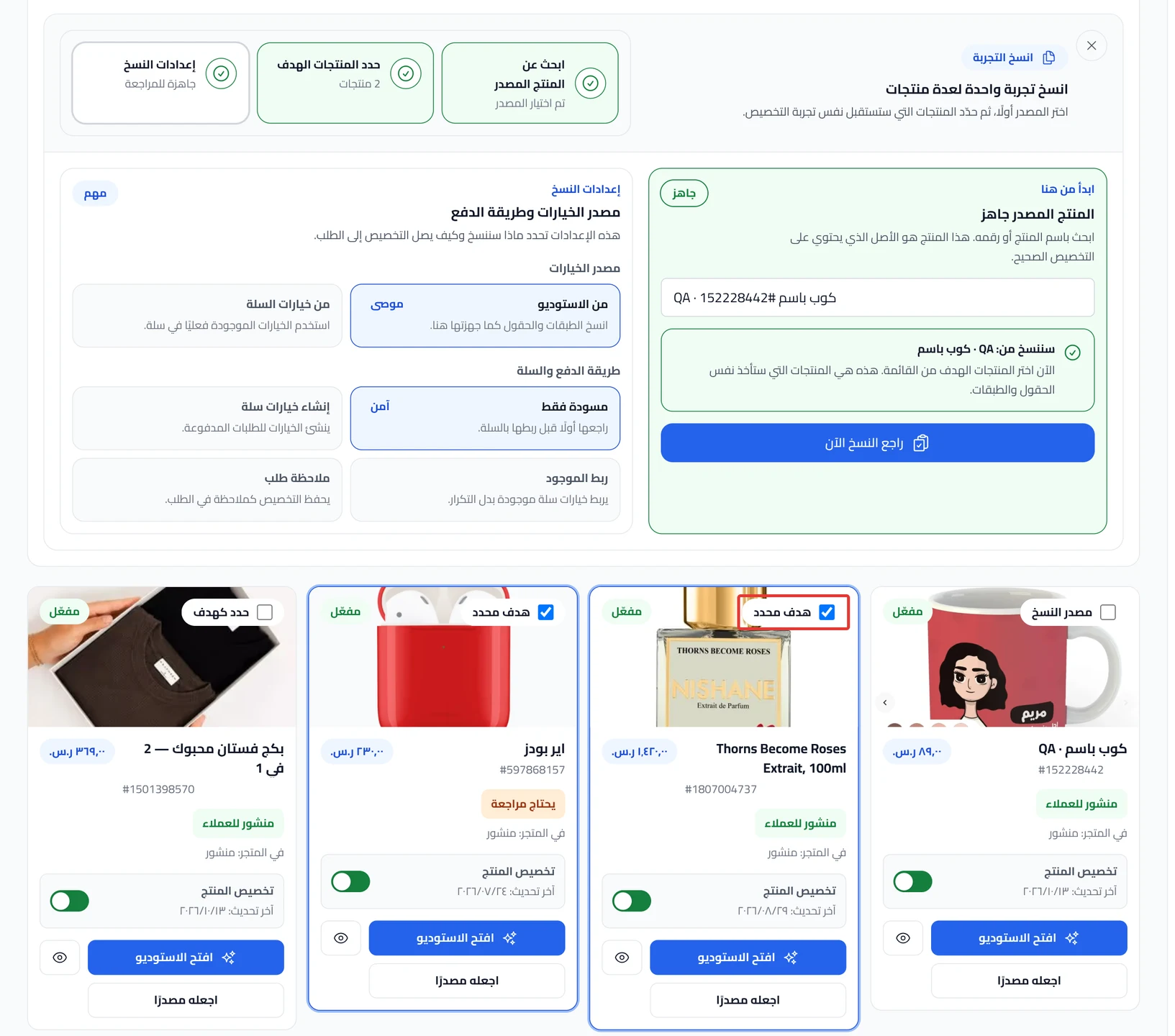
- Click Copy experience. The Copy one experience to several products panel shows.
- Search for the source product by its name or number, and choose it. This is the product where you set up customization. You can also click Use as source on the product card.
- Click Go to target product selection.
- Click Mark as target on each product you want to copy to. The button becomes Selected target. In the table view, you can mark all the products shown at once. You cannot mark a whole category.
-
In Copy settings, choose where the options come from. From Product Studio copies what you set up in the Studio, and it is the recommended choice. From Salla options uses the source product's options as they are in Salla.
-
Choose how checkout and the cart work:
- Draft only: the first choice. It does not add options to Salla.
- Create Salla options: adds the options to each target product in Salla during the copy. This happens before you publish.
- Link existing: links options that already exist in Salla, instead of creating duplicate options.
- Order note: saves the customer's choices as a note on the order.
Is the Write choices in the order note switch on in the source product? The order note box shows right away on the target products in Salla, except with Create Salla options.
-
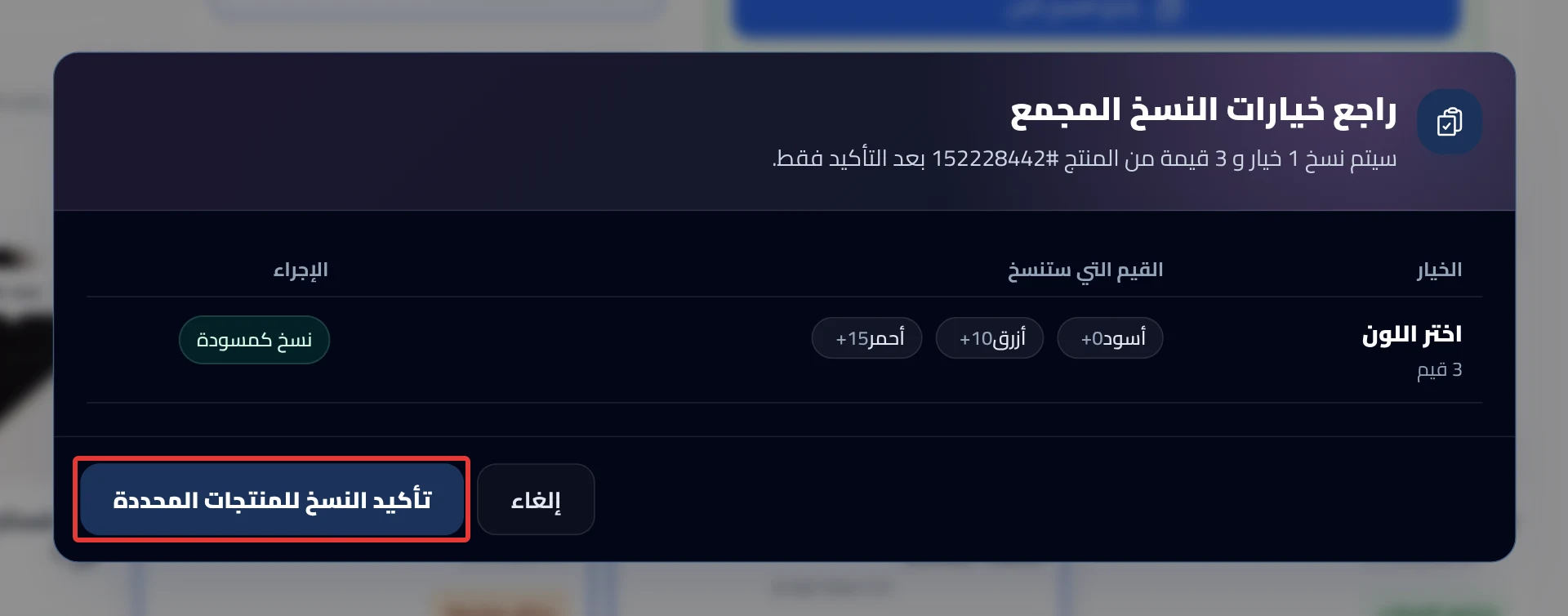
Click Review the copy now, then Copy to selected products. The Review bulk copy screen shows what will be copied to the first target product only. After you confirm, the number of products the customization was copied to shows. Any product it was not copied to shows with its number.
What your customers see
The new customization shows to your customers after you publish each target product in the Studio. There is no bulk publish. With Create Salla options, the options are added to your products in Salla as soon as you confirm.
Good to know
- With From Product Studio, the source product's latest edits are copied, even unpublished ones.
- Copying replaces the whole draft of each target product, and does not merge it with what is there. If edits were lost on a target product, go back to them from Version history. Saved versions are kept for 14 days. See Undo a change or go back to an earlier version.
Not showing?
- Does the review button not work? Choose the source product and mark at least one target product.
- Did "We could not prepare the copy review. Try again." appear? Click Review the copy now again.
- Was a product not copied to? Mark it alone as a target and copy again.
- Did you copy, but you do not see the change in your store? Publish the target product. See Review your product and publish it to your store.
Next
Did this article answer your question?