Version history settings
Path: Studio > History at the top of the screen > Version history.
On a phone: the History button is an icon only, with no word.
Saving and publishing
Your changes are saved automatically as a draft one second after your last edit. Saving does not publish anything to your store. At the top of the Studio, "Saving…" shows, then "Saved automatically". If Save now appears, click it to save right away. While you keep editing, your saves stay in one card in the history. Each publish adds a new card. A saved version is kept for 14 days, a published version for 90 days, and a version you named is kept for good.
On a phone: the save button does not show, and saving works as usual.
Want the full steps? → Undo a change or go back to an earlier version
Undo and redo
The undo and redo buttons are in the top bar next to History, not in Version history. From the keyboard: press Ctrl+Z to undo, and Ctrl+Shift+Z or Ctrl+Y to redo. On a Mac, use ⌘ instead of Ctrl. Product Studio keeps up to 50 steps per product, as long as the page stays open. Undo does not work while Version history is open.
The two buttons are explained in Studio start and top bar settings.
Discard unpublished changes
Shows at the top of the list if you published the product before and edited it after. Click Discard unpublished changes to put the draft back to the version that is live in your store.
Versions
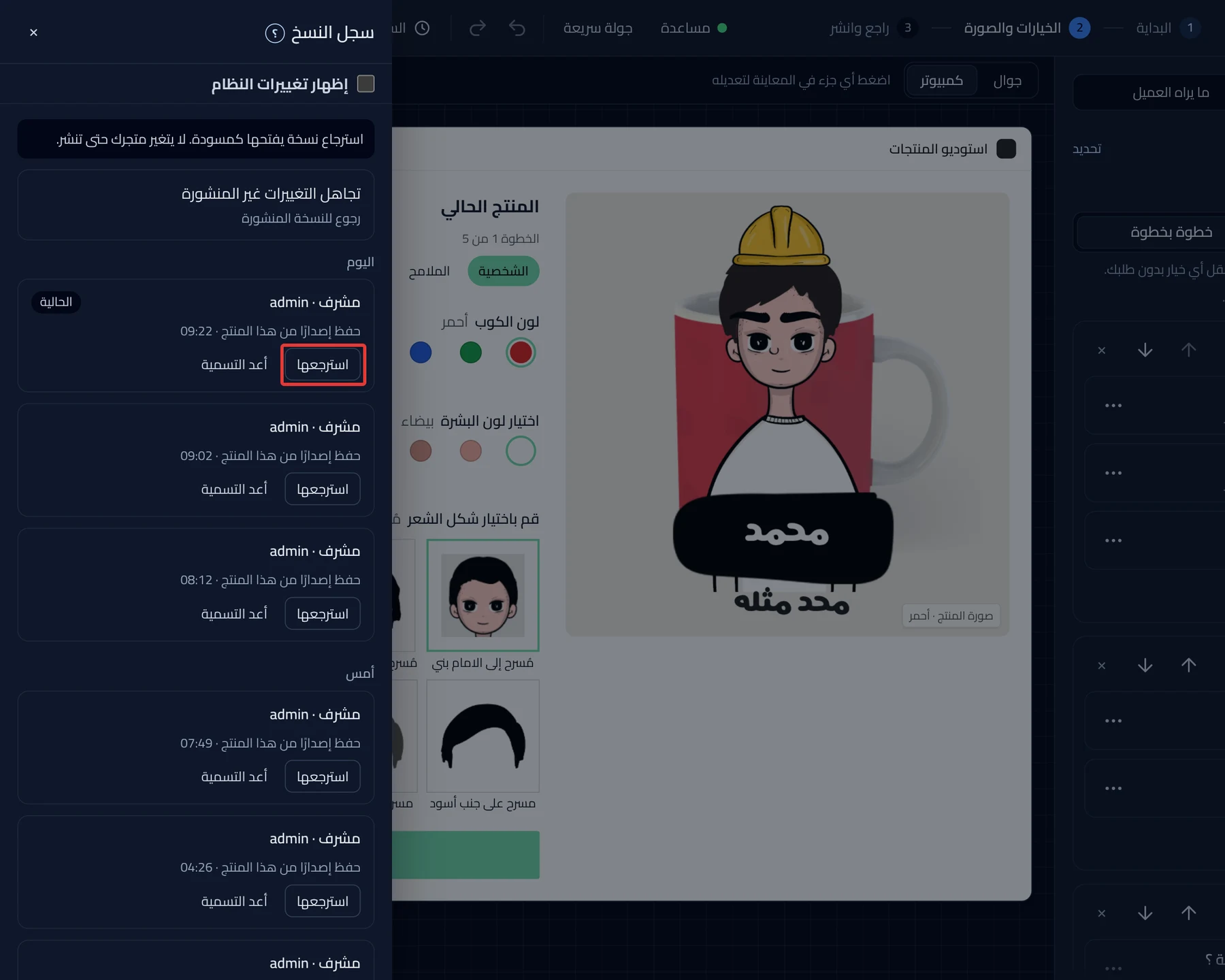
Versions are grouped by day: Today, then Yesterday, then the date. The newest card is marked Current, and the version your store shows is marked Live now. System changes are hidden. Choose Show system changes to see them. Your browser remembers your choice. To see older versions, click the button at the end of the list.
Restore
Click Restore on the version's card, then Restore in the window that opens. When "Restored" appears, click Done. The version comes back to the draft only, even if it was published. Your store does not change until you click Publish now. If you have unsaved changes, Product Studio saves them first as a version, so nothing is lost.
To name a version, click Rename, enter a name of up to 60 characters, then click Save.
Start over
At the end of the list. It clears all the options and takes you back to Start customizing your product. No confirmation message appears. If you clicked it by mistake, click Undo in the message at the bottom of the screen. Your store does not change until you publish.
Want the full steps? → Make your first product customizable
Did this article answer your question?