The My library page in Product Studio
Path: My library in the app menu.
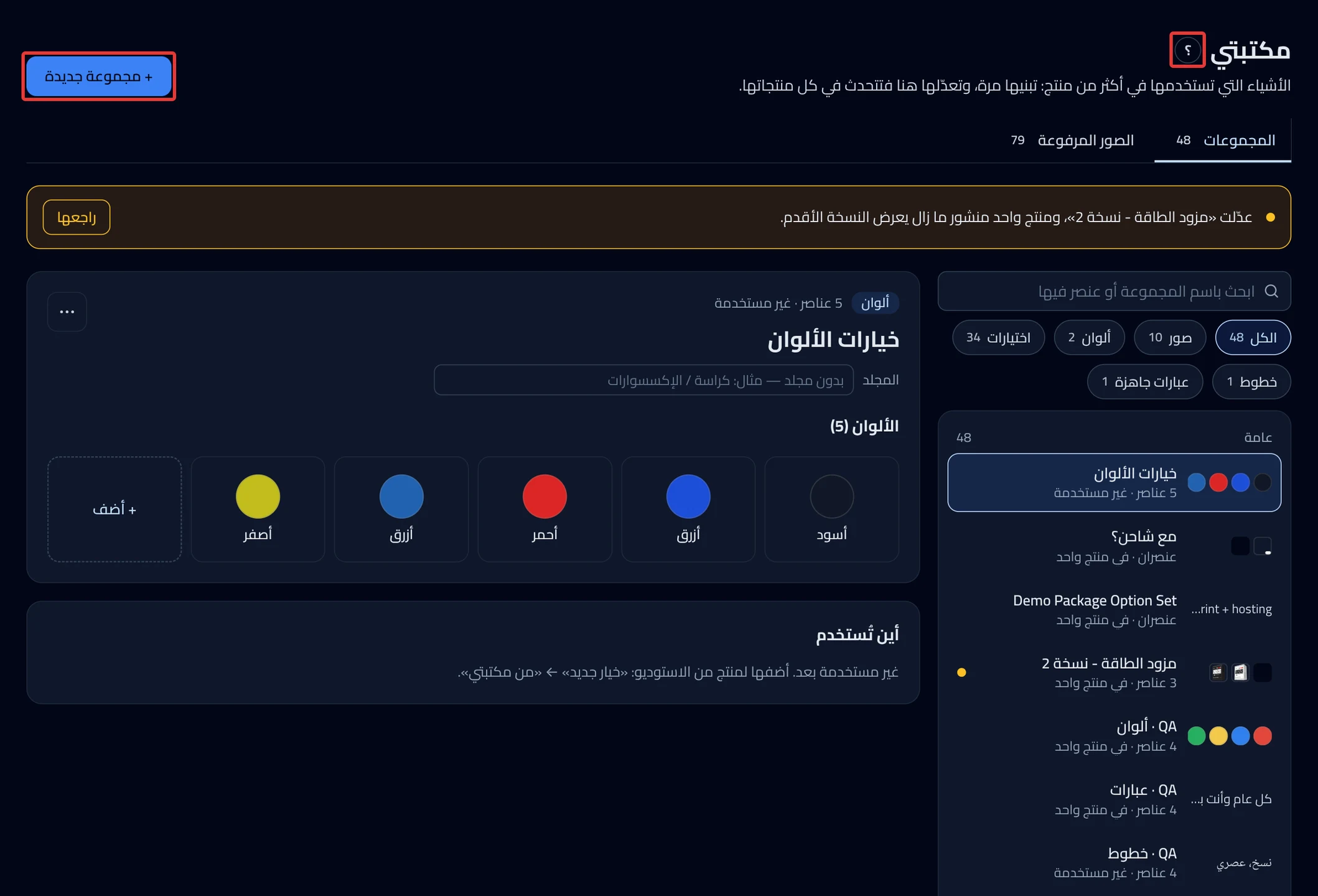
In My library you keep sets that you use in more than one product. The same page appears inside the Studio in a smaller form. See Library settings in the Studio.
How does the library work?
Click the ? button at the top of the page to open the explanation panel. It has four points. You build a set once, and a product that adds it stays linked to it. You edit it here, and you decide when the edit reaches published products. You detach it from a product whenever you need, and deleting it changes nothing in your store.
Want to know the difference between linked and a copy? → Linked to My library or a separate copy?
+ New set
Click + New set. The "What do you want to save?" window opens. Choose a type. A set named New set appears at the top of the list. It carries a New tag. We do not save it until you click the save button.
Want the full steps? → Save choices to My library to use on other products
What do you want to save?
The window has five cards: Images, Colors, Options, Fonts and Ready phrases. Under each card is a line that explains it, with examples. An extra price exists in Options sets only.
Or start with one of ours
At the bottom of the window are three starter sets: Sizes XS – XXL, Saudi cities and Gift phrases. The sizes set has 6 items, the cities set 18, and the phrases set 12. A starter set opens like any new set, in a folder for starter sets (the folder and set names are still in Arabic). Edit it, then save it.
Sets
The page has two tabs: Sets and Uploaded images. In Sets, search by the set name or by the name of an item in it. Or click All or one of the five types. Next to each is its number of sets. Under each set name are its number of items and the number of products that use it. A yellow dot next to a set means "A product shows an older version".
The set page
Click a set to open it. At the top are its type and number of items, then the box for its name. The three-dot button ⋯ holds Make a separate copy and Delete set. It does not appear on a new set. In image sets only, Product picture and the Upload several images at once button appear. Under the items, the + Add button adds a new item. On a phone and inside the Studio, Back to sets appears. Inside the Studio, Use in this product also appears.
The folder
Enter a folder name in the Folder box to organize your sets. You can leave it empty. The list groups sets by folder. Sets with no folder appear under General. With "/" in the folder name, we group them under the first part. The rest shows before the set name.
Edit item
Click an item to open the Edit item panel. Its boxes depend on the set type. Every type has Name, except phrases, which have Phrase. Colors have Color, and options have Extra price in SAR. In fonts, choose Ruqaa, Naskh, Kufi or Modern, or Upload font. In images, Choice picture is what the customer taps, followed by the On the product pictures. The Delete item button at the top of the panel deletes the item from the set. Under each On the product picture is a small button with the same name. This button deletes only that picture, and the item stays.
If products use the set, we ask "Where should we remove it?". Choose Remove only from this library or Remove from this library and all linked products. An item linked to Salla stays on its products. Remove it in the Studio on each product.
Where it's used
Under a saved set is the Where it’s used card, with the products that use it. From it you update a product and publish it, or detach it from the set.
Want the full steps? → Edit a set in My library and update its products
Want to add a set to a product? → Add a set from My library to a product
The save bar
After any edit, the save bar appears at the bottom of the page. Save & update the product saves and publishes the edit to published products right away. Save only, update later keeps published products on the previous version. Undo changes cancels your edits. Drafts update with every save. If a product has other edits that are not published, we do not publish it. Open it and publish it. If you click another button before saving, we ask you to save or undo first.
Delete the set
From the three-dot button ⋯, click Delete set. A window asks you about deleting. If products use it, we show them to you. Click Delete and keep copies. Each product keeps its options as a separate copy, and nothing changes in your store. If no product uses it, click Delete. After deleting, Undo changes appears for 8 seconds. If you leave the page, we delete it right away. Make a separate copy makes a copy of the set that is not linked to any product.
Uploaded images
The Uploaded images tab holds all the images you uploaded to the library. Click Upload images to upload new images. Each image shows the number of sets that use it. The Delete button appears only on an image that no set uses. To delete an image in use, remove it from its sets first. Uploaded fonts do not appear in this tab.
File and name limits
Images up to 10 MB, in JPG, JPEG, PNG, WEBP, SVG and GIF format. Fonts up to 10 MB, in TTF, OTF, WOFF and WOFF2 format. The set name plus the folder name can be up to 120 characters, and cannot be empty. You cannot save two sets with the same name in the same folder. We check this when you save.
Did this article answer your question?