What customers see settings
Path: Products > Open Product Studio > What customers see
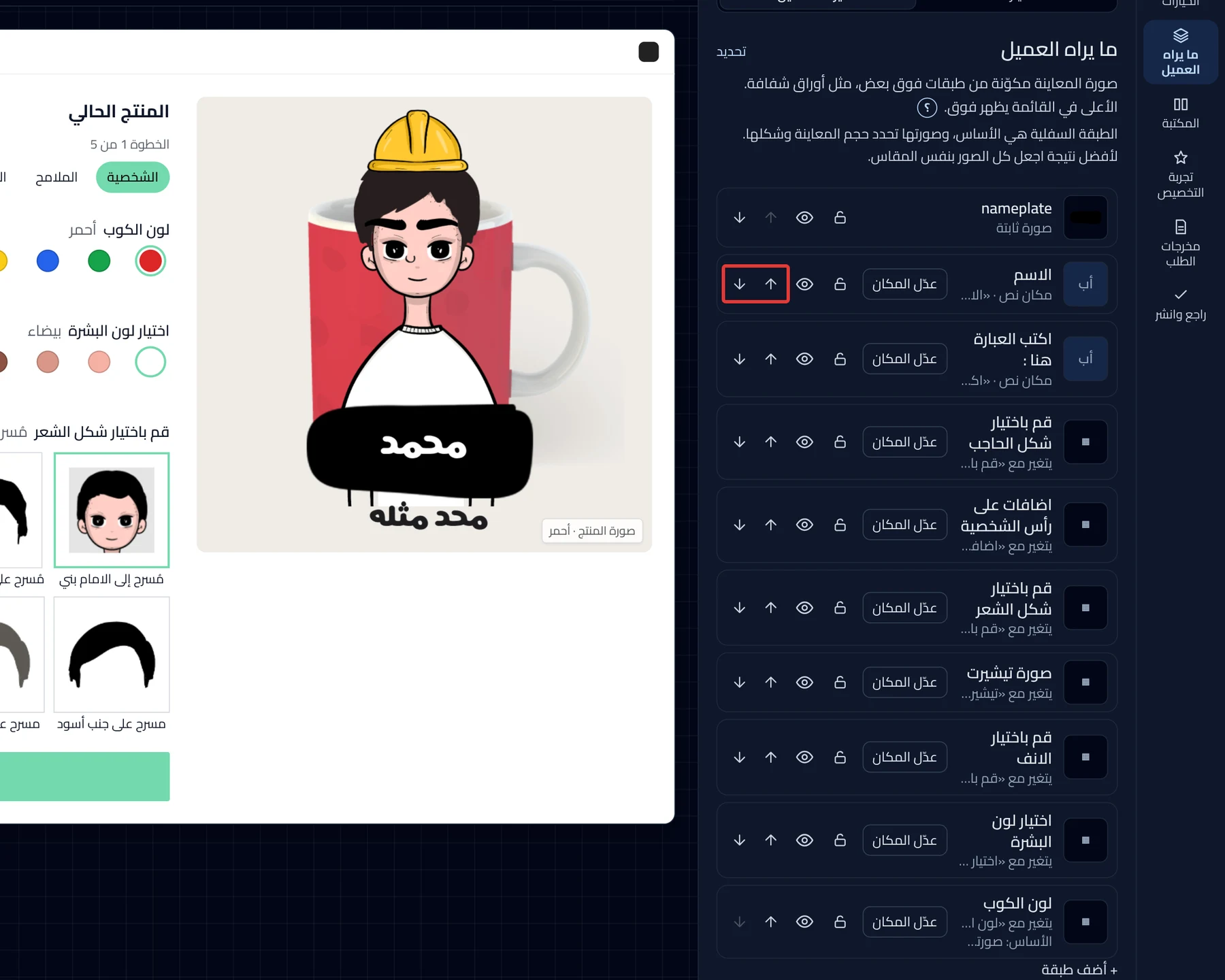
The layers list is at the top of the panel, the settings of the layer you open are under it, and the preview is next to it.
What customers see
The preview is built from layers stacked on top of each other, like transparent sheets. The layer higher in the list shows on top of the others on the photo. If the product has more than one photo, choose the photo from Product photos at the top of the list. An empty list shows "Nothing on the photo yet."
Layer types
Under each layer's name you see its type:
- Fixed image: an image that does not change with the customer's choices.
- Text spot: the spot for the text the customer types.
- Customer image spot: the spot for the image the customer uploads.
- Layer driven by an option: its image switches with the customer's choice.
The last row, Product photo, comes from the product page in your store and shows under every layer.
Base
The bottom layer is the base, and it is marked as the base. Its image sets the size and shape of the preview. If you change the order of the layers, the base may change.
Lock button
Click the lock button next to a layer to lock it in place. A locked layer does not move or resize. Click the button again to edit it.
Hide button
Click the eye button next to a layer to hide it from the preview here. "Hidden now" shows next to it.
Layer order
Click the up and down arrows next to a layer to change its order. Higher in the list shows on top. Some layers cannot move, and the reason shows next to them.
Select
Click Select to choose several layers, then delete them together or drag them together on the photo. It covers images only: not text spots, customer image spots or choice images. You can undo after deleting.
Add layer
Under Add layer, choose the type of the new layer: Layer driven by an option, Fixed image, Text spot or Customer image spot. Then the Studio asks which option it is linked to, or you choose New option.
Layer name
Click any layer to open Layer settings. In Layer name, enter a name you recognize it by in the list.
Changes with
In Changes with, choose the option that changes this layer's image. Choose Nothing to keep the image fixed. The settings that change the image inside the option are in Picture and spot settings in an option.
Tinted with the text color
Turn on Tinted with the text color so the fixed image takes the text color the customer chooses. It shows only on a fixed image, and it does not work if the product has no text option.
Text shown here
In a text spot, choose the text option that fills it from Text shown here. In a customer image spot, choose the upload option from Customer image from option. In a text spot you also choose the Color. In a fixed image, click Upload the fixed image.
Text direction
Choose Automatic, From the right or From the left. The default is Automatic.
Writing form
Choose Horizontal or Vertical. The default is Horizontal.
When the space fills up
Choose what happens when the customer types long text: Shrink the text to fit or Move it to a new line. The default is Move it to a new line.
How the image appears in the space
Choose Show the full picture, Fill the space while trimming the ends or Stretch the image to fill the space. In a layer driven by an option, its images are uploaded inside that option. Click Open option to get to it. Move Rotation to rotate the layer on the photo. It shows in every layer whose surface is Flat, including text layers.
Shows with
Shows when the customer chooses a portrait or landscape direction for their photo. Choose Both directions, Portrait photo only or Landscape photo only.
When does this layer show?
Choose Always or Only if…, as in When does it show? for options. For example, add a layer for each design, and each layer shows only when the customer chooses its design.
Position & size
Drag the layer's frame on the photo to move it, and drag its edges to resize it.
Surface shape
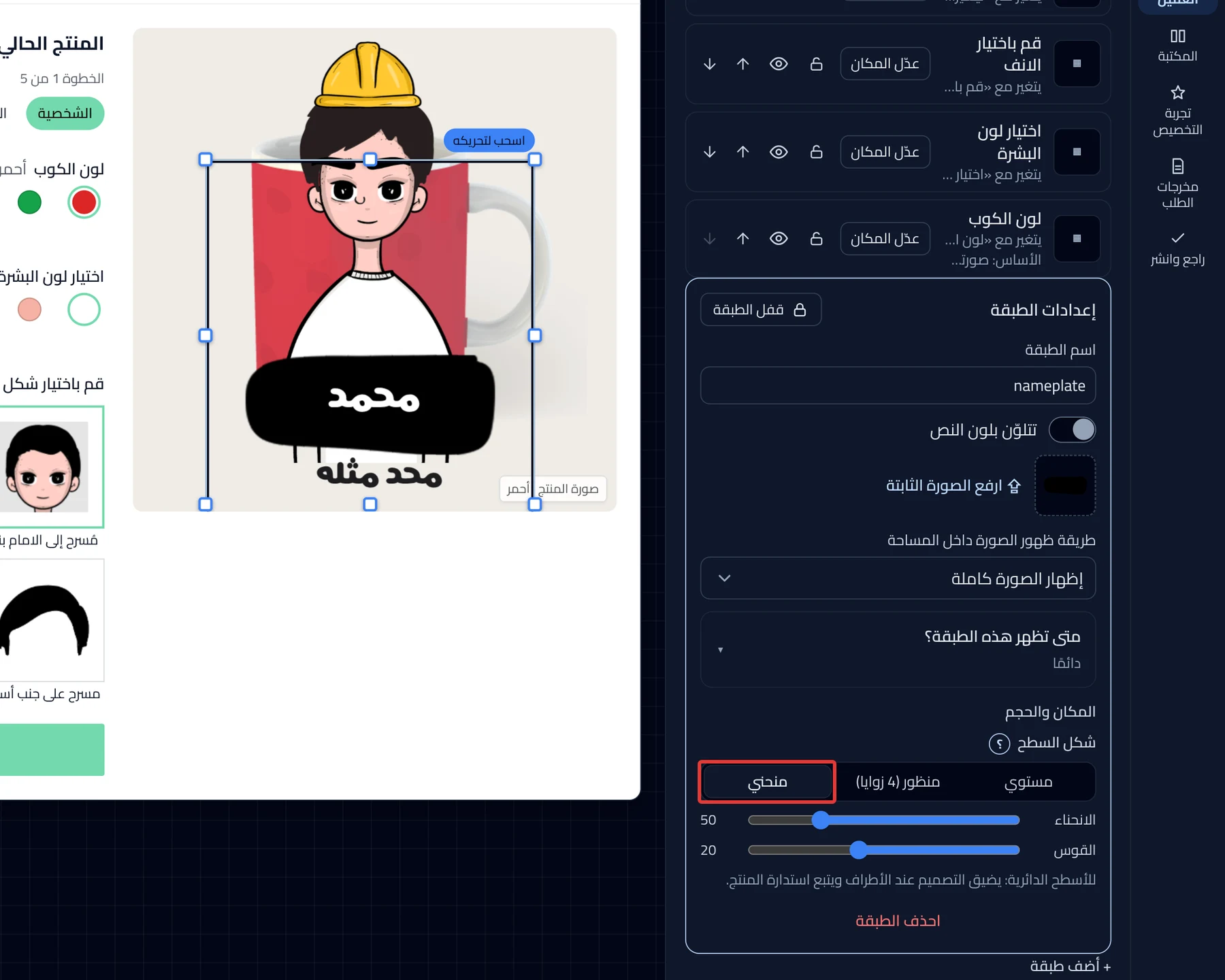
Makes the design take the shape of the product:
- Flat: no tilt and no curve.
- Perspective (4 corners): drag the four points onto the corners of the face in the photo, such as the front of a box.
- Curved: for round surfaces such as a mug. The design narrows at the edges.
Images can take all three shapes. A text spot does not show this setting. If the customer moves their design, the spot of their image stays Facing the camera only.
Reset corners
With Perspective (4 corners), click Reset corners to put the corners back where they were.
Delete layer
Click Delete layer at the bottom of the settings. If an option changes this layer, the Studio asks you to confirm first. Otherwise it is deleted right away, and you can undo from the top bar.
Mobile and desktop
Choose Mobile or Desktop at the top of the preview to see the photo as it shows on each device. The preview opens on your device type. If the customer chooses the direction of their photo, you also find Portrait and Landscape.
On mobile: the preview is in the Preview tab.
Click anything in the preview to edit it
Click any part of the preview photo, and its settings open. When you place an option on the photo, drag it to its spot, then click Done. Your store does not change until you click Publish now.
On mobile: the line "Click anything in the preview to edit it" does not show.
Order preview
When you open Order output, the preview shows a sample order. It shows what you receive with the order: Order note, Order attachments and the price.
Did this article answer your question?