Picture and spot settings in an option
Path: Products > Open Product Studio > Options > the option's name
List options show questions that change the photo. Text and file upload options show their spot on the photo. The other option settings are in Option settings in Product Studio.
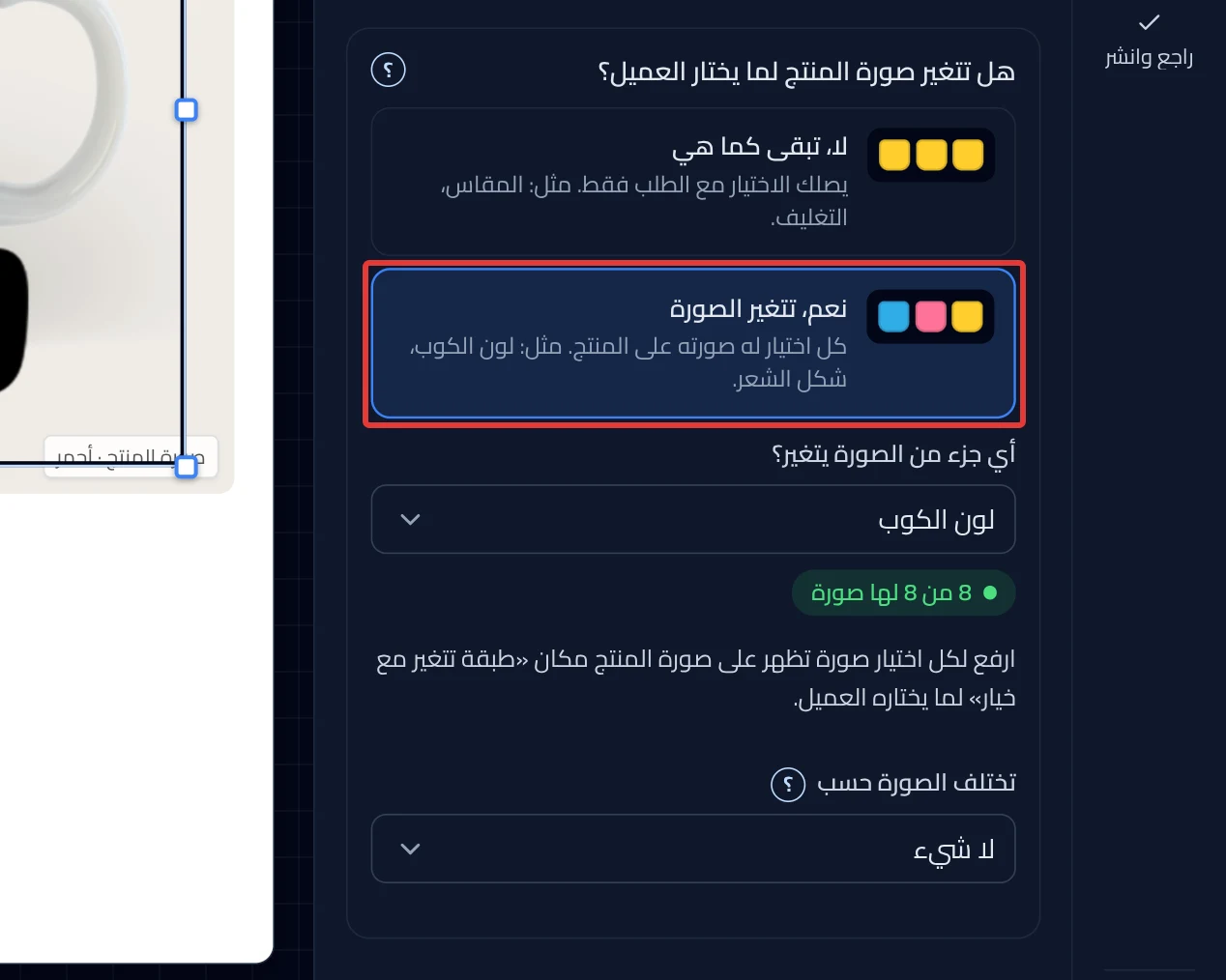
Does the product photo change when the customer picks?
Choose No, it stays the same if you only need to receive the choice with the order, such as a size. Choose Yes, the photo changes so each choice has its own image on the product, such as the mug color. If you go back to No, it stays the same, the Studio hides the choices' images on the product and does not delete them. They come back if you choose Yes, the photo changes again. If a warning says the photo will not change, click Turn on interactive preview.
Want the full steps? → Make the product photo change with the customer's choice
Which part of the photo changes?
In Which part of the photo changes?, choose the layer whose image switches with the choice. If another option changes the same part, its name shows. Changing the part here changes the other option too.
Make it a layer you can move
Shows when this option's images are tied to the images of another option. Click Make it a layer you can move to move its images alone on the product photo. After that, you set the position and size of the choice images, and How the "On product" image appears in the space.
Use the choice images
Shows when some choices have a Choice image but no On product image. Click Use the choice images to copy each choice's image to its image on the product. Under the button you see how many choices are ready out of the total.
Image varies by
Use it when you need an image for each choice combined with each choice of another option. For example, a hair style needs an image for each hair color. In Image varies by, choose the "Hair color" option. A summary shows how many images are ready and how many are missing. Click Open the image grid. The customer always sees one image that matches their choices. Choose Nothing to turn it off.
Layer images
The grid's rows are this option's choices, and its columns are the other option's choices. In any cell, click the upload icon ⇪. Or upload all the images at once, and the Studio matches them by file name. Click any cell to see the result on the product.
No picture
Turn on No picture next to a row that does not need an image. The cell marked Base is the base image in the grid.
On the product photo
In text and file upload options, this section shows "Not on the photo yet" until you place the option on the photo. Click Place on photo, drag the option to its spot on the placement screen, then click Done. The customer sees it in the same spot. In a text option, the button then becomes Edit places, and the section shows "Placed on the photo". Each option has one spot on the photo. In a file upload option, a Position & size section then shows in place of this section, with Surface shape in it. Click Layer settings to open the spot in What customers see, explained in What customers see settings.
Want the full steps? → Place the text or the customer's image on the product
Adjust
On the placement screen, click Adjust to move the option on the photo again.
Precise position
Open Precise position and enter a number in Horizontal % and Vertical %. Enter a number from 0 to 100, as a percentage of the photo's width and height.
Size and rotation
Move Size to make the option bigger or smaller on the photo. Move Rotation to tilt it. Rotation shows only in the spot of a text option.
Surface in the photo
Shows only in the spot of the customer image. Choose Facing the camera or At an angle. With At an angle, drag the corners onto the face of the product in the photo. Or enter them in Precise position. If the customer moves their design, the surface stays Facing the camera only.
Remove from photo
Click Remove from photo to take the option off the product photo.
Did this article answer your question?