Place the text or the customer's image on the product
You drag the option on the product photo to its place, and the customer sees it in the same spot.
- You have a text option or a file upload option. The steps are in Let customers add their name or a message to the product and Let customers upload their logo or photo.
Steps
Path: Products > Open Product Studio > Options > the option name
-
In On the product photo, click Edit places. If the option is not on the photo yet, click Place on photo.
-
Click Adjust if the preview does not show "Drag it on the photo. Customers see it in the same spot.".
-
Drag the option on the photo to its place, then click Done in the preview.
On a phone: the Preview tab opens so you see the option on the photo. To set the position with numbers, use Precise position.

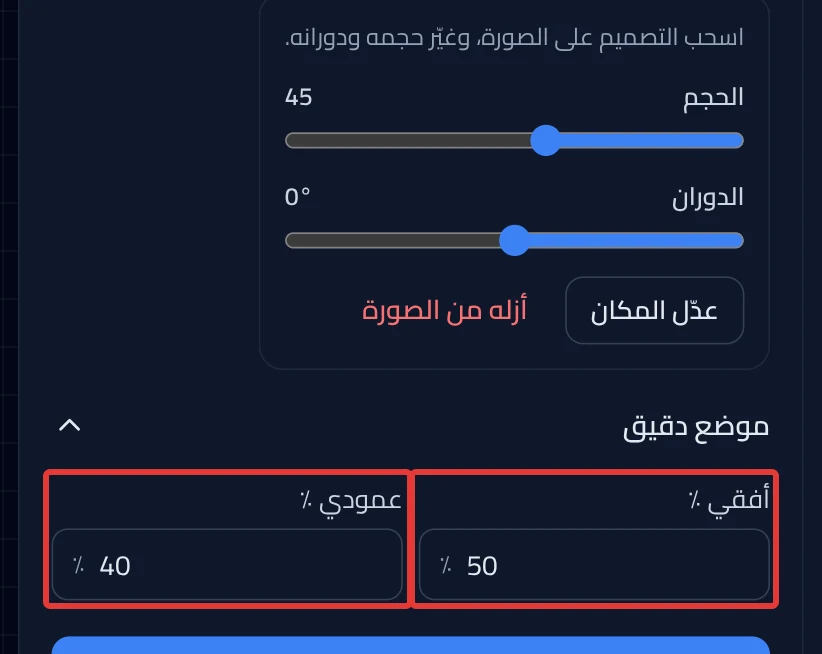
- Optional: move Size to make the option bigger or smaller. For text, Rotation also shows, to tilt it.
- Optional: open Precise position, and enter a number from 0 to 100 in Horizontal % and Vertical %. The number is a percentage of the photo's width and height.
-
Click Done to go back to the option settings.
-
Click Review & publish, then Publish now.
On a phone: the Review & publish button is at the bottom of the screen.
What your customers see
The customization goes live in your store within about a minute. The customer sees their text or image on the product photo, in the spot you chose.
Good to know
- If the customer's image is on the photo, you find Position & size in the option settings instead of these buttons. Drag the frame of the customer's image on the preview, and drag its corners to resize it. The customer's image does not rotate and has no Precise position.
- Each option has one spot on the photo.
- In a text option, click Remove from photo to take it off the photo. The option stays, and the customer fills it in as usual.
Not showing?
Next
Did this article answer your question?