Wrap the design around a mug or tilt it with the photo
You choose a Surface shape for the image, so the design wraps around the mug or tilts with the face of the box.
Steps
Path: Products > Open Product Studio > What customers see
-
Click the image in the layer list. Layer settings opens.
For the customer's image, open the upload option in Options instead.
-
Scroll down to Surface shape in the Position & size section. The shape starts on Flat.
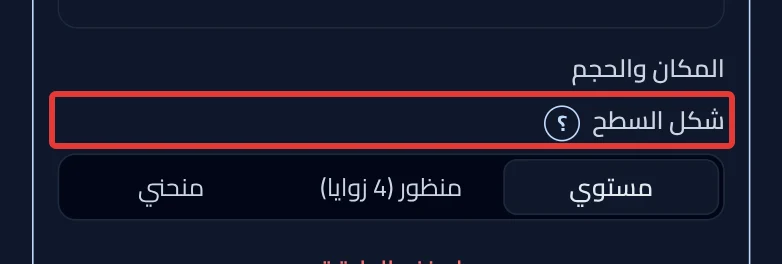
- For a box or a slanted lid, choose Perspective (4 corners). Then drag the 4 points onto the corners of the face in the photo. To start over, click Reset corners.
- For a mug or a vase, choose Curved. Then move Curve and Arc until the design follows the product's roundness. Curve narrows the edges, and Arc raises or lowers the middle.
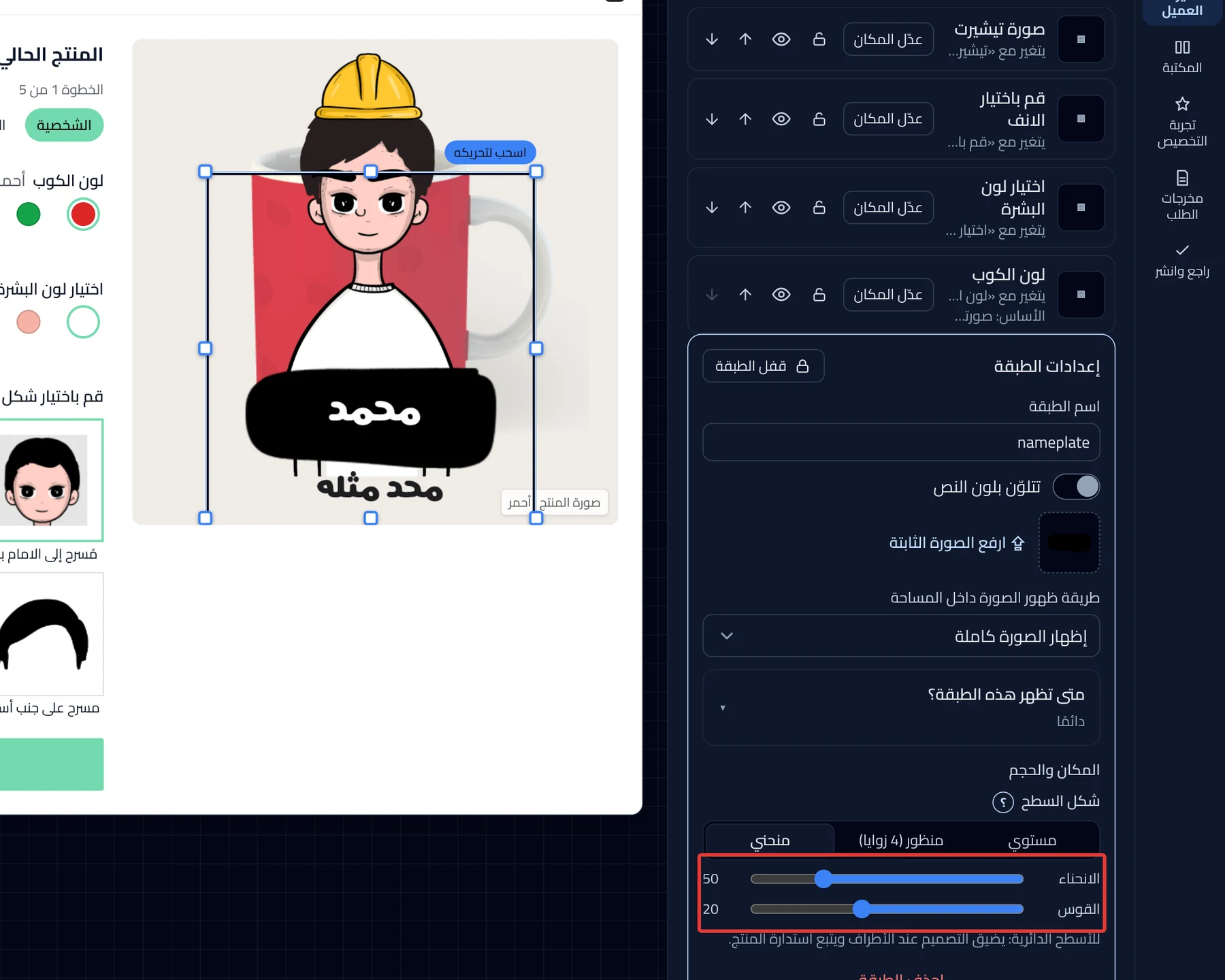
-
Check in the preview that the design sits on the product's surface.
On a phone: open the Preview tab to see the design.
-
Click Review & publish, then Publish now. Until then, nothing changes in your store.
On a phone: the Review & publish button is at the bottom of the screen.
What your customers see
The customization goes live in your store within about a minute. The customer sees the design wrapped around the mug, or tilted with the box, in the preview. The order image shows the shape as the customer saw it, but the print file stays flat.
Good to know
- The customer's text stays flat, because Surface shape does not show for text layers.
- Rotation shows only for a flat layer. The customization widget does not rotate a tilted or curved shape.
Not showing?
- You see only Facing the camera for the customer's image? That is because the customer moves their design. See Let customers move and resize their design.
- What each setting means: What customers see settings.
- The customization widget does not show on the product page
Next
Did this article answer your question?