Set the design size and position on the print sheet
Choose your product type, its size and the design position, so the print file comes out at the right size.
Steps
Path: Order output > Print file design > Open print editor
- In the Studio, click Order output.
- In the Print file design card, click Open print editor. The editor opens with three steps, and the print sheet in the middle.
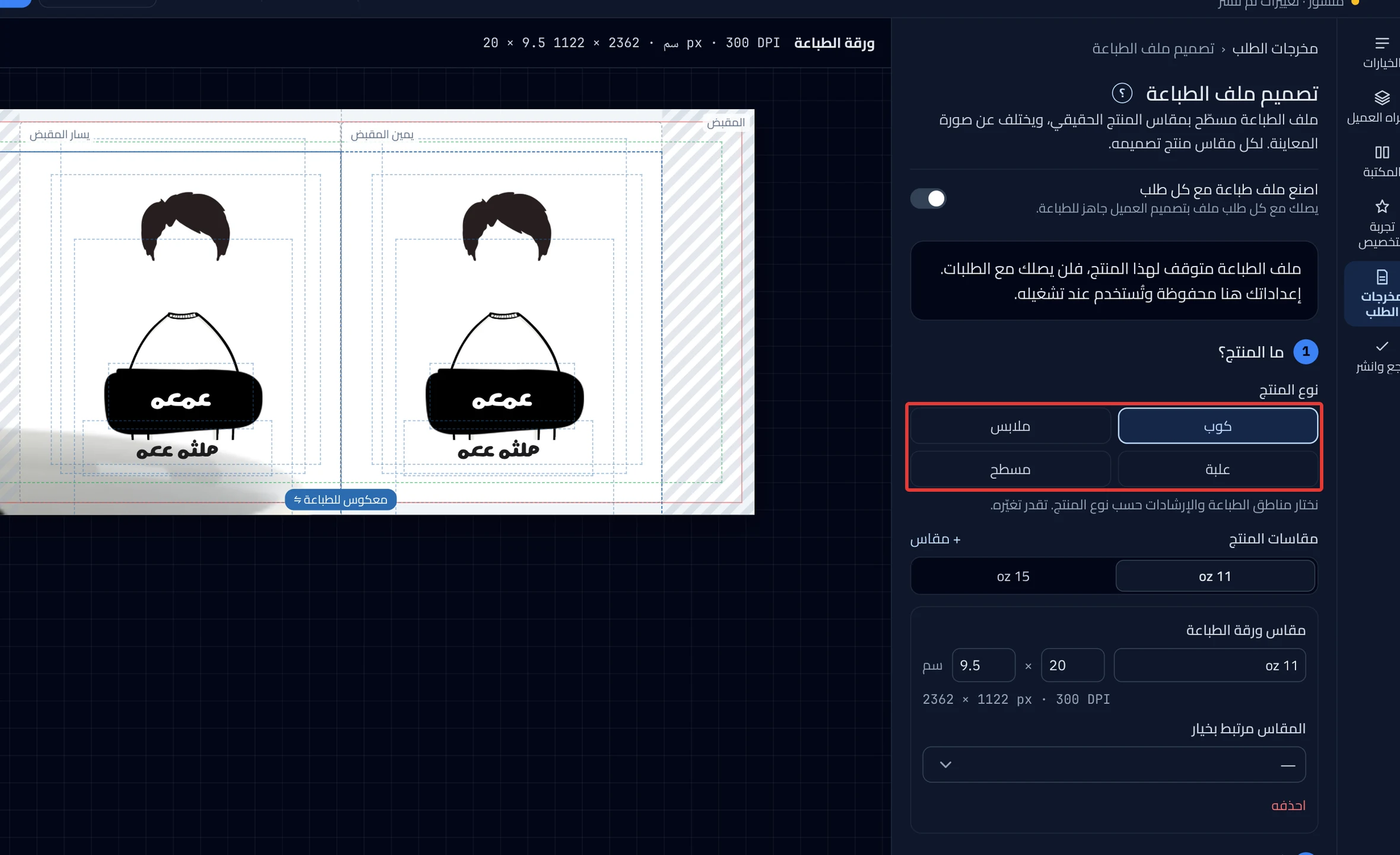
- Under What’s the product?, choose the product type: Mug, Apparel, Box or Flat. Choose the type first. Changing it later resets the sizes and the position to that type's settings, and removes any custom layout.
-
Under Product sizes, click the tab of the size you want to set. To add a size, click + Size. Each size has its own sheet and layout.
-
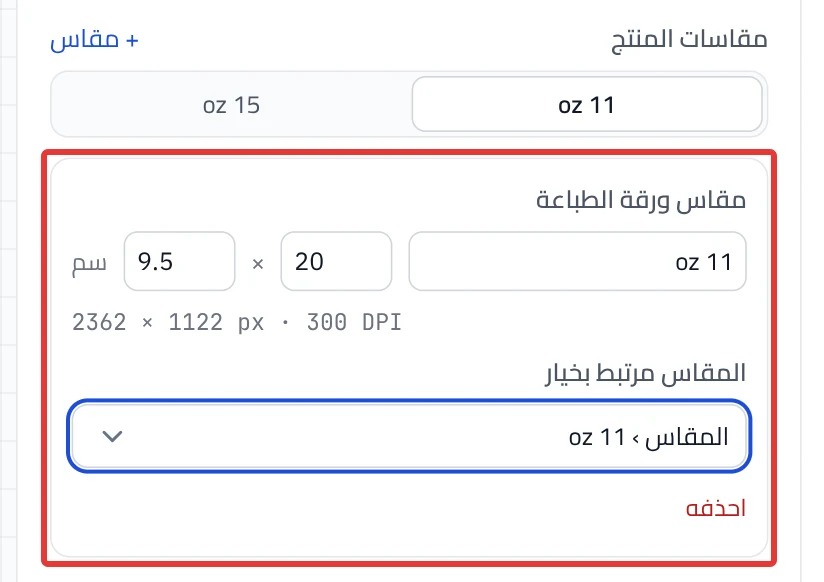
Under Print sheet size, enter the size name, then the width and height in centimeters.
Does your product have a size option? Choose the matching choice in Size linked to option. The order uses the size the customer chose. If their choice matches no size, the order uses the first size.
-
Under Where does the design print?, choose where the design goes on your product:
- Mug: Right of handle, Left of handle, Both sides or Full wrap.
- Apparel: Front, Back, Front & back or Left chest.
- Box: Front, Side, Lid or All faces.
- Flat: One side or Two sides.
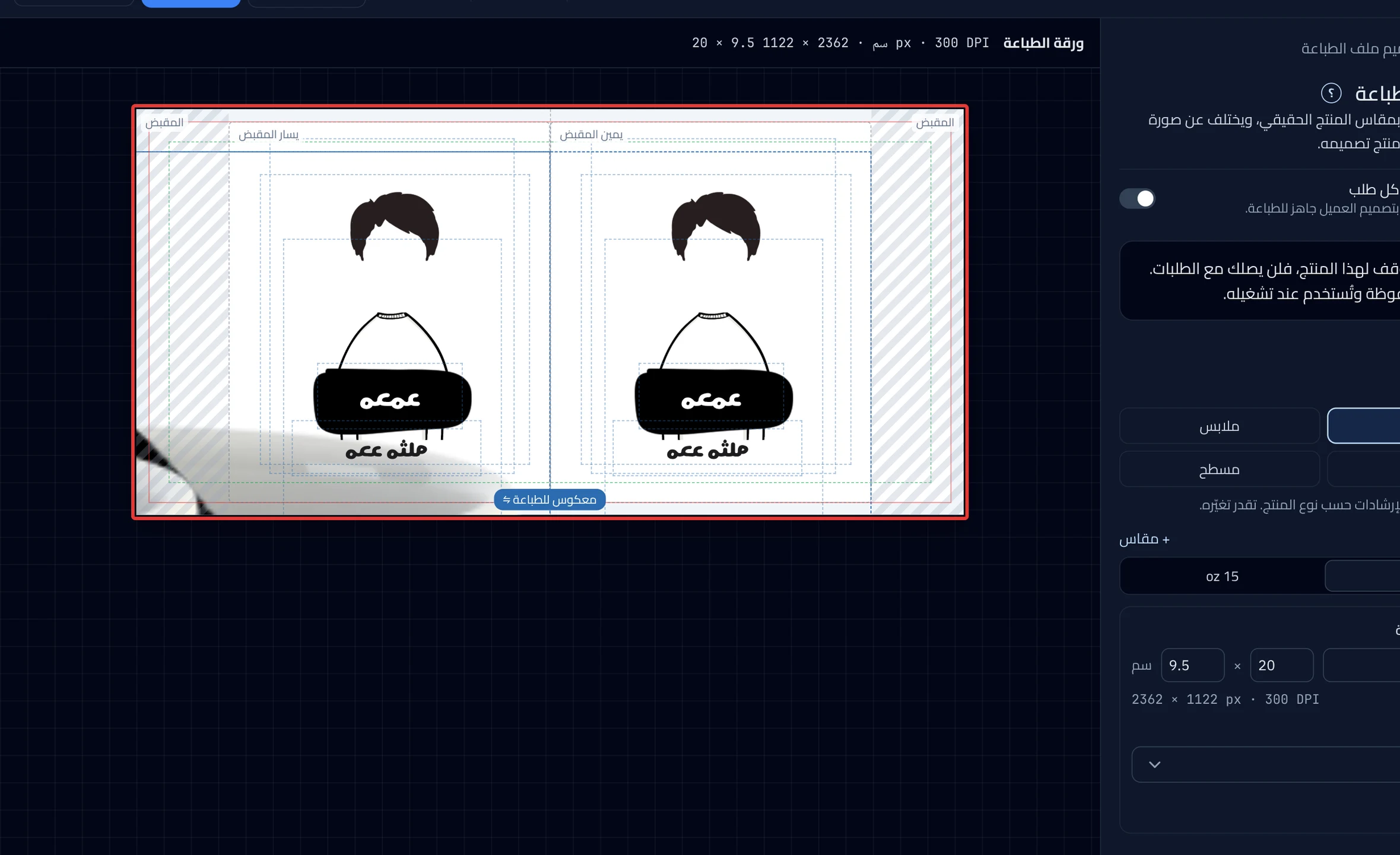
On a mug, Both sides repeats the design on each side of the handle. Handle gap is a no-print zone around the handle, usually 2 cm.
-
Under Check the sheet, make sure the design sits in its place on the sheet. On a mug, the word Handle shows at both ends of the sheet.
What your customers see
The print file is not the preview. The difference is explained in Print file vs. preview: what is the difference?. Your settings apply to orders after you click Publish now.
Good to know
- Changing the design position removes the custom layout for this size.
- Delete deletes the open size. It shows only when there are two sizes or more.
- The editor does not turn on Make a print file with each order. If "Print files are off for this product…" appears, turn it on at the top of the print editor, under the title. See Turn on the print file and choose its format.
Not showing?
- Cannot see Size linked to option? It shows only when your product has an option the customer chooses from.
- Cannot see Handle gap? It shows for mugs only.
- The order's print file was not created? See The print file was not created or will not download.
- If the problem continues, contact support. See how in Contact support and send what helps us solve it.
Next
Did this article answer your question?