Design the print sheet yourself
With Custom layout, you move and resize each item on the print sheet yourself.
- Set the product type, its size and the design position first. See how in Set the design size and position on the print sheet.
Steps
Path: Order output > Print file design > Open print editor > Advanced adjustments
-
In the Studio, click Order output, then open the Print file design card. Click Open print editor.
-
Under Check the sheet, click Advanced adjustments.
-
Under Layout mode, choose Custom layout. The layout starts from where the items are now.
Changes here do not change the preview. Each product size has its own layout.
-
Under Items on the sheet, click an item to select it. Drag it on the sheet, or drag its corner to resize it.
For precision, enter the position and size as percentages in the item's boxes. To add a copy of it, click Duplicate item. To fix it in place, click Lock layer.
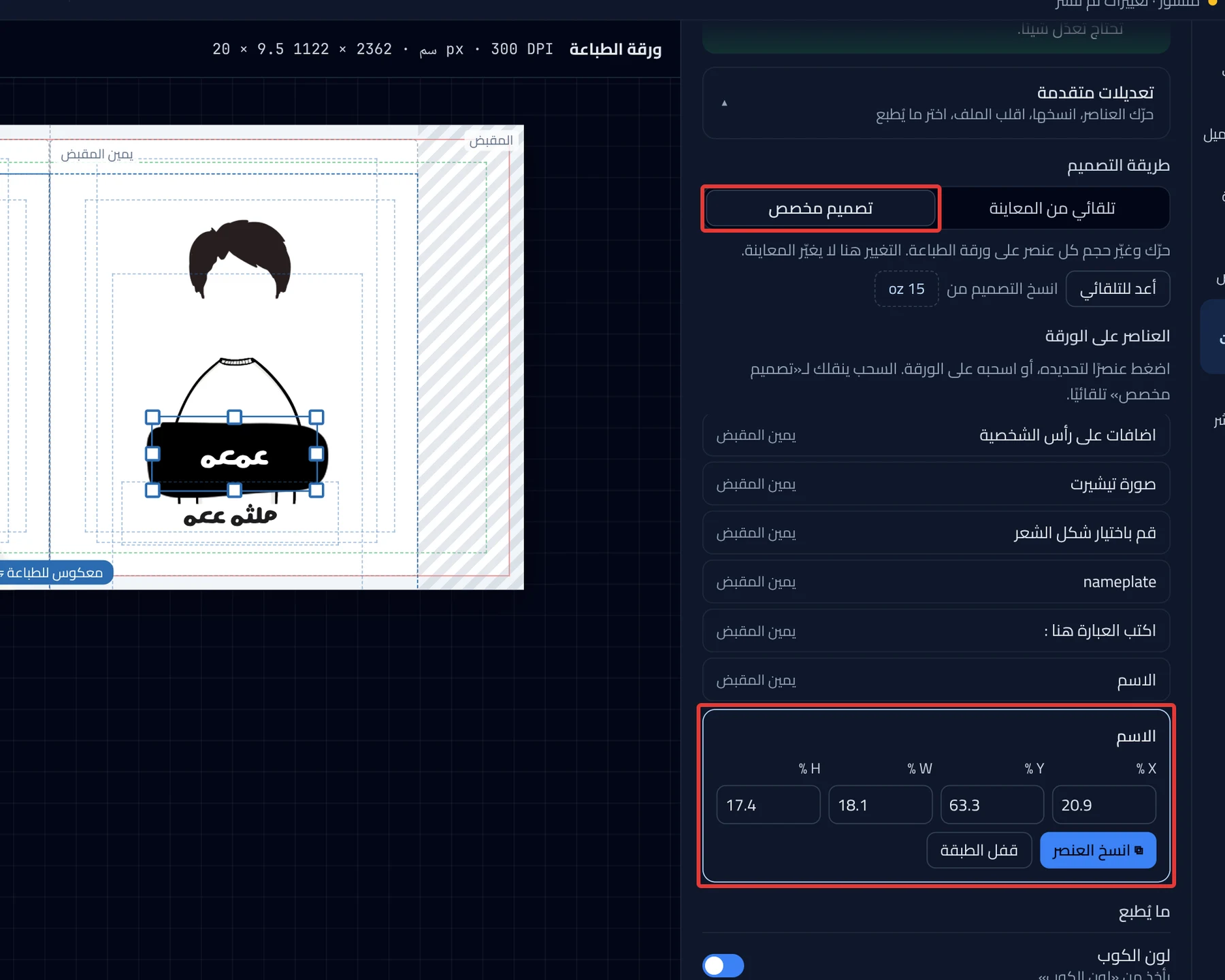
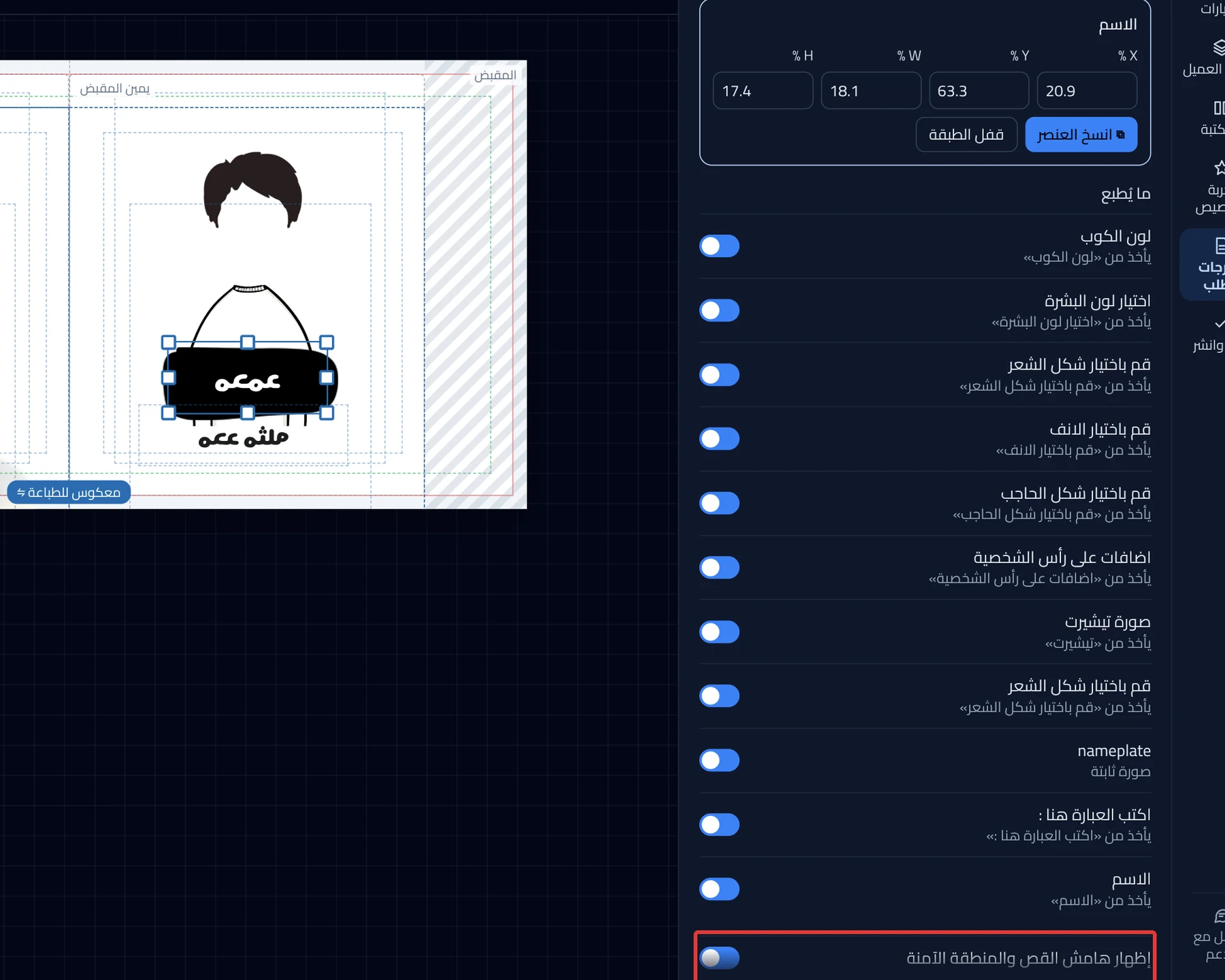
- Optional: under What gets printed, turn off any item you do not want printed. It still shows in the preview.
- Turn on Show bleed and safe area. Keep text inside the safe area, because the bleed is trimmed off.
- Click Review & publish, then Publish now.
What your customers see
Customers see no change, because the preview stays the same. The print file uses your custom layout when you click Create print files on the order page. If the order already has a file, click Regenerate files. See Check a customized order before you print it.
Good to know
- Dragging an item while you are in Auto from preview switches you to Custom layout.
- Reset to auto puts the sheet back in the automatic arrangement, and your changes to this size are lost.
- For a product with more than one size, click a size under Copy layout from to copy its layout.
Not showing?
- Cannot see Copy layout from or Reset to auto? They show in Custom layout only.
- The item does not move? It may be locked. Click Unlock layer.
- Did "Auto files aren’t available yet." appear? Choose Custom layout.
- If the problem continues, contact support. See how in Contact support and send what helps us solve it.
Next
Did this article answer your question?