Turn on the print file and choose its format
Turn on the print file for your product, then choose its production method, format and name.
Steps
Path: Order output > Production files
-
In the Studio, click Order output, then open the Production files card.
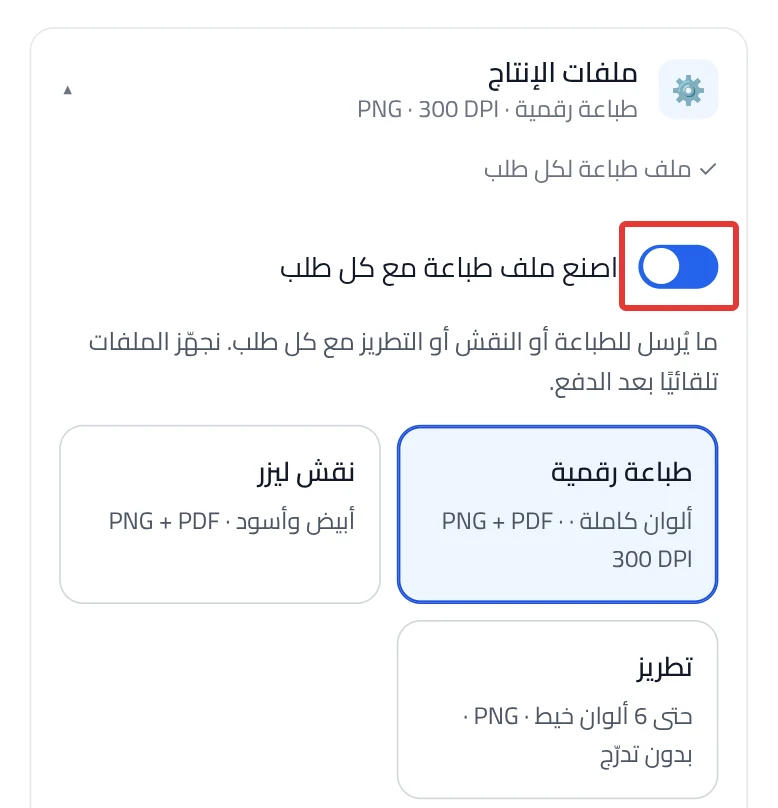
When closed, the card shows the method, the format and the resolution, for example Digital print · PNG · 300 DPI.
-
Turn on Make a print file with each order at the top of the card.
-
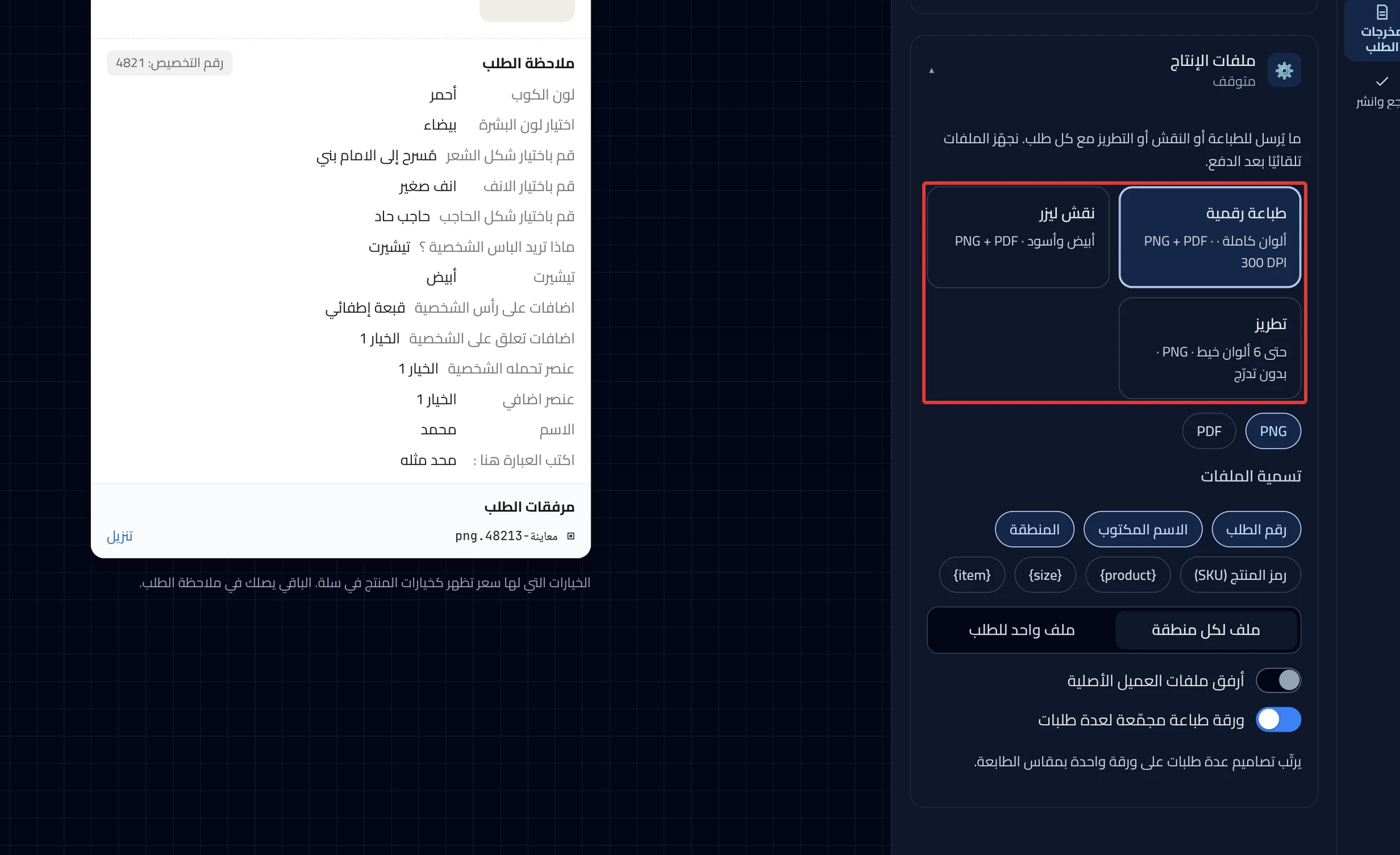
Under Production method, choose Digital print, Laser engraving or Embroidery.
Digital print keeps full color, and it is chosen at the start. Laser engraving makes the file black and white: dark areas are engraved, light areas are not. Embroidery limits the file to 6 thread colors at most, with no gradients.
-
Under File formats, choose PNG, PDF or both. These buttons set the file format. Only PNG is chosen at the start, and you cannot turn off the last format that is chosen.
-
Under File naming, choose what goes into the file name. The buttons are Order no., Custom name, Area and Product code (SKU), then
{product},{size}and{item}.The name is built from your choices, in the order you chose them. These are chosen at the start: Order no., Custom name and Area. Example:
5317-Sara-apparel.png. At least one button always stays chosen. The name is used when you download a file or a ZIP file from Customization orders. -
Click Publish now so your settings apply to orders.
What your customers see
The print file is not the preview. The difference is explained in Print file vs. preview: what is the difference?.
Good to know
- If you turn off the switch, orders come without a print file. The message "Print files are off for this product…" appears, and your settings are kept. In the orders list, the order shows Print file is off for this product.
- The print file resolution is fixed at 300 DPI. You cannot change it.
- The production method does not mirror the file. Mirroring is in Mirror the print file for sublimation and heat transfer.
Not showing?
- Cannot see Make a print file with each order? It shows when your product has print settings. You also find it at the top of the print editor.
- The order's print file was not created? See The print file was not created or will not download.
- If the problem continues, contact support. See how in Contact support and send what helps us solve it.
Next
Did this article answer your question?