Check a customized order before you print it
Before you print, compare what the customer saw with the print file and the customer's choices.
Steps
Path: Customization orders > the order
-
Click Customization orders in the side menu, then click the order to open its page.
-
Look at What the customer saw. It shows the image the customer saw.
On a phone, What the customer saw comes after the item cards.
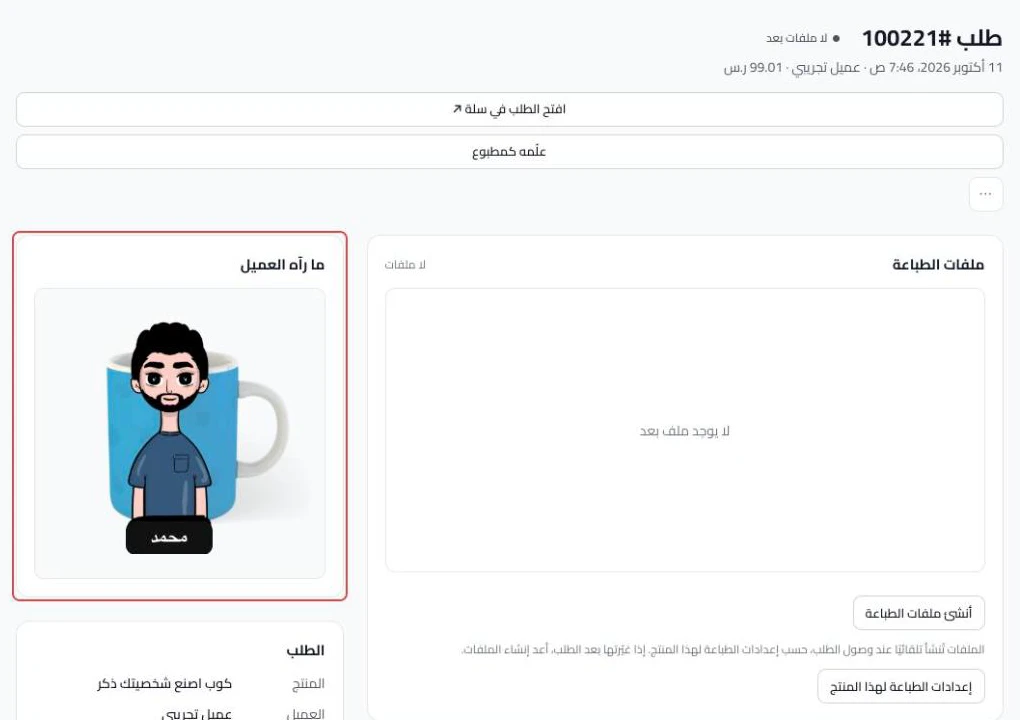
- Compare it with the file under Print files.
- Check the texts and images under Customer choices. Files the customer uploaded are under Customer files.
- The file does not match? Change Print settings for this product.
- Click Publish now.
- Go back to the order and click Regenerate files.
The file matches? Download it as shown in Download print files for one order or many.
What your customers see
The order page is in the app dashboard. Customers do not see it. After Regenerate files, a new file is made from the published print settings.
Good to know
- Print order under More prints the order page for packing, not the print file.
- Open order in Salla ↗ opens this order in Salla in a new tab.
- An order with more than one customized item has a section for each item.
Not showing?
- Cannot find Regenerate files? If no file was created yet, Create print files shows in its place.
- Cannot find Open order in Salla ↗? It shows only when the Salla order number is known.
- The file was not created or will not download? The fix is in The print file was not created or will not download.
- Details for support is for the support team only. Open it if support asks you to. See how in Contact support and send what helps us solve it.
- The file settings are in Print file design settings.
Next
Did this article answer your question?