Let customers upload their logo or photo
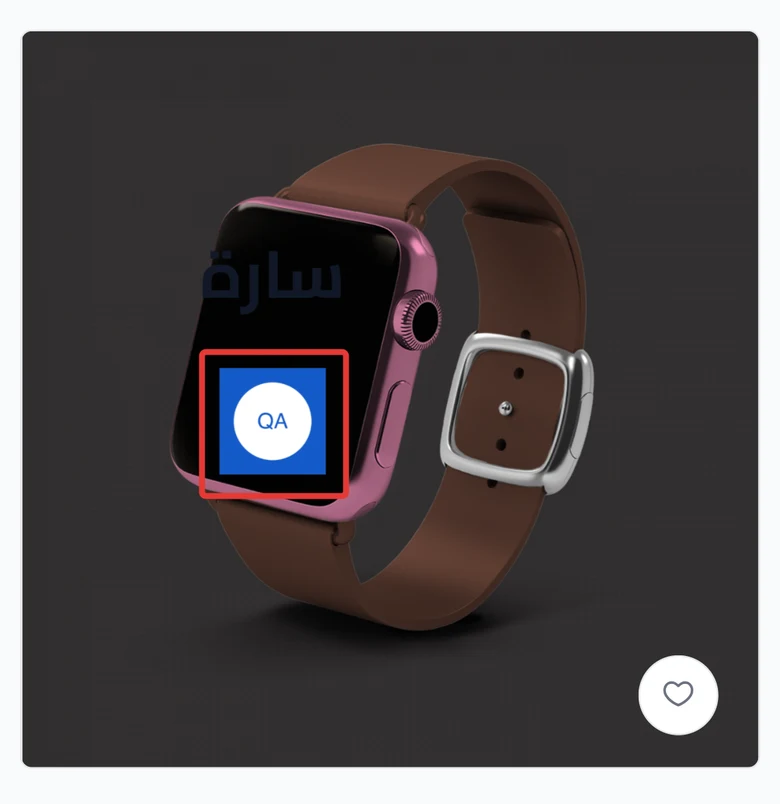
You add a Logo or photo option, so the customer uploads their file and sees it on the product photo before they buy, or just sends it to you as a file.
Steps
Path: Products > Open Product Studio > Options
- Click Add option. If the product has no options yet, click Add your first option.
- Under Uploads a file, click Logo or photo. The "Does the customer’s file show on the product picture?" window appears.
- Click Yes, show it on the picture so the customer sees their image on the product, or No, just a file if you only need the file. The option settings open, and you can change this later.
-
In Option name, enter what the customer reads, such as "Upload your logo". The customer sees this name.
-
If you chose Yes, show it on the picture, drag the frame for the customer's image to its place on the product photo, and drag its corners to resize it.
On a phone: open the Preview tab to see where the customer's image sits on the product.
-
Optional: choose the file's Max size: 5 MB, 10 MB or 20 MB. The option starts at 5 MB.
-
Click Review & publish, then Publish now.
On a phone: the Review & publish button is at the bottom of the screen.
What your customers see
The customization goes live in your store within about a minute. The customer sees an upload button, with the accepted file types and the max size under it. With Yes, show it on the picture, their image shows on the product. With No, just a file, nothing shows on the product. You find the customer's file on the order page, under Customer files. The steps are in Check a customized order before you print it.
Good to know
- The option accepts PNG and JPG from the start. Turn on WEBP in Accepted files if you want it, because the store rejects any type that is not selected.
- Turn on Required if the product does not work without a file. The option starts as not required, so the customer can order without it.
- Your edits are saved as a draft. Nothing changes in your store until you click Publish now.
Not showing?
Next
Did this article answer your question?