Save choices to My library to use on other products
You save choices you repeat, such as sizes or colors, as a set in My library. Then you add it to any product instead of typing it again.
You have two ways: from an option already in your product, or a new set from scratch.
Steps
From an option in your product
Path: Products > Open Product Studio > Options
- Click a list option to open its settings, such as "Size".
- Click Save to my library at the bottom of the option settings. The message "Saved" appears.
Product Studio saves the set with the option's name, along with each choice's name, color, image and extra price.
A new set from scratch
Path: My library in the side menu, or Library in the Studio bar
-
Click + New set. The "What do you want to save?" window opens.
-
Choose the set type: Images, Colors, Options, Fonts or Ready phrases.
Or click a ready set under "Or start with one of ours", such as Sizes XS – XXL, and Product Studio fills in its items for you.
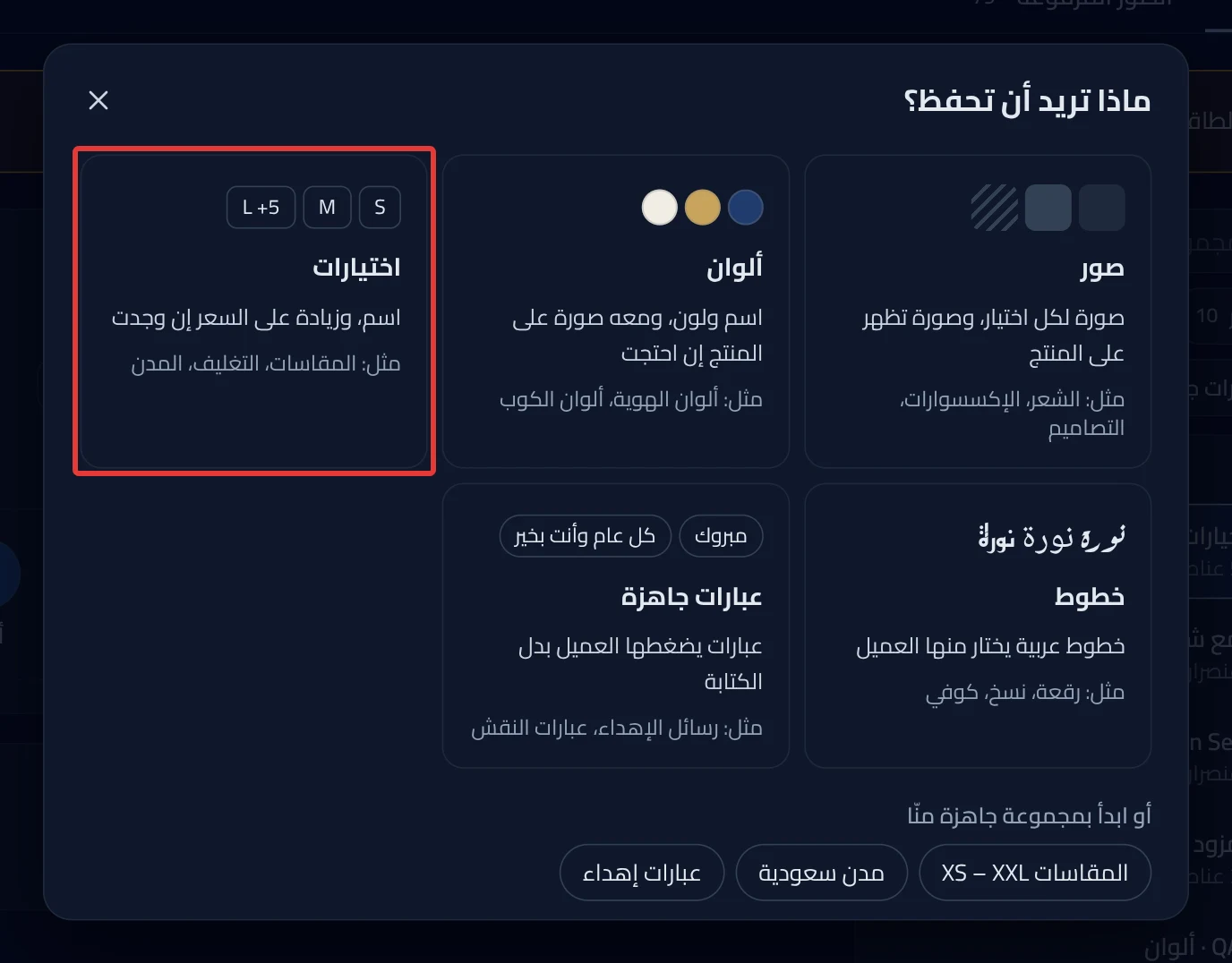
- Change the name "New set" to a name you recognize, such as "Shirt sizes".
- Add the set's items.
- Click Save. The message "Saved to your library" appears.
What your customers see
The customer does not see the set yet. The set shows only in My library, and nothing changes in your store. To show it to customers, add it to a product, then publish. See Add a set from My library to a product. If you save from an option, Product Studio first saves the product's edits as a draft, without publishing.
Good to know
- Saving from an option does not link the option to the set. The option stays this product's own, and editing the set does not change it. To link it, use Link to a saved set in Library settings in the Studio.
- You cannot save two sets with the same name. A set saved from an option takes the option's name. If that name is taken, rename the option first.
Not showing?
- You do not see Save to my library? It shows only for a list option. It also needs at least one choice that is not linked to a library.
- Did "Enter a set name and add at least one row." appear? Enter a name for the option, then click Save to my library again.
- Did "You already have a set with this name. Choose another name." appear? Change the set's name, then click Save.
- What each setting means: Library settings in the Studio.
Next
Did this article answer your question?