Arrange layers: what shows on top of what on the product
The layer that is higher in the What customers see list shows on top of the others on the product photo.
Before you start
- You placed the customer's text or image on the product photo. See Place the text or the customer's image on the product.
Steps
Path: Products > Open Product Studio > What customers see
- Optional: to add an image over the product, click Fixed image under Add layer. The files on your computer open so you can choose the image.
- Optional: choose the image. It is added on top of the customer's text, so it may cover it.
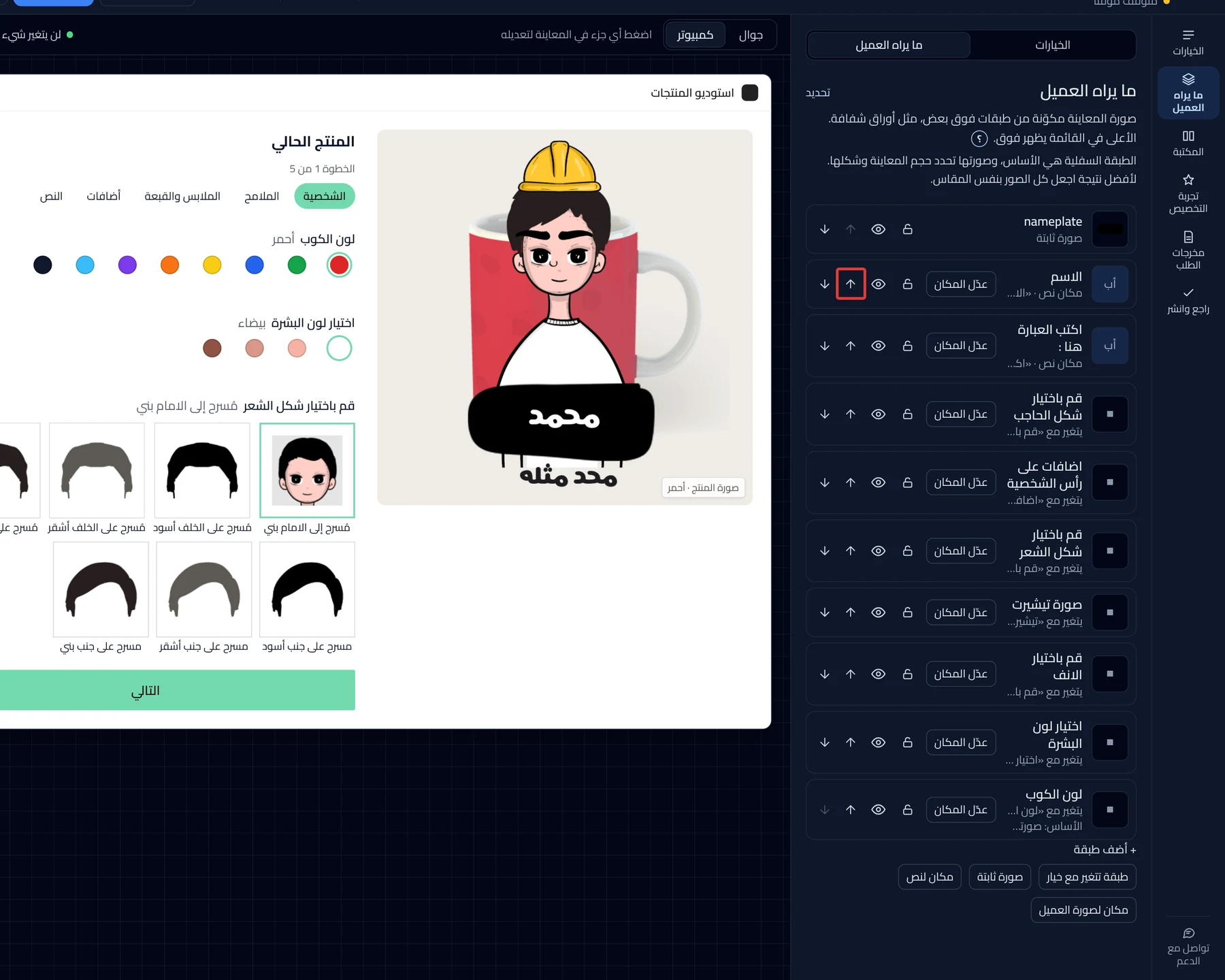
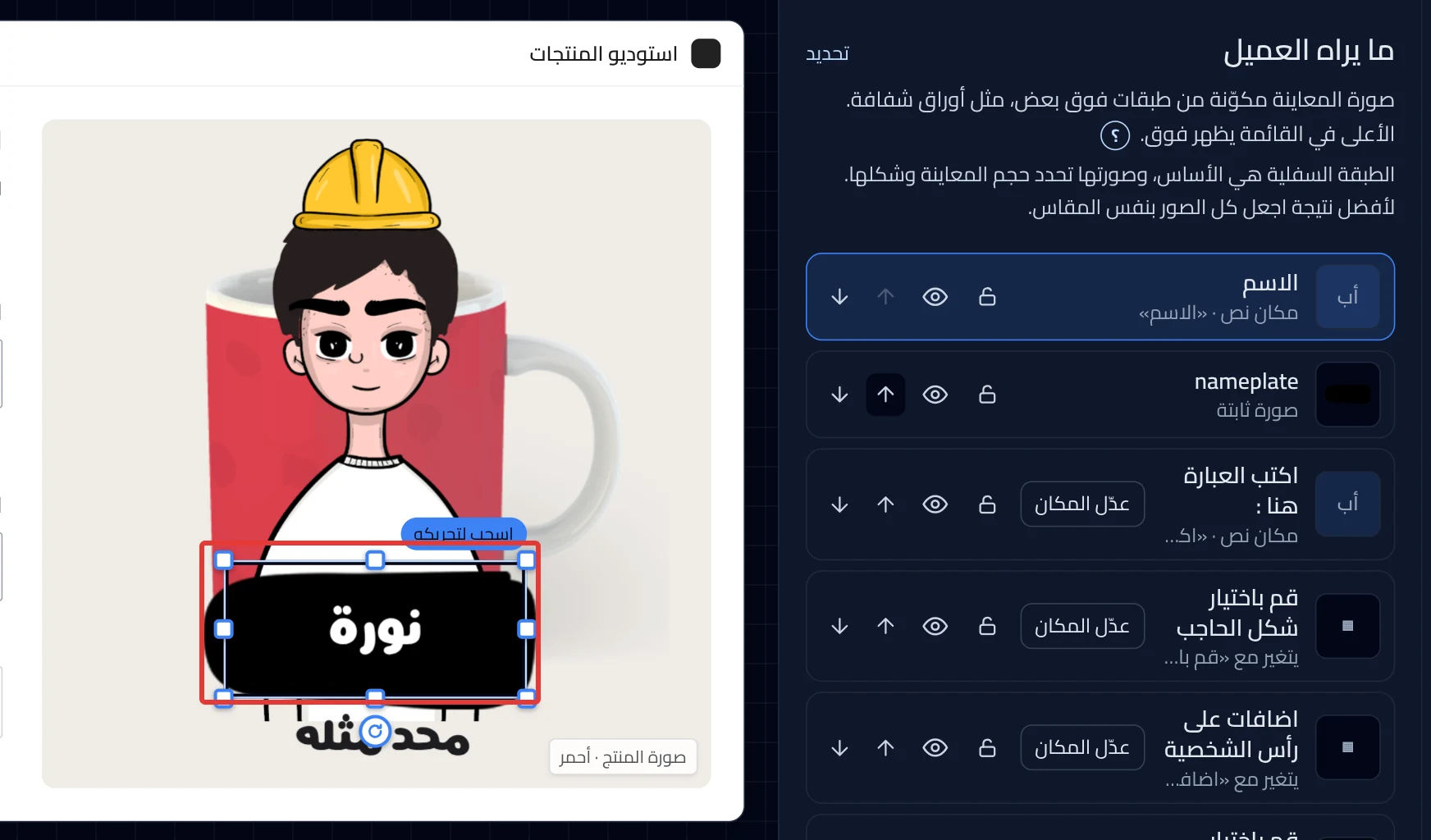
- Click the up arrow next to the layer you want on top, such as the text layer. Each click moves it up one place.
-
Repeat until the layer is above the image that covers it. To move a layer down, click the down arrow.
-
Check in the preview that the text shows on top of the image.
On a phone: open the Preview tab to see the photo.
-
Click Review & publish, then Publish now. Until then, nothing changes in your store.
On a phone: the Review & publish button is at the bottom of the screen.
What your customers see
The customization goes live in your store within about a minute. The customer sees the layers in the order you published, so their name shows on top of the fixed image.
Good to know
- The bottom layer is the base, because its image sets the preview's size and shape. If the base changes after a move, Product Studio tells you, so move the previous image back to the bottom.
- The customer's image spot stays above texts and fixed images. The arrows move a layer only among layers of the same type.
- The customer sees the published order. After publishing, open the product page and check that the text shows on top of the image.
Not showing?
- The arrow does not work? Read the reason under the layer. Some choice images have a fixed order.
- Hidden now shows next to the layer? Click the eye button to show it.
- A layer you added in the Studio disappears from the preview and from the customer when you hide it.
- On an older product, the product photo may stay visible after you hide it. In that case, Contact support and send what helps us solve it.
- What each button means: What customers see settings.
- The customization widget does not show on the product page
Next
Did this article answer your question?