Split options into steps the customer goes through
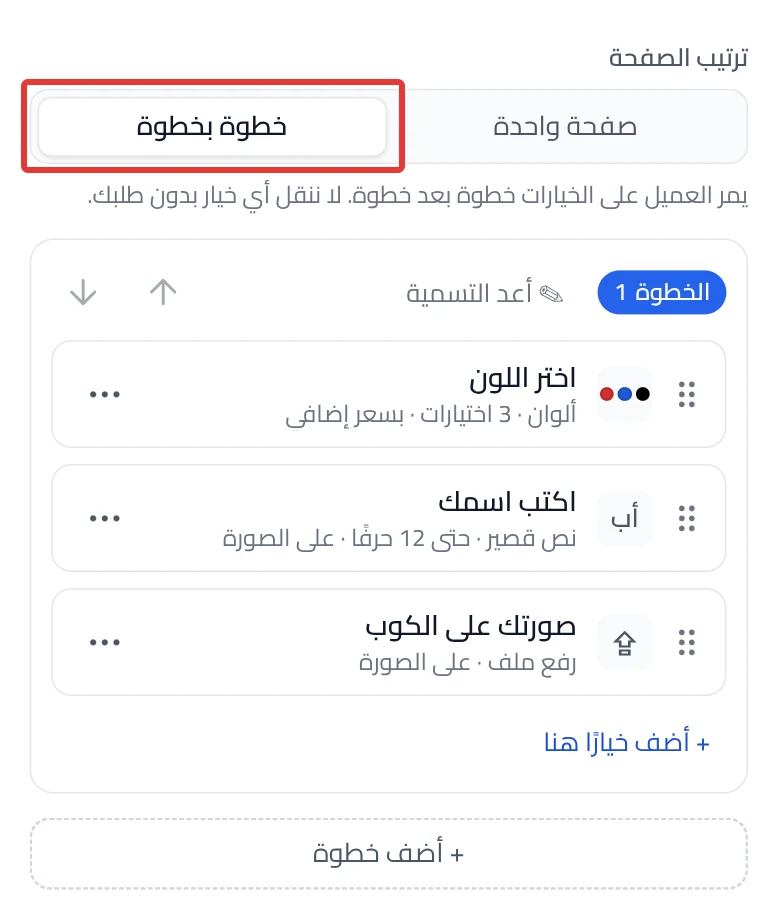
You choose Step by step, so the customer goes through the options one step at a time.
- The product has at least one option. See Let customers add their name or a message to the product.
Steps
Path: Products > Open Product Studio > Options
- Under Page layout, choose Step by step. Product Studio puts all your options in Step 1.
-
Click Add step. An empty step named Step 2 shows at the end.
-
Optional: click Rename next to the step number, and enter a name the customer sees, such as "Engraving".
-
Click the ⋯ button next to the option, then Move to….
-
Choose the step. The option moves to the end of that step.
-
Optional: to add a new option inside a step, click Add option here in that step.
-
Click Review & publish, then Publish now. Until then, nothing changes in your store.
On a phone: the Review & publish button is at the bottom of the screen.
What your customers see
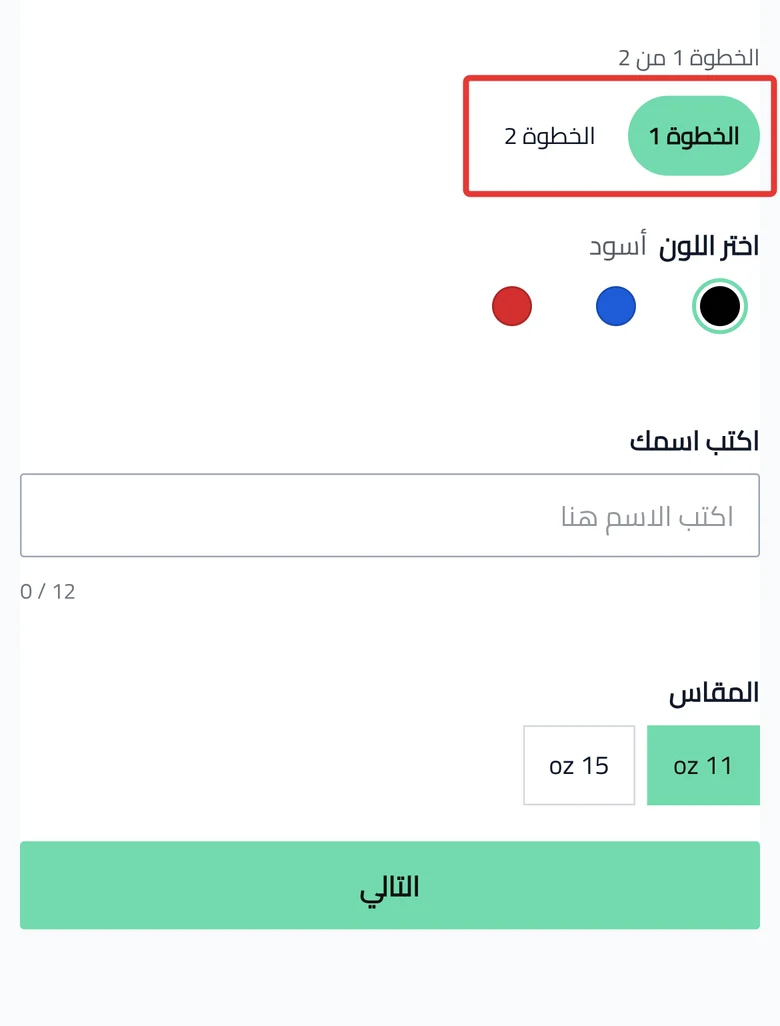
The customization goes live in your store within about a minute. The customer sees each step's name in a tab, and moves between steps with the Previous and Next buttons. They can also click any tab. If they add to the cart while a required option is empty, the step with that option opens.
Good to know
- Decide before you arrange the steps. Going back to One page works right away only before any edit. After that, a message asks you to delete the steps first.
- The ✕ button next to the step name deletes the step and keeps its options. The customer sees them in a last step that holds the other options.
- Deleting steps from Select, then Delete steps, also deletes their options. Click Undo right after to cancel the delete.
Not showing?
- You do not see Page layout? Add the product's first option.
- The customer does not see tabs? Tabs show only with two or more steps.
- What each setting means: Option settings in Product Studio.
- The customization widget does not show on the product page
Next
Did this article answer your question?