Copy options from another product
You copy another product's options to this product, instead of building them again.
Steps
Path: Products > Open Product Studio > Options
- Click Add option. If the product has no options yet, click Add your first option. The "What does the customer choose?" screen opens.
- Click Copy from another product. It is the line under the option type cards.
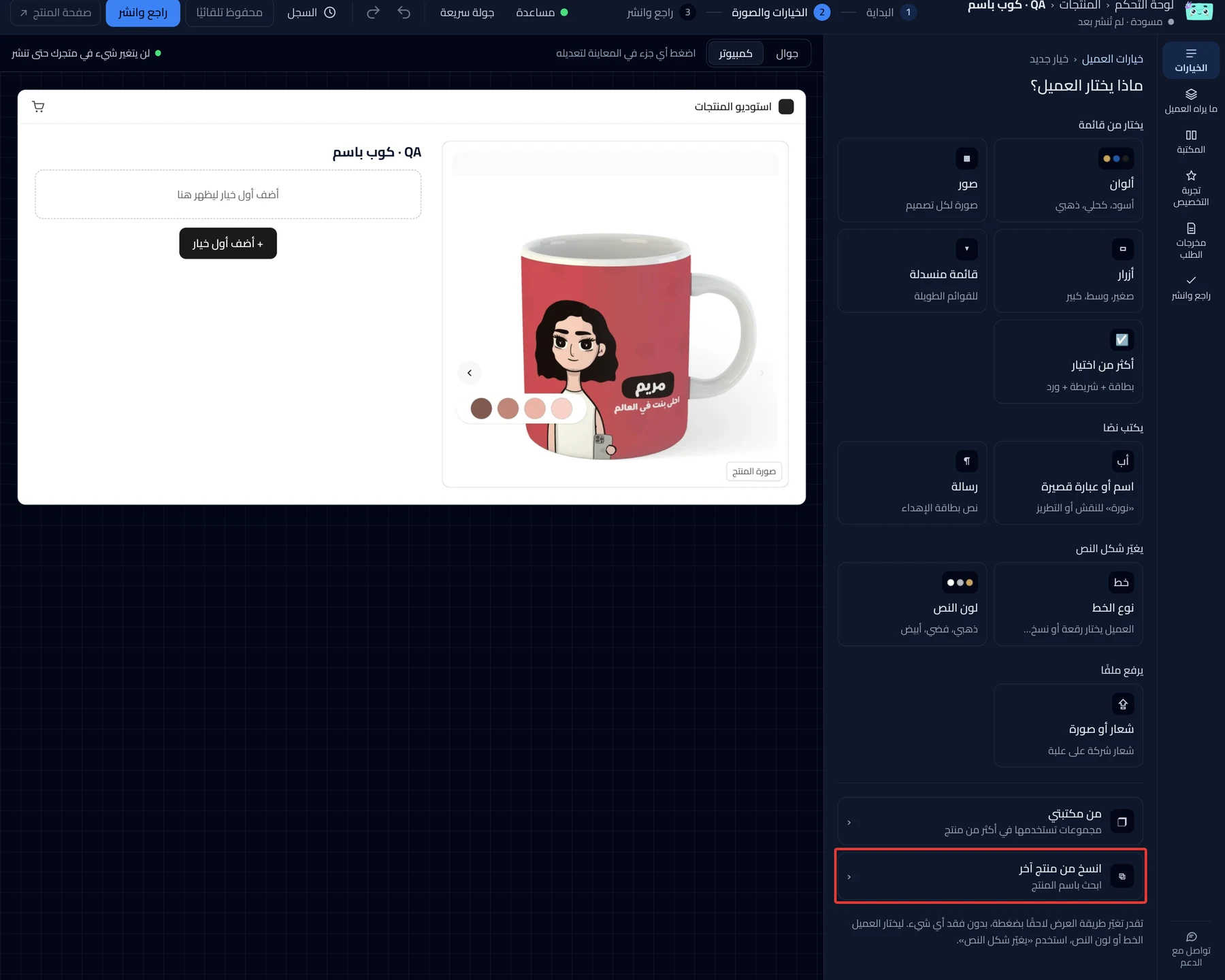
-
Enter part of the product name in the search box, then choose it from the results. Only your products that have Studio options show.
-
Click Copy. Product Studio copies the options, the steps and their places on the photo, and they replace this product's options.
The other product's choices may arrive in the order note. In that case, the Salla order note box shows for this product right away. The Undo button does not hide this box.
The message "We copied the options into this draft." appears. To cancel the copy, click Undo in it.
-
Click Review & publish, then Publish now. Until then, the customer does not see the copied options.
On a phone: the Review & publish button is at the bottom of the screen.
What your customers see
The customization goes live in your store within about a minute. After you publish, the customer sees the copied options on this product's page.
Good to know
- Product Studio copies the other product's latest edits, even if they are not published yet.
- Copying does not add the options to Salla. For a choice with a price, click Add the options to Salla on this product.
- Want to copy to many products? See Copy the customization experience to many products at once.
Not showing?
- You cannot find the product in the search? Only products that have Studio options show.
- The price does not go up with the choice? Read Make a choice add to the product price in Salla.
- The customization widget does not show on the product page
Next
Did this article answer your question?