The Review & publish screen in Product Studio
Path on desktop: the Review & publish button at the top of the Studio. Or the third stage, Review & publish, in the stages bar. On a phone: the Review & publish button in the bar at the bottom of the screen. At the top of the screen, a Back to editing link takes you back to the options. The full publishing steps are in Review your product and publish it to your store. All the guides are in Every setting explained and what the words mean.
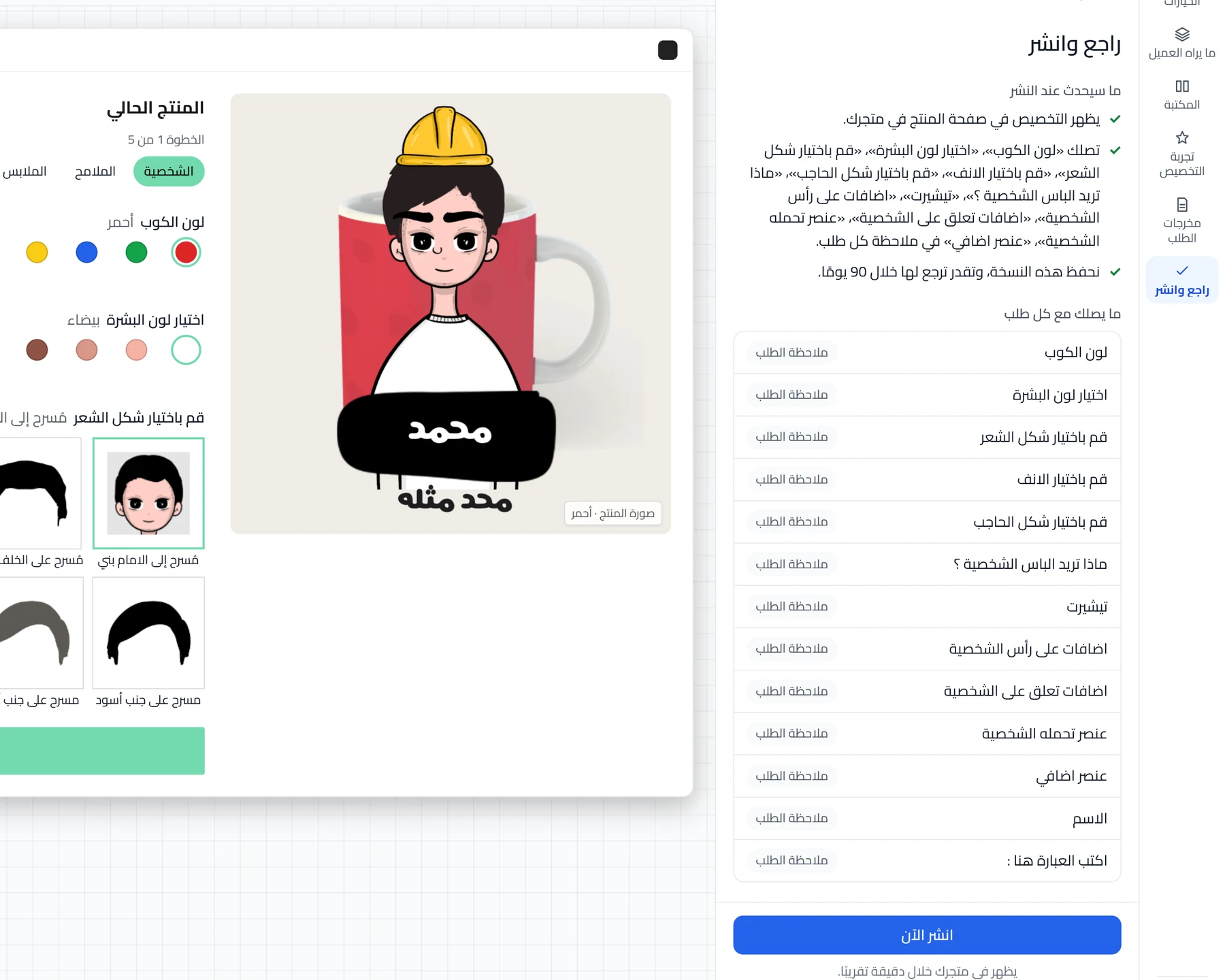
The check before publishing
When the screen opens, "Checking your product before publishing…" appears. Before the check, Product Studio saves your unsaved changes. The check only reads. It does not change anything in your store. After each fix, the check runs again and the list updates by itself. If the check fails, a "We couldn’t check your product before publishing" card appears. Click Check again in it.
Fix before publishing
This section shows only if something blocks publishing. Each card names the option, then the reason, then one button. As long as a card is here, the publish button stays grayed out.
| Button | What it does | Changes Salla? |
|---|---|---|
| Add the options to Salla | A confirmation window appears first. Once you confirm, it adds the options to your product in Salla right away. | Yes |
| Restore the link from the published version | Brings back the link that was in the published version. You can undo it. | No |
| Choose the destination again | Resets where the option goes, then opens the option. You can undo it. | No |
| Open option | Opens the option named on the card. | No |
| Product options in Salla | Opens an overview of the product's options in Salla. | No |
| Edit option | Opens the options or the section you need. | No |
| Save it in the order note | For a text option that is not linked. Sends it to the order note. | No |
| Choose a Salla option | For a text option that is not linked. Opens the option so you can link it. | No |
The steps are in Fix what stops your product from publishing.
Two cards that do not block publishing
A yellow or red card can appear above What happens when you publish. These two cards do not block publishing.
- Update the option in Salla: shows if the prices of an option that exists in Salla changed. A window asks "Update the option in Salla?". Once you confirm, it sends the new prices to Salla right away.
- Delete it from Salla: shows for a text option that the Studio created in Salla and no longer uses. Once you confirm, it deletes the text option from your product in Salla right away. Past orders keep the customer's text.
What happens when you publish
This is a list of what changes when you publish. You may see these lines:
- A line saying that customization shows on your product page in your store. This line always shows.
- A line for each option with an extra price that this publish adds to Salla.
- A line saying that the choices arrive in each order note, by name. It shows if the Write choices in the order note switch is on.
- If the switch is off, a line tells you they will not be written in the note. You find them in the order details. See Customer choices do not show in the order note.
- "The customization widget’s look changes on all your products", if you changed the All your products look in this Studio.
- The same setting may change somewhere else after your edit. Then a line tells you that this product's values apply when you publish.
- "We keep this version; you can restore it for 90 days." This line always shows. See Undo a change or go back to an earlier version.
The All your products look reaches your store with this publish. The look saved on the Settings page does not need publishing. See The Settings page in Product Studio.
What you receive with each order
This section shows if the product has options. Each option has a line with a tag that says where it reaches you.
- Salla option: the choice reaches you as an option in the Salla order.
- Order note: the choice reaches you in the order note.
An option set up for Salla carries Salla option even before it is added to Salla.
Notes — won’t block publishing
This section shows only if there are notes. Notes are only tips, and they have no buttons. You can publish while they show. On the screen, this section sits right above the publish button.
The publish button
The button has two names, depending on what will happen. It reads Add to Salla & publish if publishing will add options to Salla. Otherwise it reads Publish now. One click publishes the product, with no confirmation window. With Add to Salla & publish, the options are also added to your product in Salla. Under the button: "Live in your store within about a minute."
The button stays grayed out in three cases:
- The Fix before publishing section has a card.
- The Studio is busy with another task.
- The product was never published and has no options. Under the button, "Add at least one option before publishing." appears.
You can publish a product that was published before even if it has no options.
Saving your changes
This screen has no save button. You do not need to save before you publish. The check saves your changes first, and so does publishing.
Publishing…
While publishing, three steps show, each with a check mark when it is done:
- "Saving your edits".
- A line saying that Product Studio is adding the options, by name, to your product in Salla. It shows if publishing adds options. Otherwise: "Setting up the order note".
- "Updating your product page".
Under them: "Takes up to 30 seconds. Your edits are saved." If you click Back to editing now, publishing continues.
After publishing succeeds
When publishing succeeds, a Live ✓ tag appears. Then the heading "Done! Your product now takes customizations". Under it: "It shows in your store within about a minute. Each customer’s choices arrive with their order." The View on my store ↗ button opens the product page in a new window. The button shows only if Product Studio knows your store's address. Under it is Back to editing.
Error messages
One of these red cards may appear at the top of the screen:
- "The connection dropped while publishing": nothing changed in your store. Click Publish again.
- "Your session expired": click Sign in. The sign-in page opens in a new window.
- "We couldn’t check your product before publishing": click Check again.
- Another card with the reason for the error.
Some cards have a Details for support link. It shows a code you send to the support team. The full fixes are in Publishing did not finish, or the product check failed.
Did this article answer your question?