Order output settings
Path: Order output in the Studio
The panel has three cards that open and close. Your changes are saved as a draft. Your store does not change until you click Publish now. All the guides are in Every setting explained and what the words mean.
What you get with each order
The first card in the panel. It has two switches. Write choices in the order note: writes the customer's choices in the order note in Salla. The second switch is Attach the preview image to the order.
Want the full steps? → Read the customer's choices in the Salla order note
Make a print file with each order
The first switch in the Production files card. It shows if your product has print settings. On: you create the print file from the order page with the Create print files button. Off: "Print files are off for this product, so orders won’t include one." Your settings stay saved.
Want the full steps? → Turn on the print file and choose its format
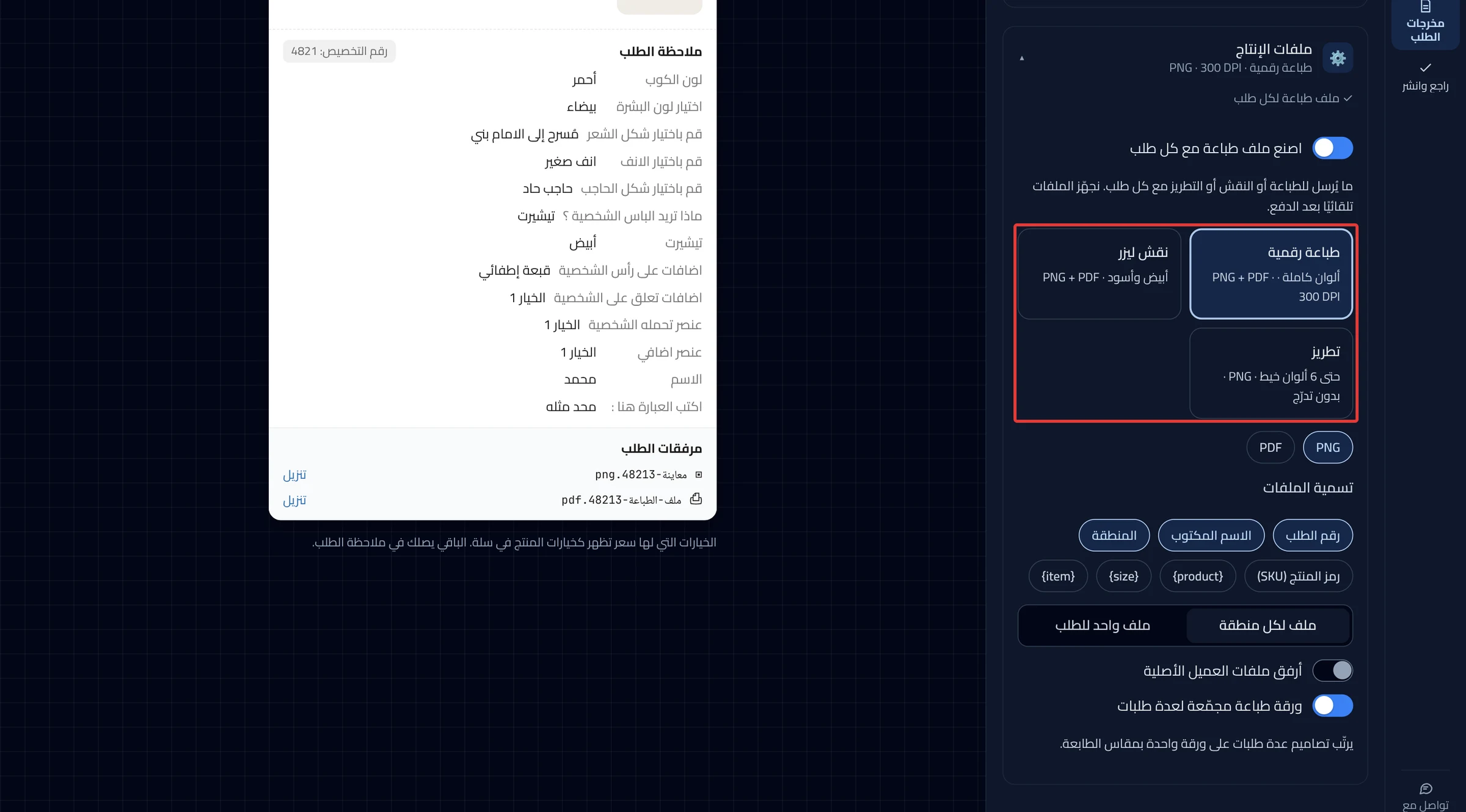
Production method
Three cards: Digital print, Laser engraving and Embroidery. It starts on Digital print. Digital print is full color. Laser engraving is black and white. Embroidery takes up to 6 thread colors, with no gradients.
File formats
Choose PNG, PDF or both. You cannot turn off the last format that is still chosen. This card has no resolution setting.
File naming
Buttons to choose what goes into the file name, such as Order no. and Custom name. There are also Area and Product code (SKU). At least one button always stays chosen. The names are used for the print files.
One file per area or one file per order
Two buttons after File naming: One file per area and One file per order. Product Studio saves your choice, but it does not change the files for now.
Attach the customer’s original files
Product Studio saves your choice, but it does not change the files for now. To get the customer's files as they uploaded them, open the order in Customization orders. You find them under Customer files in the Customer choices card.
Batch sheet across orders
Product Studio saves your choice, but it does not change the files for now. You make the batch sheet from Customization orders. Select the orders, then click Batch print sheet (PDF).
Want the full steps? → Download print files for one order or many
Print file design
A card with an Open print editor button. There you set the size and where the design sits on the sheet. If the print file is off, the closed card shows Off.
Every setting in the editor is in Print file design settings.
Did this article answer your question?