Text and file upload settings
Path: Products > Open Product Studio > Options
Click a text option or an upload option to open its settings. Each option shows only one of the two types.
Placeholder text
Enter text the customer sees inside the box before they type, such as "Enter your name".
Default text
Enter text that is already filled in when the product opens. The customer can change it. The Studio saves it when you leave the box.
Max characters
Enter a number, or change it with the − and + buttons. The lowest number is 1. You can also type the number in Arabic digits.
Font style
Click Font style to open the section. The font name follows it, or "customer picks". In Font, choose One font so every customer sees the same font. Or choose Customer picks and choose the fonts. The first one is the default.
Want the full steps? → Choose the text font and color, or let the customer choose
Upload a font
Click + Upload a font to upload a font file from your device. Accepted formats: TTF, OTF, WOFF and WOFF2, up to 10 MB. Make sure the font license allows commercial use and print. To change the font's name after you upload it, click Rename.
Font size
Move the Font size slider to make the letters bigger or smaller inside the text box on the photo. The value shows as a percentage.
Text color
Choose a color from the circles, or click Other color. Every customer sees the text in this color. If a color option changes the text, the customer picks the color in it. Your color shows until they pick.
More text styling
Click More text styling to open the letter style settings. In Letter case, choose No change, UPPERCASE or lowercase. In Text shadow, choose None, Soft or Strong. Choose a Text outline color and an Outline thickness to draw a line around the letters. Only long text shows Number of text lines. It is the number of lines in the text box the customer sees.
In an older text option you may see "Customers see this as a single line.". Click Make it long text to change it.
Changes the look of
Shows in an option where the customer picks a font or a text color. Choose the text that the customer's pick here changes, or choose All texts. The text changes in the preview and in the print file.
Sample text
Shows in the font option only. Enter text that shows in every font on the font cards, until the customer types their own.
Accepted files
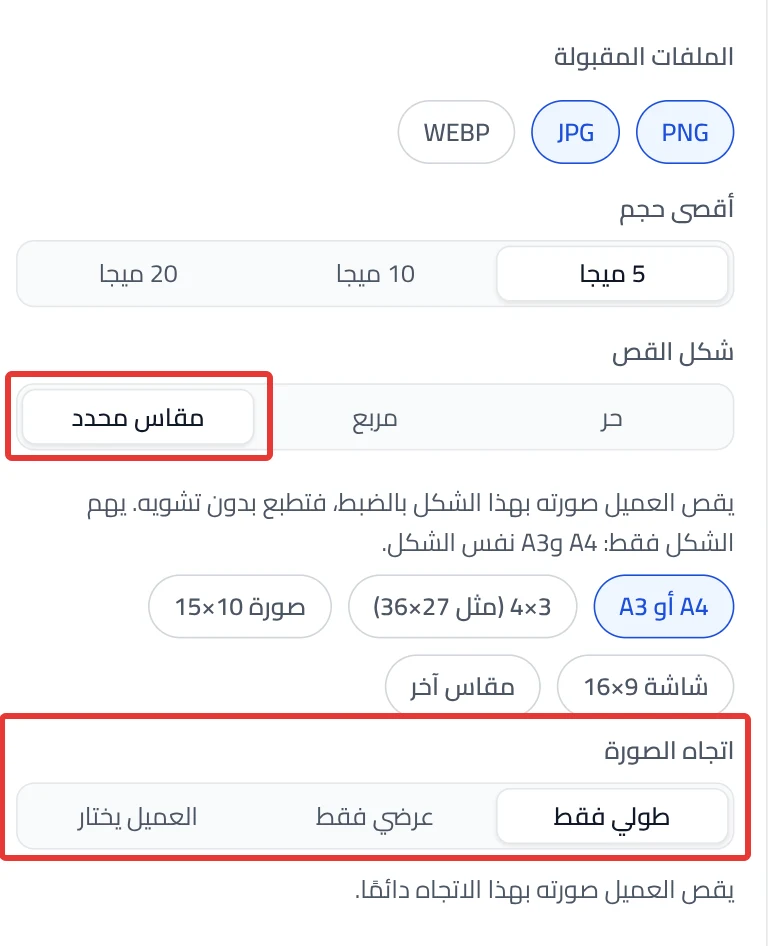
This is the first setting in an upload option. Choose the image formats the customer can upload: PNG, JPG and WEBP. A new option starts with PNG and JPG. WEBP is not selected at the start.
Want the full steps? → Let customers upload their logo or photo
Max size
Choose the largest file the customer can upload: 5, 10 or 20 MB.
Crop shape
Choose Free, Square or Set size. With Set size, choose A4 or A3, 3×4 (like 27×36), 10×15 photo or 9×16 screen. Or click Other size and enter the Width and Height. The customer crops the photo to exactly this shape, so it prints without stretching.
Want the full steps? → Set the crop shape and size of the customer's image
Photo direction
Shows after you choose Set size. Choose Portrait only or Landscape only, so the customer always crops the photo in this direction. Or choose Customer picks, and the customer picks portrait or landscape to fit the photo.
Advanced crop settings
Click Advanced crop settings to open them. In Crop step, choose No crop, The customer crops the photo before adding to cart or The customer crops the photo if they want. With a crop step, more settings show, including The crop shape comes from. Smallest size of the photo's long side is a minimum in pixels for the customer image. Leave it empty for no limit.
The customer moves and resizes the design
Turn on The customer moves and resizes the design to let the customer move their design inside a box on the product photo. It shows for an upload option placed on the product photo. If a line shows under the switch, it says why moving does not work.
Want the full steps? → Let customers move and resize their design
The area's width on the real product
Choose A4 front · 21 cm, A3 · 29.7 cm or Small logo · 8 cm, or type the width. The Studio writes the design's size and position in centimeters on the order, for the print team. With No width, the Studio writes the position as a percentage. Moving works either way.
Sizes in %
Enter the Start size, Smallest and Largest, from 5 to 100. They start at 60, 20 and 100. The Studio puts the three in order after each number you enter. You can also drag the corner of the sample logo on the photo to change the start size.
Did this article answer your question?