The Bundles page and bundle statuses
Path: Bundles in the menu on the left
The page lists all your bundles. From here you create a new bundle and open the page of any bundle. All the guides are in Every setting explained and what the words mean.
Bundles list
A table with each bundle's image, name, number of products, price and status. In Search bundles…, enter the bundle name, a SKU or the product number. Spell the word correctly: the search does not fix typos. Next to each bundle is Open. Bundles you created here also show Duplicate. Duplicate creates a draft copy and opens it. It changes nothing in Salla. Each page shows 12 bundles, followed by the page numbers.
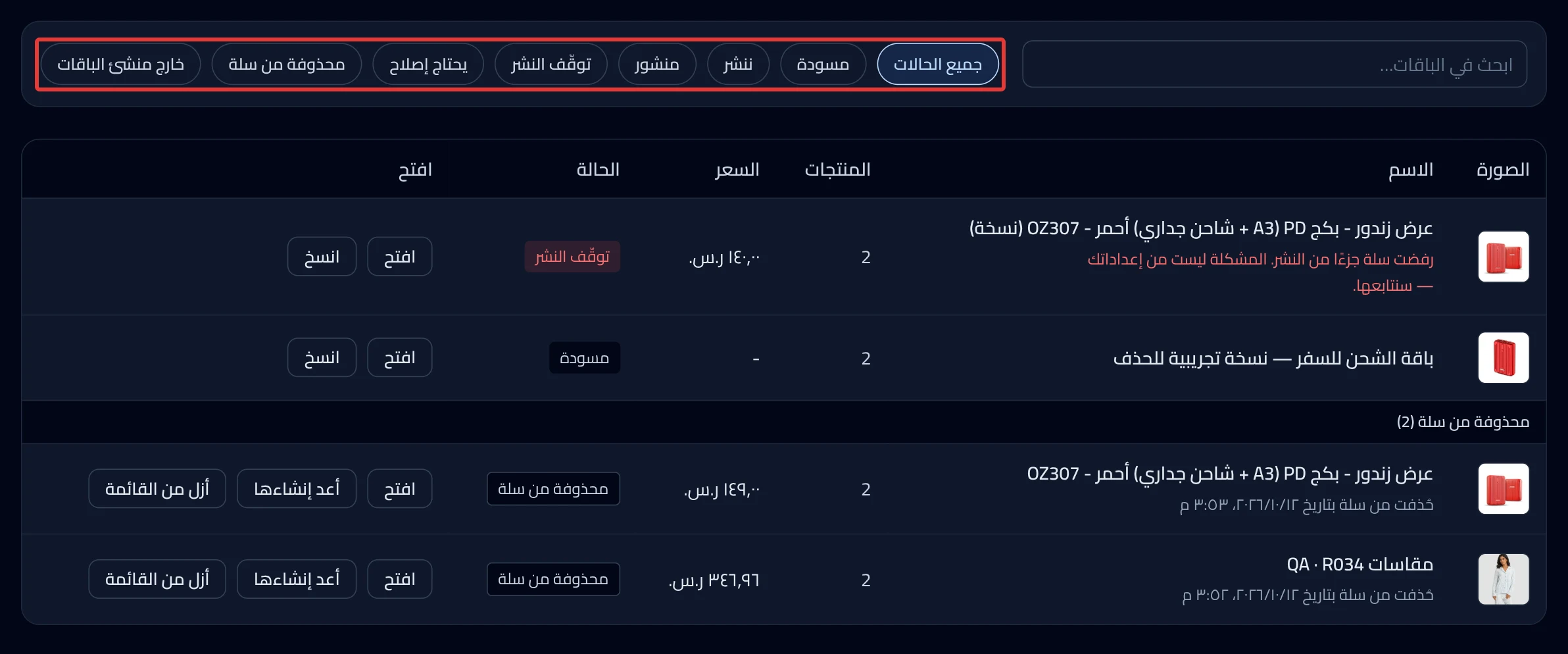
Bundle statuses
Above the table is All statuses, then a button for each status that shows only its bundles:
- Draft: saved, not published yet. A duplicate starts here.
- Publishing: publishing is in progress.
- Published: the bundle is on sale in your Salla store.
- Publishing stopped: publishing did not finish. Fix it with the Retry button on the bundle page.
- Needs repair: the bundle in Salla no longer matches its setup here.
- Deleted on Salla: explained in the next section.
- Outside Bundle Builder: a bundle you created directly in Salla. Open adds it here and opens its page.
You may also see "Checking status…" while we check with Salla. If "Status check unavailable" appears, click Retry status check.
Deleted on Salla
Bundles that were deleted in Salla itself, in a group at the bottom of the list. Under each one is "Deleted on Salla", with the date when there is one. Recreate publishes a new bundle with the same name to Salla right away, with no confirmation message. Remove from list hides it from this list only, with no confirmation message. It changes nothing in Salla.
New bundle
A button at the top of the page that opens the bundle creation steps. Or choose products on the Products page, then click Create a bundle from them.
Want the full steps? → Create a bundle of several products
Bundle creation steps
Five steps: Products, Options, Price, Name & images and Review & publish. You move between them with Next and Back. If no product has options, Options shows "Not needed". Nothing is saved before Publish in the last step. Publish creates the bundle in Salla right away.
The bundle page
It opens with the Open button. It has these cards, in order: Products & options, Price, Name & images and Preview. After them come the Status card, then Change history. In the first four cards, click Edit, then Save. Save updates the bundle in your store right away. A draft bundle opens on the creation steps instead of the cards.
Status buttons
The buttons on the Status card change with the bundle's status. These change the bundle in Salla right away: Repair now, Retry, Recreate the link, Delete and Recreate bundle. So does Repair & publish. Delete deletes the bundle from Salla; the products inside it stay. Duplicate and Remove from list change nothing in Salla. Above the buttons is the date of the last publish.
Want the full steps? → Edit, duplicate or delete a published bundle Publishing stopped? → Bundle not published or asks you to Repair & publish
Change history
A collapsed card: "Who changed this bundle and when…". Click Show history to open it. At the top is the last change made outside Product Studio, if there is one. Each line names its source, such as "Product Studio" or "Outside Product Studio". "Times are in Riyadh time." The history is read-only, and you cannot undo any change from it.
Did this article answer your question?