Customization experience settings in Product Studio
Path: Experience in the Studio sections menu. It shows for every product, bundles included. The Customization experience panel has two parts: All your products and This product. All the guides are in Every setting explained and what the words mean.
When your changes reach your store
Changes under All your products are saved in this product's draft. They reach all your products when you publish this product. Before you publish, you see "The customization widget’s look changes on all your products". The Settings page, on the other hand, saves the look for your store without publishing. See The Settings page in Product Studio. Changes under This product reach your store when you publish this product. The one exception is the Customization shows on the product page switch: it changes your store as soon as you confirm.
Widget look: current or new
This is the first setting in the All your products part. Under the part's heading: "How the widget appears on product pages. Applies to all products." It has two choices: the widget's current look, or a new look. With the new look, the options in the widget look different after you publish. Your colors and corners stay as they are. If you have custom CSS, a note with a link appears. The link opens the CSS box so you can check it.
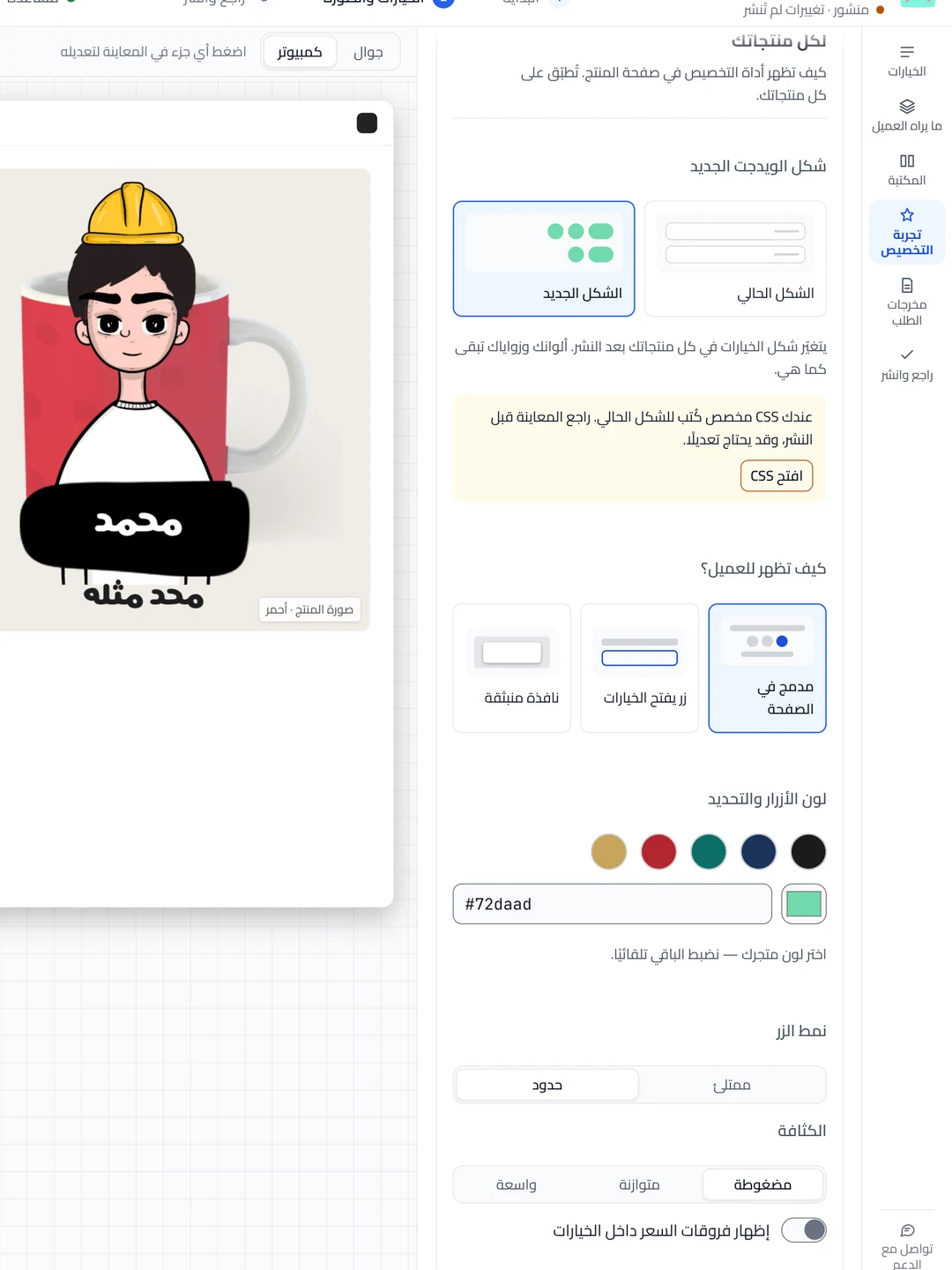
How does it appear?
The choices are Inline, Button opens options and Popup. The setting starts on Inline. For the difference between them, see Choose how the widget shows on the product page.
Button text
This box shows only with Button opens options or Popup. Enter the text for the button that opens the widget. The text is saved when you leave the box or press Enter. If you leave it empty, the previous text comes back. The text your store shows at the start is "Customize product".
Button & selection color
Choose one of five colors, or enter your own color in Other color.
Enter the full color code, such as #1b335a.
An incomplete code goes back to the saved color when you leave the box.
The steps are in Change how the widget looks on all your products.
Button style
The two choices are Filled and Outline. If you saved Soft on the Settings page, no choice is selected here.
Density
The choices are Compact, Balanced and Roomy. It sets the spacing inside the widget.
Show price differences inside choices
A switch that starts off. When it is on, each choice shows its price difference next to it.
More settings
This part is closed. Click its heading to open it. It has three colors: Background, Text and Borders. Enter the full code for each color. It also has a Corner radius slider from 0 to 24 that starts at 12. The slider goes up to 40 only if you saved a bigger number on the Settings page. At the end is another closed part: Custom CSS · Expert.
Custom CSS
This setting is only for people who know CSS. Under the box: "Developers only. Scoped to the widget." The limit is 4,000 characters. Anything over it is not saved. A line under the box warns you when you get close to the limit. If the code gets close to the limit, the part opens by itself. Typing in an empty box turns the CSS on, and emptying the box turns it off. When the box has code, a Use the custom CSS in the store switch appears. If you turn it off, the code stays saved, but your store does not use it.
Customization shows on the product page
This is the first setting in the This product part. Under it: "Customization hides from the product page; the product stays on sale". A confirmation window appears first. Once you confirm, your store changes right away, without publishing. The steps are in Pause customization on a product.
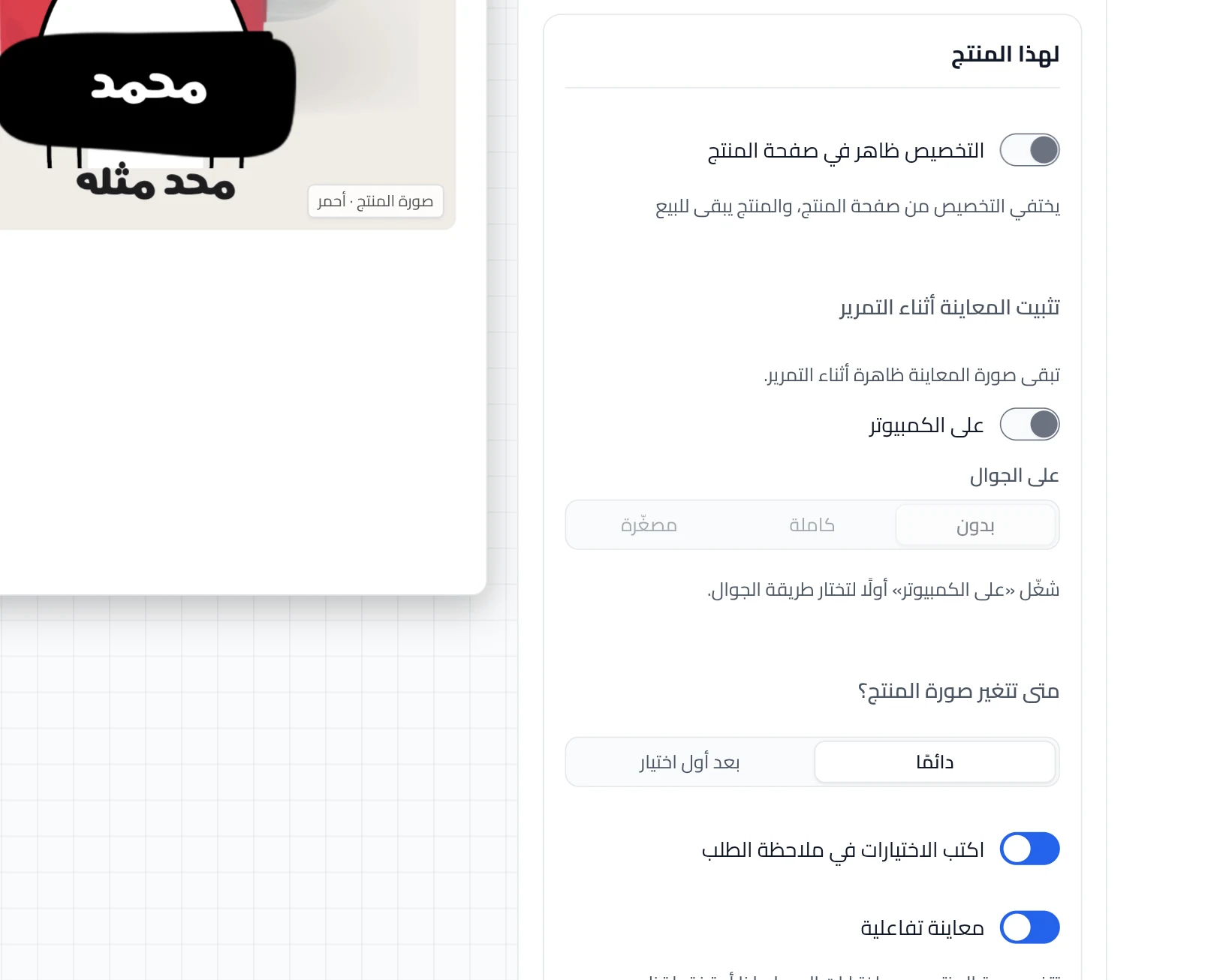
Keep the preview in view while scrolling
Under the heading: "The preview stays visible while scrolling." Turn on the On desktop switch first. Then, under On mobile, choose Off, Full or Compact. Until then, the mobile choices stay grayed out. On mobile means your customer's phone, not yours. When the sticky preview is on, a closed part appears: Pinned preview position. If you change a number in it, "· Custom" is added to its heading. Leave any box empty to use the suggested number shown in it.
| Box | Range | Suggested number |
|---|---|---|
| Distance from the top of the screen on desktop | 0 to 400 px | 88 |
| Distance from the top of the screen on mobile | 0 to 240 px | 12 with Full, 72 with Compact |
| Stacking order above page elements | 0 to 9999 | 30 |
The mobile box shows only if you did not choose Off. In Stacking order above page elements, a bigger number shows the preview above fixed menus and buttons. A number outside the range goes back to the nearest limit when you leave the box.
When does the product photo change?
The two choices are Always and After the first pick. The setting starts on Always. With After the first pick, the product photo stays as it is in your store. It changes when the customer makes their first choice.
Write choices in the order note
A switch that writes the customer's choices in the Salla order note. Turning the switch on does not change anything in Salla by itself. When you publish with the switch on, Product Studio turns on the order note field for this product in Salla. Not showing in the note? See Customer choices do not show in the order note.
Interactive preview
This switch is for regular products, not bundles. It starts on. When it is on, the product photo changes with the customer's choices. If you turn it off, your product photos show as they are in your store.
Interactive preview in a bundle
In a bundle, this section shows instead of the switch. It shows the preview style set on the bundle page. To change it, click Change it on the bundle page. The link takes you out of the Studio to the bundle page.
Did this article answer your question?