Create a bundle of several products
Put several products from your store together in one bundle with a special price.
We do not save anything until you click Publish. If you leave the page before that, your steps are lost.
Steps
Path: Bundles > New bundle
-
Click Bundles in the side menu, then New bundle.
Or choose two or more products on the Products page, then click Create a bundle from them. New bundle opens with those products in it.
-
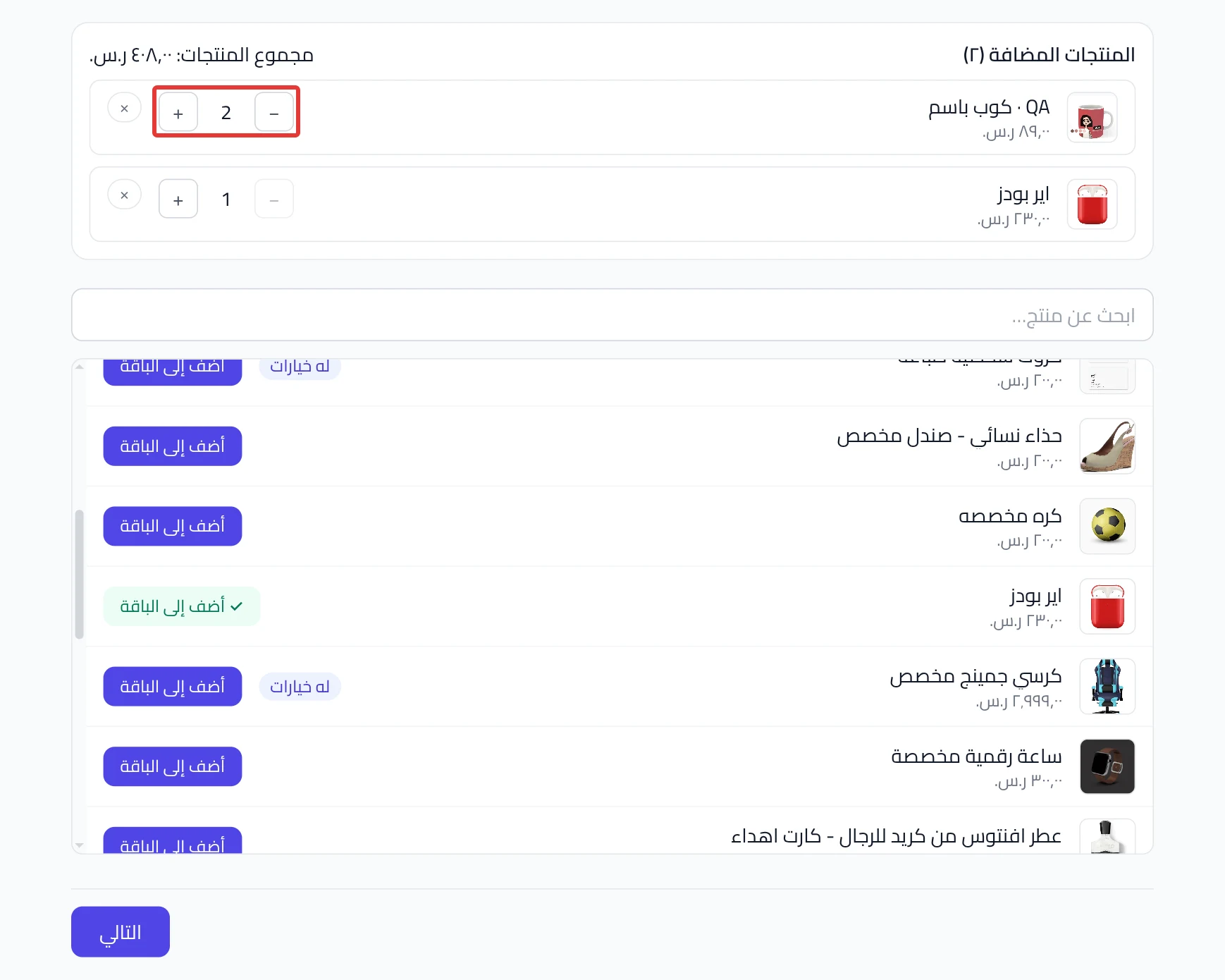
In the Products step, search for a product and click Add to bundle. Set the Quantity for each product, then click Next.
A bundle needs at least two products, or one product with a quantity of 2 or more.
-
In the Options step, choose Shopper picks or I decide for each option. Then click Next.
If none of the products has options, this step shows Not needed. In that case, Next takes you straight to Price.
-
In the Price step, enter the Bundle price, then click Next. If some products have options, you enter a Bundle discount as a percentage instead of a price.
-
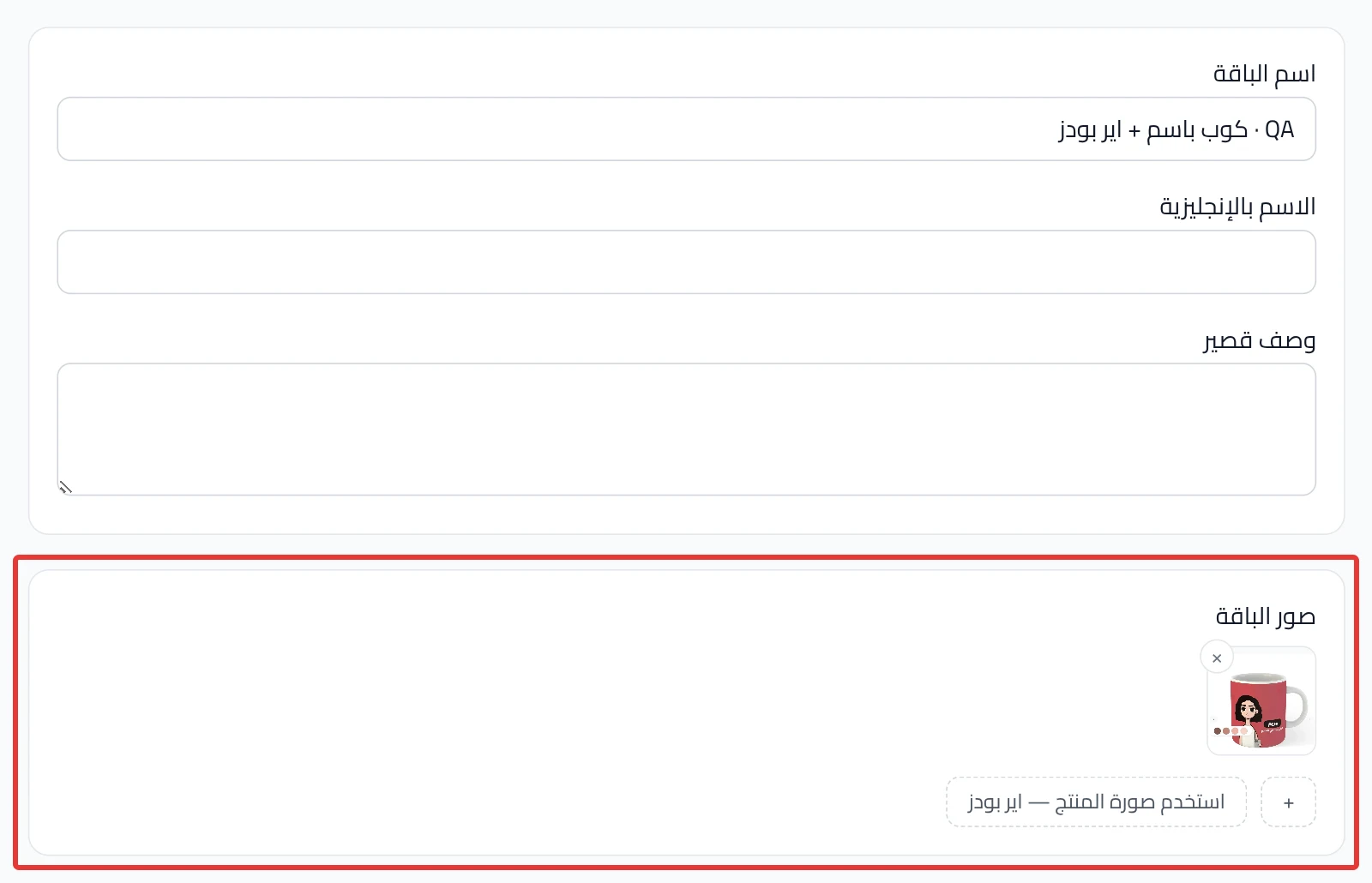
In the Name & images step, check the Bundle name. Add at least one image in Bundle images, then click Next.
To use the image of one of the products, click Use a product image.
-
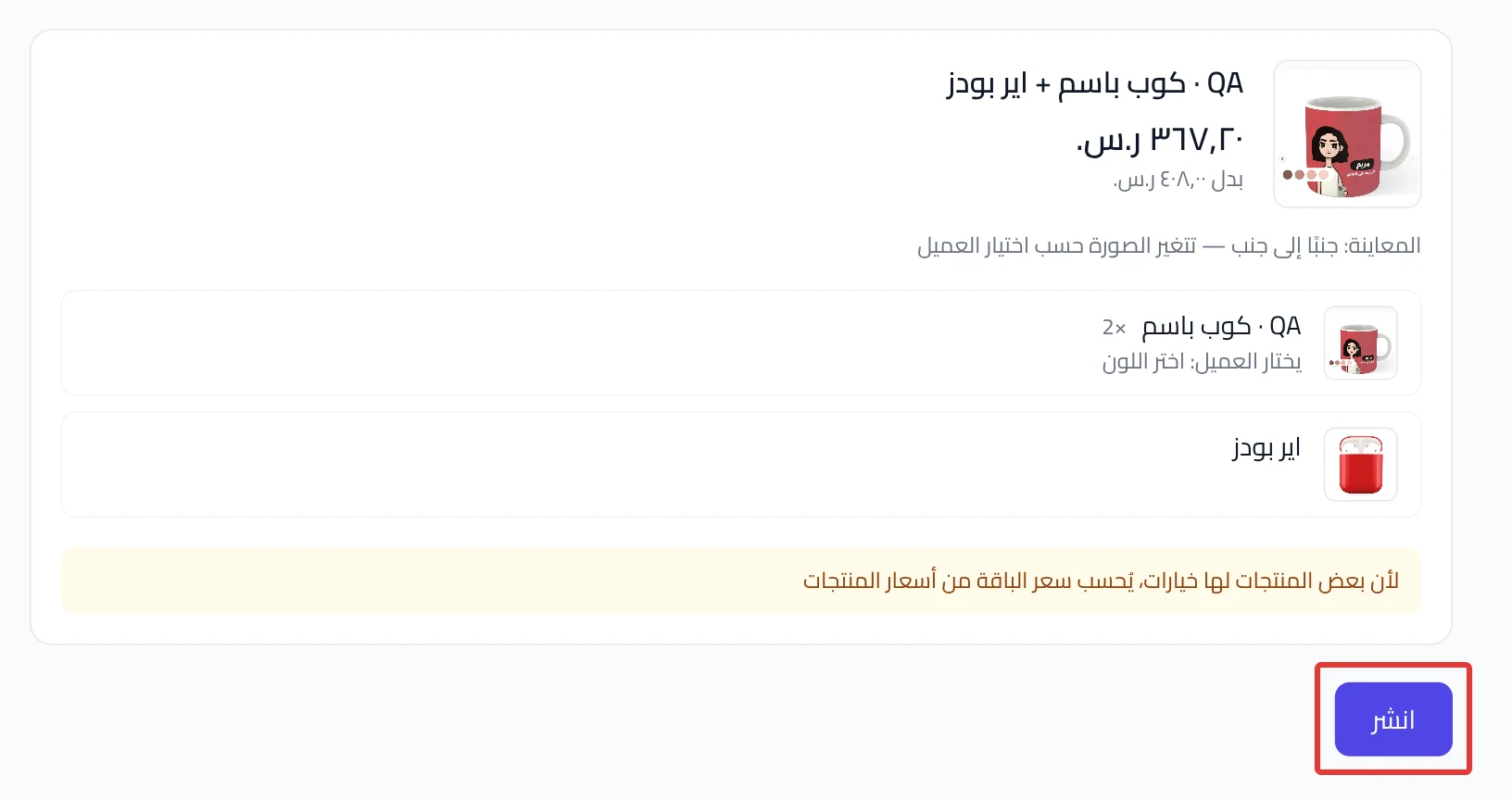
In the Review & publish step, check the bundle and click Publish. The bundle is created in your Salla store and goes on sale when publishing finishes.
Publishing usually takes 1 to 3 minutes. It keeps running even if you close the page.
What your customers see
The bundle goes on sale in your store as soon as it is published. The customer sees the bundle page with the products you put together. They make their own choice in each option you left to them.
Good to know
- You cannot add the same product twice. To add more than one piece of it, increase the Quantity.
- You cannot add a bundle inside a bundle.
- A product that is hidden in Salla does not show in the bundle and is not counted in its price. We warn you about it, but publishing does not stop.
Not showing?
- Does the Next button not work in the Name & images step? Check that the bundle has a name and at least one image. Wait until the images finish uploading.
- Is one of the products priced at 0? The bundle page may not open in the store. Give it a price in Salla, or remove it from the bundle.
- Did publishing stop, or does it ask for a repair? See the fix in Bundle not published or asks you to Repair & publish.
Next
Did this article answer your question?