Choose product options inside a bundle
For each option on the bundle's products, you decide who chooses: the customer or you.
Steps
Path: Bundles > New bundle > Options
-
Add the products in the Products step, then click Next. See Create a bundle of several products.
-
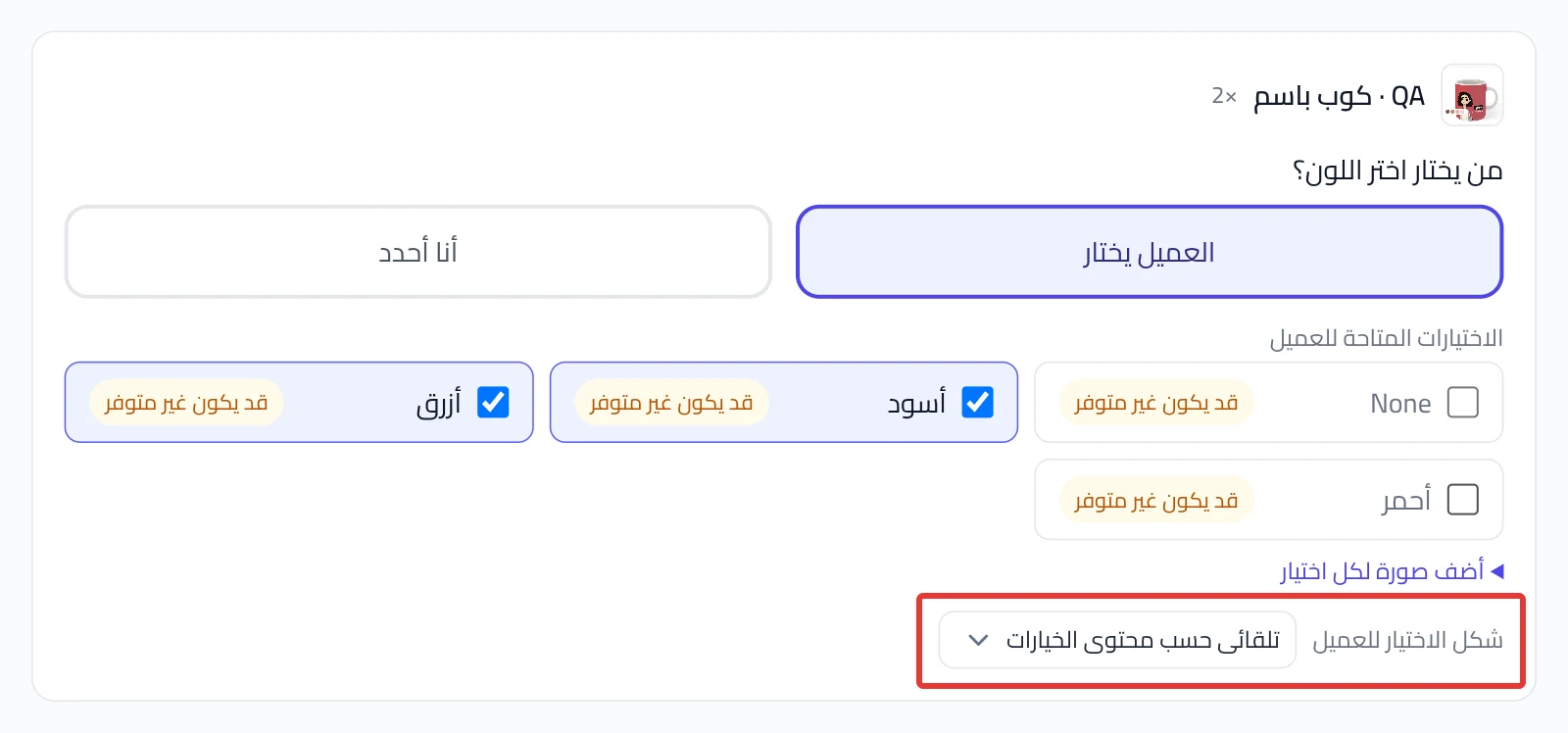
Under the "Who picks …?" question for each option, choose Shopper picks or I decide. Each option starts on Shopper picks.
-
With Shopper picks, check what the customer sees in Choices the shopper can pick from. At least one choice stays checked.
-
Optional: click Add an image for each choice, and upload an image for each checked choice.
-
Optional: choose from the How the shopper sees this option list, such as Dropdown or Text buttons. It starts on Automatic based on option content.
The list also has Image thumbnails, Color swatches and Text tabs.
- With I decide, click one choice under Pick a value. The customer does not see this option, and your choice shows in their order summary.
- Click Next to go to Price. We do not save anything until you click Publish in the last step. Publish creates the bundle in Salla right away.
What your customers see
On the bundle page, the customer sees every option you left to them, in the style you chose. With Automatic based on option content, image thumbnails show if the choices have images. Otherwise, text shows. The options you decided do not show to them.
Good to know
- You cannot put the same product twice in one bundle with two different colors. With a quantity of 2 or more, the customer picks one color for all the pieces.
- If any product has options, the bundle price is calculated as a discount on the product prices.
- In a published bundle, edit the choices or the style and click Save. The bundle page in your store updates right away. Changing who picks in any option rebuilds the bundle in Salla. Click Save again to confirm.
Not showing?
- Does the Options step say Not needed? The bundle's products have no options, and Next takes you to Price.
- Did This option no longer exists in Salla appear? The option was deleted from the product in Salla. Click Remove this option to continue.
- Does the Next button not work? Choose a value for each I decide option, and check a choice in each Shopper picks option.
- Cannot find the product when you search? See the fix in A product does not appear when you search in a bundle.
Next
Did this article answer your question?