Publishing blocked: customer image or move setup incomplete
Usually the crop shape is missing, or the spot on the photo does not suit moving. Open the option named on the card.
What you see
In Review & publish, under Fix before publishing, a card with the upload option's name. Publishing is blocked until you fix it. Its message looks like:
- "The crop for the customer image in “Your photo” has no shape ratio. Choose one."
- "Customers move their design in “Your photo”, but its spot on the photo is tilted or missing…"
- Or a message about the move sizes or the print file.
Most likely cause
A setting in the upload option does not work with cropping or moving.
Fix
First click Open option on the card. The option's name follows the button text.
1. The crop shape is not set
In Crop shape, choose Square, or Set size and then the size. Or open Advanced crop settings and choose No crop in Crop step. The explanation is in Set the crop shape and size of the customer's image.
2. The spot on the photo is tilted or missing
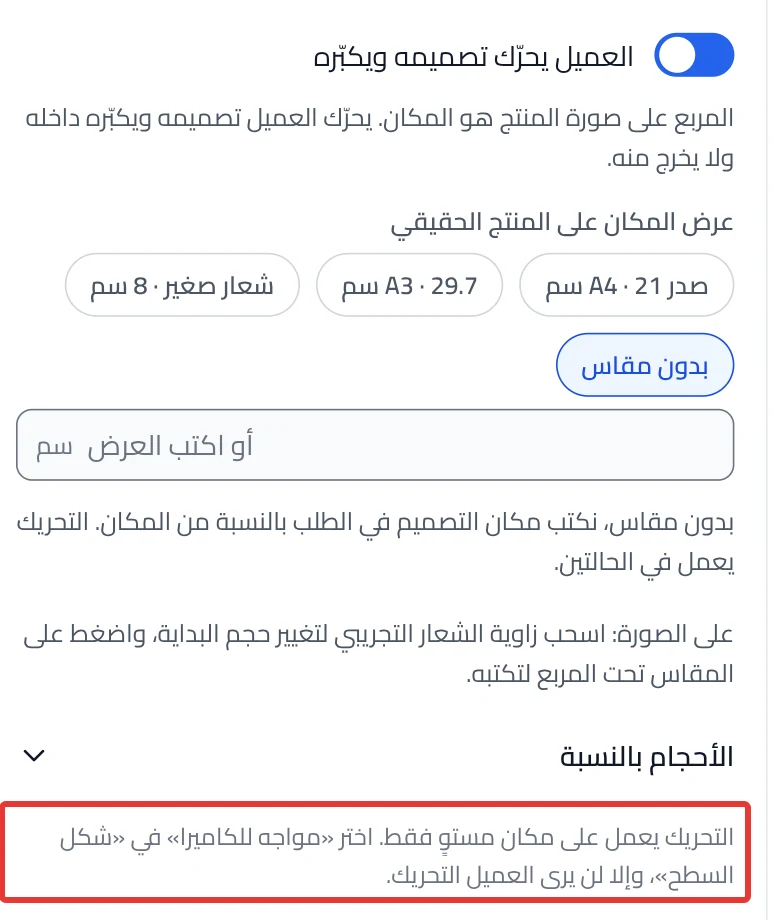
Read the line under The customer moves and resizes the design. It gives the exact reason. In Surface shape, choose Facing the camera. If the line says the spot is rotated, drag the spot on the photo once. If the line stays, contact support. No spot? Place the photo on the product first. The explanation is in Let customers move and resize their design.
3. The move sizes are out of order
Under Sizes in %, enter any size again: Start size, Smallest or Largest. We then put the three in order. The spot's width is not required, and moving works without it.
4. The print file puts the design in a fixed place
Turn off The customer moves and resizes the design, and the design goes back to its fixed place. You want moving and the print file together? Contact support.
5. An option that is not an upload option has an old move setting
This comes from an old setup, and no button in the Studio fixes it. Contact support.
After the fix, publish again. The steps are in Review your product and publish it to your store.
Still stuck?
Click Contact support in the Studio and send us:
- The product name and the option name.
- The card text as it shows in Review & publish.
- A screenshot of the card.
Did this article answer your question?