Add a rules link to your wheel on Shopify
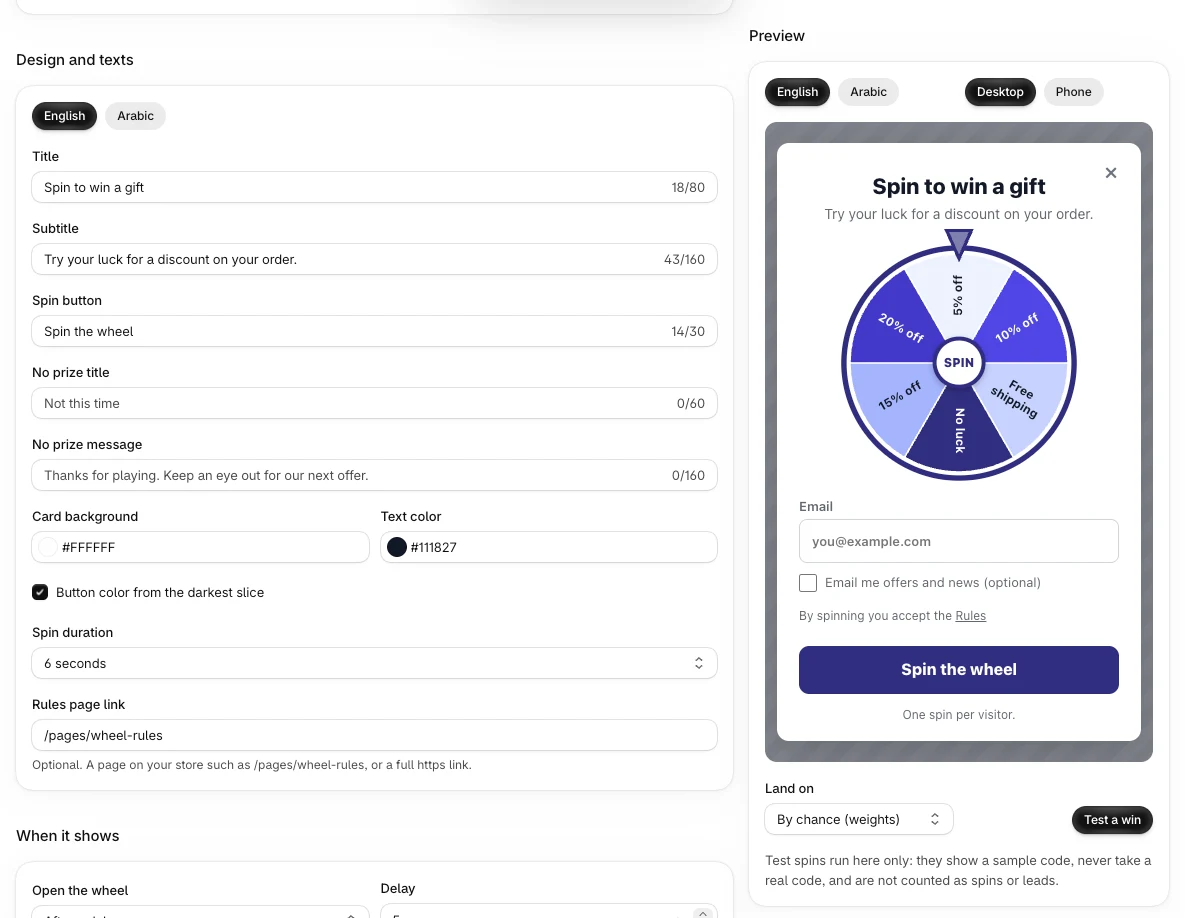
You can show a link to your own rules page under the wheel form. Shoppers see the line "By spinning you accept the Rules", and Rules opens your page in a new tab.
When to use this article
- You have a page with the rules or terms of your wheel and want shoppers to find it.
- You want to change or remove the link.
Before you start
- Create the page in your store first, for example in Online Store → Pages in your Shopify admin.
- You write the rules yourself. PopupSnap does not write or check them.
Add the link in the app
- In the app menu, click Wheel.
- Go to Design and texts.
- In Rules page link, enter a page on your store, such as
/pages/wheel-rules, or a full link that starts withhttps://. - Click Save in the save bar.
The link can be up to 500 characters.
Or add it in the theme editor
The Lucky Wheel app embed has its own setting, Rules or terms page.
- Open your theme editor and go to App embeds.
- Open Lucky Wheel.
- In Rules or terms page, pick a page or paste a link.
- Click Save in the theme editor.
If you fill in both, the theme editor link is the one shoppers see.
Hide the link
Leave both fields empty. With no link, the rules line does not show.
What the shopper sees
- English store: "By spinning you accept the Rules".
- Arabic store: the same line in Arabic.
The wheel uses the language of the store page the shopper is on.
Check that it works
- Open your store in a private window and open the wheel.
- Check that the rules line shows under the form.
- Click Rules and check that your page opens in a new tab.
Common errors
| Message or problem | What to do |
|---|---|
| Use a page path such as /pages/rules or a full https link. | Start the link with / for a page on your store, or with https://. |
| The old link still shows | Check the Rules or terms page setting in the theme editor. It wins over the app field. |
Related articles
Did this article answer your question?