Install Lucky Wheel on your Shopify store
Use this article to install Lucky Wheel on Shopify, show it on your storefront and publish your first wheel. It takes four parts: install, turn on the app embed, build the wheel, publish.
When to use this article
- You want to add Lucky Wheel to your Shopify store.
- You installed the app and the wheel does not show on your store yet.
Before you start
- A Shopify store with the Online Store sales channel.
- A Shopify account that is allowed to install apps.
Install the app
-
Open the PopupSnap Lucky Wheel page in the Shopify App Store.
-
Click Install.
-
Shopify shows the permissions the app asks for. Approve them to finish the install. The app asks for three:
- create and manage the discount codes the wheel gives out;
- save shoppers who enter an email or phone number as customers in your store. The app asks for this permission, but saving customers is off at launch (see Uninstall, your data and privacy requests on Shopify);
- let the wheel talk to the app through your own store address (
/apps/luckywheel). You do not need to change this address. If you rename the app proxy in Shopify later, see Fix a wheel that is not showing on Shopify.
The app does not ask for your orders, products or theme files.
-
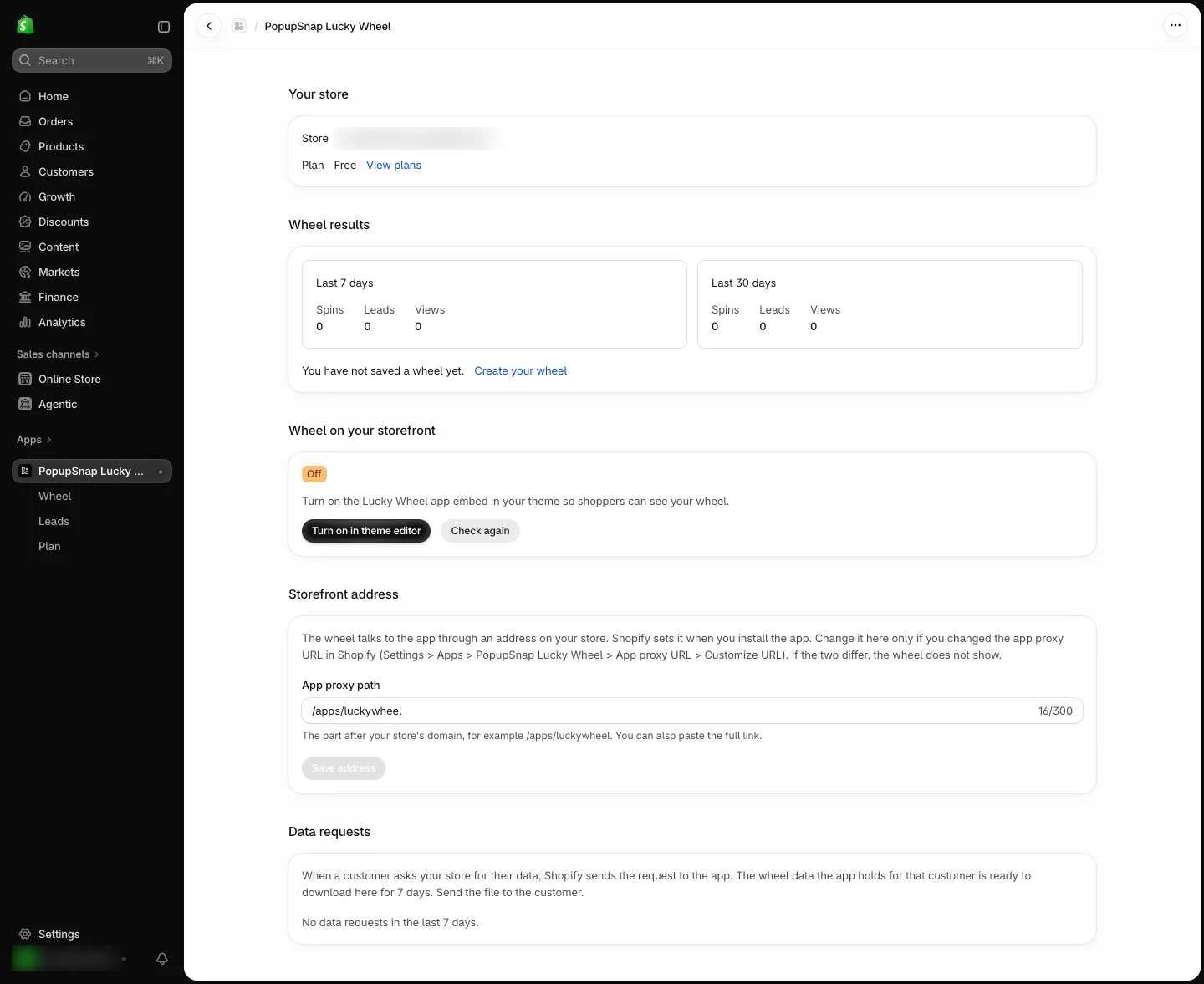
The app opens inside your Shopify admin, on its Home page. To open it later, go to Apps in your Shopify admin and click PopupSnap Lucky Wheel.
Turn on the app embed
The wheel reaches your storefront through an app embed in your theme. It stays hidden until you turn it on.
- On the app's Home page, find Wheel on your storefront.
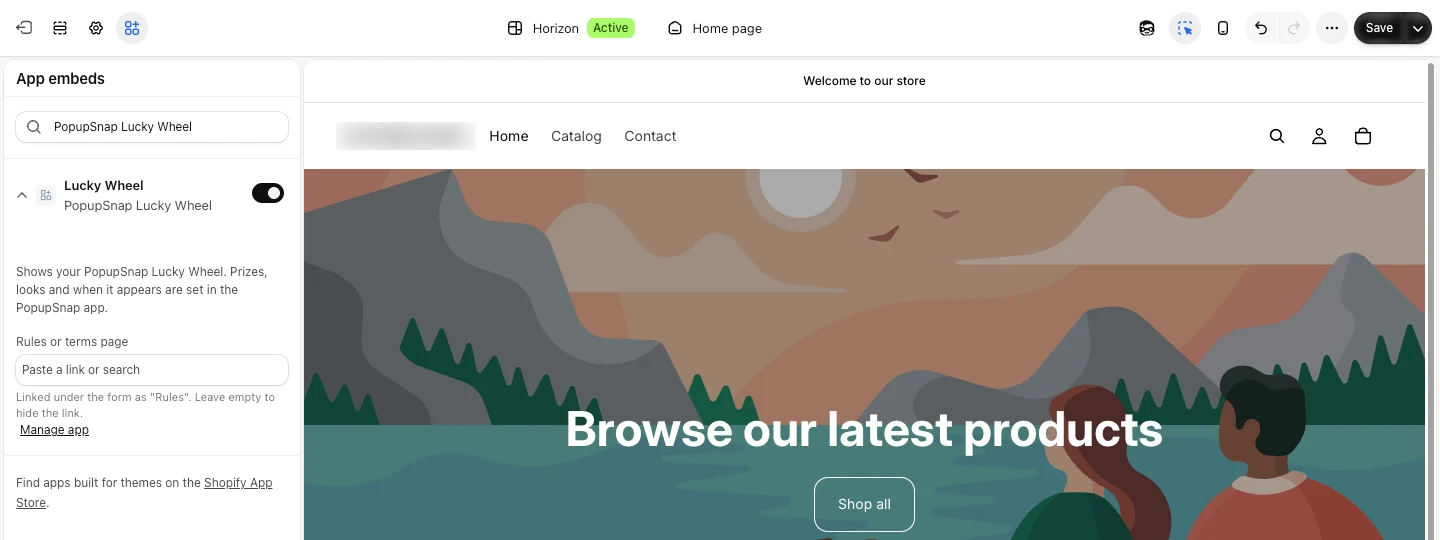
- Click Turn on in theme editor. Your theme editor opens in a new tab, on App embeds, with Lucky Wheel switched on.
- Check that Lucky Wheel is switched on, then click Save in the theme editor.
- Go back to the app and click Check again. The badge shows On.
If the badge shows Cannot check here, the app cannot read the setting. Open the theme editor and check Lucky Wheel under App embeds yourself.
Build your wheel
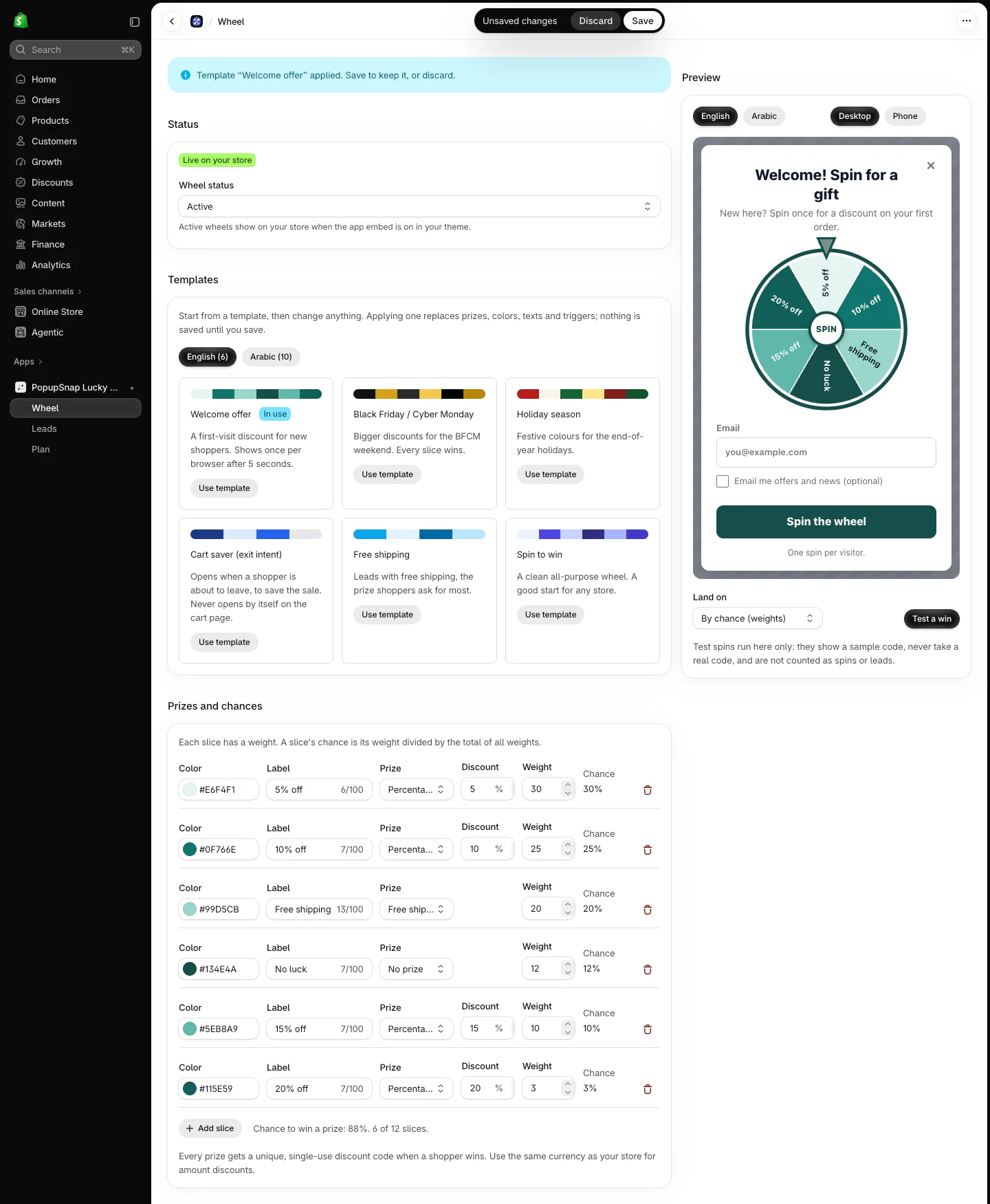
- In the app menu, click Wheel.
- Your first wheel opens as a Draft with four sample slices. To start from a design instead, pick one under Templates and click Use template. Templates come in English and Arabic.
- Set your prizes and their chances under Prizes and chances. See Set prizes and chances on Shopify.
- Choose whether to ask for an email, a phone number or both under Shopper details and consent. A shopper types a phone number with + and the country code, for example +44 7911 123456. The wheel checks the number against the country's numbering plan. A number that does not exist gets "This phone number does not exist. Check the country code and the number."
- Change the texts and colors under Design and texts, and choose when the wheel opens under When it shows.
- Use Preview on the right. Click Test a win to see what a winner sees. Test spins show a sample code and are not counted.
Publish the wheel
- Under Status, set Wheel status to Active.
- Click Save in the save bar at the top of the page. The save bar shows after your first change. A new wheel does not show Shopify's Unsaved changes bar before you change anything.
- The badge next to the status changes to Live on your store.
An active wheel shows on your store only while the app embed is on.
Check that it works
- On the app's Home page, Wheel on your storefront shows On.
- On the Wheel page, the badge shows Live on your store.
- Open your store in a private browser window. The wheel opens after the delay you set (3 seconds unless you changed it). A change can take up to a minute to reach your store.
See who entered your wheel
When shoppers start to spin, open Leads in the app menu to see the shoppers who left an email or phone number, search for one and export the list. See See and export your leads on Shopify.
Saving shoppers as customers in your Shopify store is off for now. It needs Shopify to approve customer-data access for the app, and we cannot promise a date. Until then, shoppers' details are on the Leads page and in the CSV export.
If something goes wrong
- "The wheel is not available yet" on the Wheel page: Lucky Wheel is not switched on for your store yet. Email [email protected].
- "Your session could not be confirmed": reload the app from Apps in your Shopify admin.
- The wheel does not show on your store: see Fix a wheel that is not showing on Shopify.
Related articles
Did this article answer your question?